
Lansweeper RPC Unavailable: How to Diagnose and Fix It
You're usually looking at a network-path failure, not a broken Lansweeper installation. When Lansweeper RPC unavailable appears, the quickest fix is to test the path in layers, name resolution first, then TCP 135, then the dynamic RPC port that Windows hands off next. Lansweeper states the error means the target computer did not respond to a WMI data request, and that an incorrect firewall configuration is a common cause (Lansweeper scanning troubleshoot guide).
What the Lansweeper RPC Unavailable Error Actually Means
The lansweeper rpc unavailable message is blunt, but it doesn't mean “RPC is dead” in the simple sense. It means Lansweeper didn't get the WMI data it expected from the target, and the most common break is somewhere in the path between the scanning server and the asset, not inside the console itself.
That matters because a machine can answer ping and still fail WMI scanning. You can waste a lot of time checking credentials, restarting services, or touching Lansweeper settings when the underlying issue is that the request never made it through the network path cleanly.
Think in layers, not in guesses
Start with three questions in order, and don't skip ahead:
Does the name resolve to the same asset you're scanning? If the hostname points somewhere else, every later test is noisy.
Can the scanning server reach TCP 135? That proves the RPC Endpoint Mapper is reachable, not the full WMI path.
Can the target accept the dynamic port Windows returns after that handshake? Many “RPC unavailable” errors occur here.
Practical rule: If ping works but WMI fails, treat it as a management-path problem until you prove otherwise.
The clean mental model is simple. RPC unavailable is usually a routing, firewall, or dynamic-port issue first, and only after that do you move into credential tuning, Lansweeper configuration, or agent choices. For a broader Lansweeper workflow context, the internal guide at Stackingo's Lansweeper overview fits well alongside this diagnostic approach.
The Three-Stage Connectivity Model Behind RPC Calls
Windows RPC is a staged connection, not a single port check. The client first reaches TCP 135, the Endpoint Mapper returns a dynamic port, and only then does the WMI session continue. Microsoft's troubleshooting guidance notes that failures often show up after port 135 is reachable, when the client cannot connect to the dynamically assigned port (Microsoft RPC errors troubleshooting).
That is why a green light on port 135 can mislead you. The front door is open, but the follow-on RPC path may still be blocked by a firewall, a middlebox, or a return-path issue.
What each stage really proves
Stage | Traffic | Verification Command | Pass Means | Fail Means |
|---|---|---|---|---|
Name resolution | Hostname to address lookup | Lansweeper test against IP, NetBIOS name, and FQDN | You're targeting the intended asset | You may be scanning the wrong host |
Endpoint Mapper | TCP 135 | RPC's front door is reachable | The initial RPC handshake is blocked | |
Dynamic RPC port | WMI/DCOM follow-on traffic | on the target, plus packet tracing | The returned port can complete the session | 135 is open, but the follow-on RPC path is blocked |
On current Windows defaults, the dynamic TCP range is normally 49152 to 65535, but administrators should verify the target with because hardened images and firewall rules often change it (Microsoft WMI connectivity guidance).
Check 135 first, but never stop there. The break often happens at the handoff.
The useful distinction is stage, not guesswork. If 135 fails, the problem sits in basic reachability or firewall policy. If 135 passes and the next step fails, the issue is in dynamic-port access or a middlebox on the path. That split saves time because it tells you whether to stay on the network path or move on to Lansweeper settings and credentials.
Running Lansweeper Testconnection and Reading the Results
Run Lansweeper's testconnection.exe from the actual scanning server, not from your admin workstation. That mistake is common, and it leads to the wrong diagnosis because the workstation's route, DNS view, and firewall policy can differ from the scanner's.
Test the target in all three name forms Lansweeper cares about, the IP address, NetBIOS name, and, for domain systems, the FQDN. The point is to confirm that the scanner reaches the same host through each identity and that the transport results are consistent.
The fastest way to read the output is to separate the transport result from the WMI result. If the TCP port check passes but the WMI block fails, you're no longer looking at a simple “can the server see it” problem.
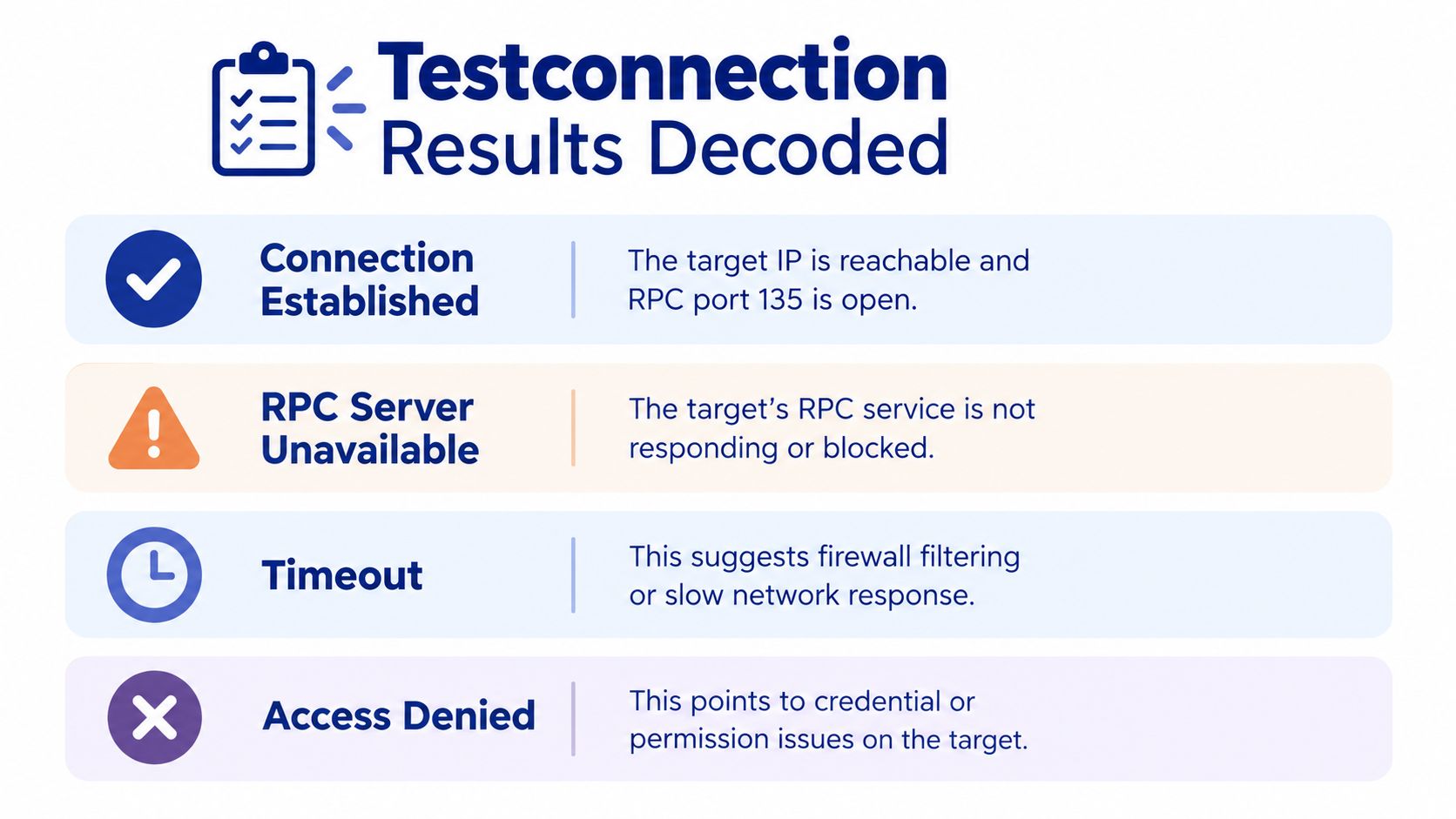
Read the result lines in the right order
Connection established: The target IP is reachable and the RPC front door is open. That's a useful signal, but it doesn't prove WMI can finish.
RPC server unavailable: The target didn't answer the WMI request, which usually means the issue sits in firewalling or the RPC path.
Timeout: The scanner waited too long for a response, which often points to filtering or a slow network path.
Access denied: The path may be open, but the credential or permission level doesn't allow the WMI query to complete.
Use the built-in diagnostic from the scanning server before you touch credentials. The internal walkthrough at Stackingo's Lansweeper PowerShell guide is a useful companion if you want to script repeated checks instead of running one-off tests by hand.
Capture three things before changing anything: the exact name form that failed, the TCP port result, and the WMI result. That record makes it obvious whether you're facing name resolution trouble, RPC transport trouble, or permissions trouble.
Firewall and Dynamic Port Failures That Mimic Service Problems
A blocked dynamic port can look exactly like a stopped service. The target may answer ping, TCP 135 may respond, and Lansweeper still returns RPC unavailable because the session never makes it past the follow-on port.
That mimicry is why I check firewall behavior before I waste time on service restarts. A service can be running and still fail from the scanner's point of view if the dynamic RPC port is filtered after the initial contact. Microsoft's guidance on configuring RPC dynamic port allocation over firewalls is the cleaner reference here, because the failure usually sits in the path, not in the service state.
A blocked port and a dead service produce the same error text, so the service status is the last thing to check, not the first.
Common blockers that create the same symptom
Third-party firewalls: Security suites can allow 135 while dropping the returned dynamic port.
Windows Filtering Platform rules: Host rules can block WMI traffic even when the base host is reachable.
NIC or teaming filters: Extra network layers can interfere with the handoff.
Segmented VLANs: Routing may work one way but fail on return.
Asymmetric paths: The request and the reply take different routes, and one side gets filtered.
The quickest way to separate a port problem from a service problem is to inspect the active dynamic range on the target. Use before you assume the default settings apply. Hardened systems often use a different range, and that is one reason a scan that looks healthy at the front door still breaks later. Stackingo's Lansweeper IP scanner guide is useful here because the same network controls affect discovery across subnets.
Failure type | What you see | What to inspect |
|---|---|---|
Pre-mapper failure | 135 doesn't answer | Firewall policy, routing, basic reachability |
Post-handoff failure | 135 answers, WMI still fails | Dynamic-port range, middleboxes, return path |
Service-like symptom | Same error text, different root cause | Logs, packet capture, firewall trace |
A short packet capture usually settles the argument. If the request reaches 135 but the returned dynamic-port session never completes, the fix is policy or pathing, not a Lansweeper reinstall.
Checking Lansweeper Credentials and Scanning Targets
Credential work comes after the path tests. If the scanner never gets through RPC, swapping accounts only hides the failure and sends you down the wrong branch.
Start by matching the credential type to the target you are scanning. A domain account fits domain-joined assets, while local credentials may still be needed for isolated machines or locked-down segments. The name in Lansweeper should match the identity you already validated, so you are not testing one account and scanning with another.
A quick way to separate the choices is by scan method:
Agentless scanning server credentials: Use these when the scanning server is expected to talk to WMI directly.
LsAgent: Use this when direct RPC paths are unstable or blocked, because the agent scans locally.
LsPush: Use this when the target can send scan data back instead of being polled.
If you need a broader identity context while checking target naming and domain membership, Stackingo's Active Directory guide is a useful companion.
Do not adjust credentials until name resolution, TCP 135, and the dynamic port have all passed.
That rule avoids wasted time. If the network path is broken, changing groups, remapping asset records, or rotating passwords only creates a cleaner-looking failure. If the path is healthy and the scan still returns access denied, the credential or permission model is the right place to look. If the path is unhealthy, credentials are just noise.
Mining Lansweeper Logs and Built-In Troubleshooters
A stubborn RPC error usually leaves a trail if you check the right layer first. Start with the scanning server logs, then open the web-console troubleshooter, and only then move to Windows Event Viewer for WMI and DCOM entries that match the failed scan window.
The point is to line up timestamps, not collect noise. One error tied to the scan time is more useful than a long list of unrelated warnings.
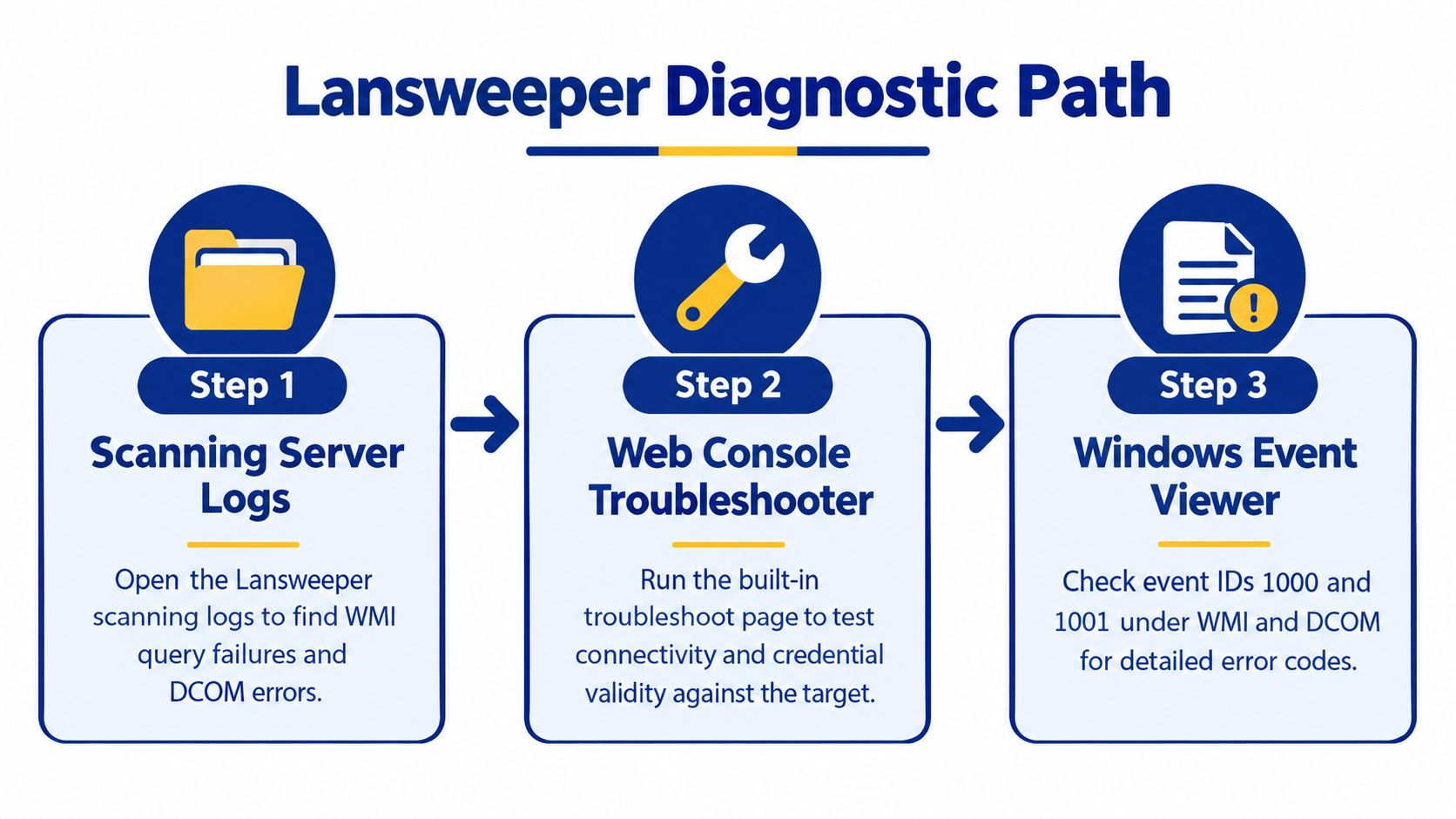
How to read the evidence
Scanning server logs: Look for WMI query failures and DCOM errors tied to the asset that failed.
Web console troubleshooter: Compare the scanner's view of connectivity with the credential path configured on the asset.
Windows Event Viewer: Check WMI and DCOM events around the failure time to separate transport problems from permission issues.
A timeout usually means the packet never made it through the path. Access denied points more toward credentials, permissions, or DCOM settings. That split matters because it tells you what to touch next.
Use the logs to answer one narrow question: did the failure happen before the Endpoint Mapper handed off the dynamic port, or after? If it failed before that handoff, stay on network reachability and filtering. If it failed after, focus on port policy, middleboxes, or host filtering.
Stackingo's syslog guide is a useful adjacent reference if you are matching scan failures with broader infrastructure events.
Fallback Paths and How to Prevent the Error Returning
If direct RPC scanning keeps failing, move to a fallback instead of spending cycles on the same blocked path. LsAgent is the cleaner option when inbound RPC and WMI keep getting stopped, because it removes most of the dependency on direct network reachability. In locked-down environments, that often becomes the more stable operating model.
A specified RPC port is the next control to consider when you want tighter firewall rules without opening the full dynamic range. Microsoft documents this approach for environments that need fixed port handling with firewalls, and it fits teams that prefer a narrow, documented exception list over broad exposure.
Prevention habits that actually stick
Schedule testconnection runs: Use the scanning server as your baseline so drift shows up before a full scan fails.
Watch the active dynamic range: Recheck the target's Windows dynamic ports after hardening work or firewall changes.
Review scanning credentials regularly: Stale permissions often produce failures that look like transport trouble.
Document firewall exceptions: Tie each rule to the scan method it supports, and avoid generic openings.
The long-term answer is a least-privilege setup that matches the scan method. If direct WMI is required, open only the ports that path needs and verify it with the same tools every time. If some assets can move to an agent-based path, there are fewer points where a change window can break discovery.
Stackingo also helps enterprise teams source Lansweeper licenses through a structured procurement motion, which matters when you are standardizing asset coverage across multiple environments. If you want to tighten the scan path, reduce false RPC failures, and keep inventory reliable, visit Stackingo to discuss licensing needs and match the deployment model to your environment.


