
Lansweeper Active Directory Setup for IT Inventory
Updated: Oct 10
A Microsoft 365 audit notice can turn an old spreadsheet into an operational liability overnight. Finance needs user and license counts reconciled, security needs departed identities removed from connected systems, and IT needs evidence that the directory inventory is complete. Lansweeper Active Directory scanning gives you a practical way to connect directory objects, Windows computers, users, groups, and activity data in one inventory workflow, provided you configure scope, credentials, and protocol security deliberately.
The product has been developed since 2004, and current Lansweeper materials continue to document AD user, computer, logon, and reporting capabilities. Independent product-history coverage supports that long development history, while Lansweeper's Active Directory Scanner documentation describes the attributes and event-log data available through Windows scanning. The important question isn't whether Lansweeper can scan AD. It's whether your configuration produces evidence you can trust during license reconciliation, access review, migration, and deprovisioning work.
Why Lansweeper Active Directory Setup Matters Now
A retired laptop can leave behind an active-looking computer object, while a disabled contractor account may still exist in connected applications. During an audit or migration, those mismatches turn directory state into an operational risk. Lansweeper Active Directory scanning connects Windows computers, users, groups, and directory properties in one inventory workflow, but the result depends on deliberate scope, credentials, and protocol choices. See the Lansweeper deployment and licensing guidance for wider inventory context.
AD-derived inventory provides a structured record of access-related objects and their placement. Lansweeper can collect properties including OU, company, description, location, and account state, while Windows computer scans also include event logs. That combination helps analysts compare identity records with endpoint activity instead of relying on separate spreadsheets.
Your AD configuration determines whether Lansweeper produces evidence you can trust during license reconciliation, access review, migration, and deprovisioning. An enabled user may still hold software access, a retired computer object may remain in scope, and a disabled account may need to stay visible until downstream cleanup is verified. Scanning supports those checks. It does not decide which records are safe to remove.
Operational rule: Treat directory scanning as an evidence pipeline, not a checkbox in the Lansweeper setup wizard.
Built-in AD reports cover recently created users, users and their groups, users without an email address, and enabled or disabled user audits. These views support administrative review and expose identity drift, especially when disabled-user handling is part of a deprovisioning process.
The setup decisions have direct audit consequences:
Discovery scope: Choose broad domain discovery or defined OU and group paths based on the records you must reconcile.
Credential design: Map a read-only domain credential to the objects included in that scope.
Protocol choice: Use encrypted LDAPS after certificates and connectivity are validated.
Completeness controls: Keep disabled users visible when audit evidence or downstream removal checks require them.
Prerequisites, Permissions, and Service Account Setup
Before creating a target, verify that the Lansweeper scanning server resolves the AD domain and can reach the domain controllers over the directory protocol you plan to use. Lansweeper requires a domain credential with at least read-only Active Directory access for user scanning, as described in its documentation for scanning AD users. Broad computer discovery also requires administrative access on client machines where that access is needed, while read-only AD permissions provide directory information.
Use a dedicated service account with only the rights required for scanning. Record the OUs covered by delegated read permissions, including nested structures. Lansweeper does not need permission to edit directory attributes for inventory collection.
Validate the account before creating targets
Run this preflight checklist:
Name resolution: Confirm that the scanning server resolves the AD domain and each domain controller intended to answer requests.
Protocol reachability: Test the selected LDAP or LDAPS connection from the scanning server, rather than an administrator workstation.
Read scope: Confirm that the account reads users, groups, and computer objects throughout every OU included in the planned target.
Credential mapping: Record whether the credential is global or mapped to a specific NetBIOS domain name.
Rotation ownership: Assign responsibility for password rotation and for updating Lansweeper after a credential change.
Delegated access that stops at a parent OU or excludes a nested structure returns incomplete results even when the credential authenticates successfully. That gap can leave disabled users, groups, or computer objects out of inventory, weakening license reconciliation and deprovisioning checks. Compare returned objects with an expected inventory so a partial scan does not pass as complete.
Keep directory permissions separate from endpoint connectivity troubleshooting. RPC issues affect Windows computer discovery, while LDAP or LDAPS permissions can produce failed or incomplete directory results. Use this RPC troubleshooting guide for Lansweeper for endpoint symptoms, then test both paths independently. For audit coverage, retain disabled-user records until downstream access removal and cleanup have been verified.
Adding AD Domain and User or Group Path Targets
Lansweeper exposes two different AD scanning target patterns because broad computer discovery and selective user or group discovery aren't the same job. In the console, go to Scanning > Scanning Targets, then create the target that matches the inventory question you're trying to answer.
The Active Directory Domain target is agentless and fully automated for Windows computers in an AD domain. It requires both the domain's DNS name and its NetBIOS name, and it can be scoped to a domain or restricted through sites or OUs. Follow the official Active Directory Domain scanning workflow when creating it.
The Active Directory User/Group Path target is separate. It scans users and groups at a specified path, rather than computer objects. Lansweeper's community guidance makes this distinction explicit: a User/Group Path target won't replace an AD Domain target when your objective includes computer inventory. If you need both, create both.
A reliable first-scan sequence
Add the domain target: Enter the fully qualified DNS name and the NetBIOS name, then map the intended scanning credential.
Add the user or group path: Use the LDAP distinguished name for the OU, nested OU tree, or group path that should be included.
Run a controlled scan: Use Scan now rather than waiting for the schedule during initial validation.
Compare expected objects: Check whether the returned users, groups, and computers match the selected scope.
Review exclusions: Confirm that disabled users, nested OUs, and objects outside the target behave as intended.
The target distinction is easy to miss and causes a common false diagnosis. Administrators often see computers but not users, or users but no computer objects, then re-enter credentials repeatedly. The more useful question is whether the correct target type exists for each object class.
Use Lansweeper CMDB integration guidance when you plan to publish the resulting relationships into broader configuration management workflows. First prove the AD scan is complete, then extend the data outward.
Choosing LDAP or LDAPS for Secure Directory Access
LDAP and LDAPS both support Lansweeper Active Directory scanning, but the security and troubleshooting trade-offs differ. Lansweeper documents port 389 for LDAP and port 636 for LDAPS, with LDAPS providing an encrypted connection. In Lansweeper Classic, protocol settings can be selected for each domain and scan server in the LDAP(S) configuration area.
Lansweeper attempts protocols and ports in sequence until one succeeds. When LDAPS fails, fallback to LDAP creates an unencrypted connection that violates security requirements. Treat fallback behavior as a configuration decision requiring explicit validation, particularly when scan results support license reconciliation or user deprovisioning.
Attribute | LDAP (389) | StartTLS (389) | LDAPS (636) |
|---|---|---|---|
Transport model | Directory connection without the same encryption model as LDAPS | Begins on LDAP and upgrades the session | Encrypted connection established through TLS |
Certificate dependency | Not used for the basic connection | Required for the TLS upgrade | Required on the domain controller and trusted by the scan server |
Main operational concern | Traffic exposure if encryption isn't separately enforced | Upgrade negotiation and certificate validation | Certificate chain, name coverage, expiry, and trust |
Lansweeper decision | Useful for controlled troubleshooting | Validate whether your environment and client path support it | Preferred option when correctly configured |
Before selecting LDAPS, verify that domain controllers present certificates with correct subject alternative name coverage, a trusted issuing chain, and current validity. From the scanning server, use or PowerShell to test the actual certificate and bind path. A certificate trusted by a browser or another management tool may still fail under the Lansweeper service context.
Certificate failures can produce an apparently successful scan with incomplete directory coverage if fallback remains available. Validate returned users, groups, and disabled identities against the intended scope before using the inventory for access reviews or offboarding.
Lansweeper's LDAPS configuration documentation explains domain-specific settings and fallback behavior. The related Lansweeper guidance on using LDAPS highlights certificate requirements on the domain and scan server. In multi-domain forests, test child-domain controllers individually because certificate deployment and advertised endpoints may differ.
Scoping OUs, Scheduling Scans, and Mapping Credentials
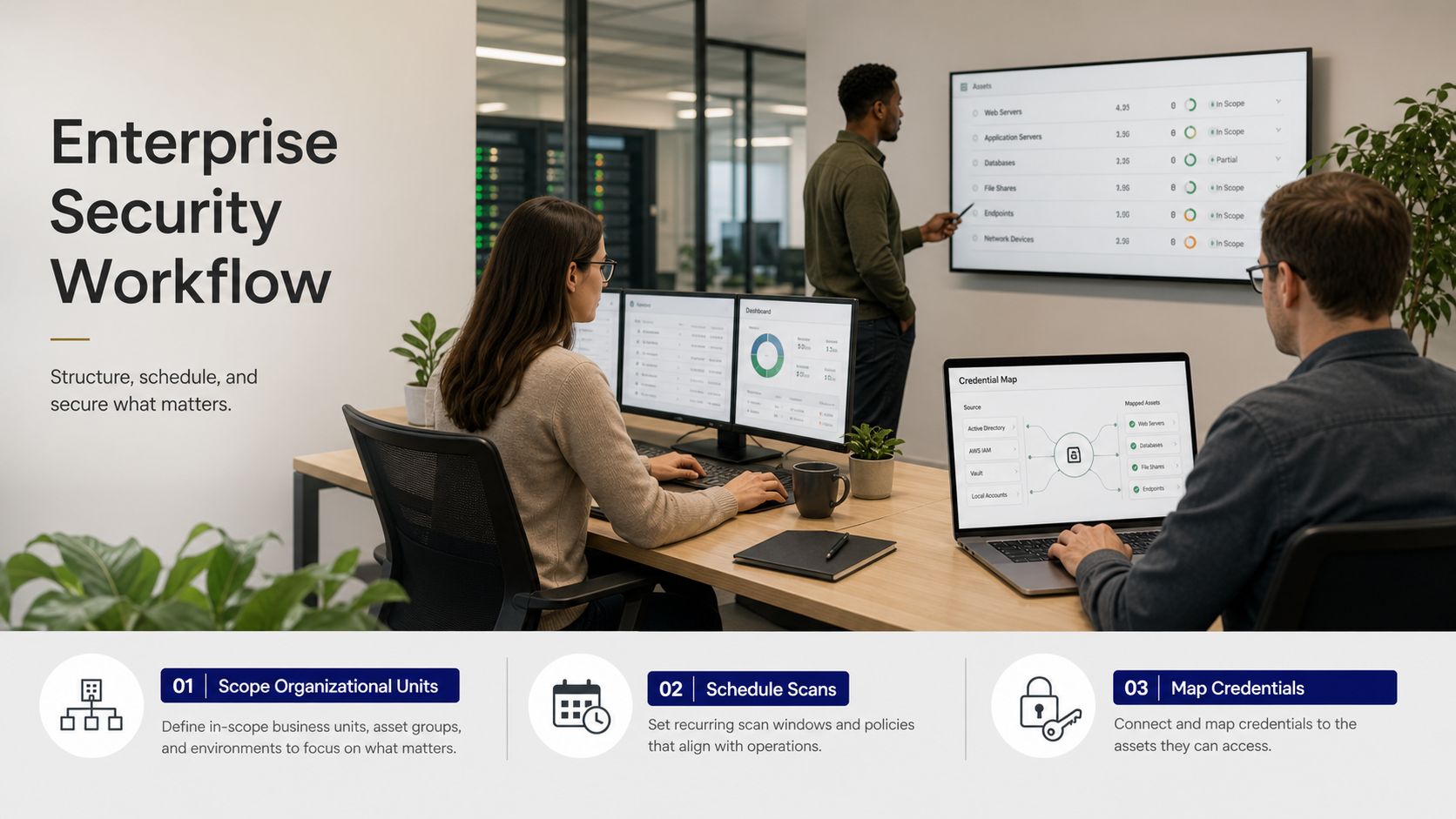
A domain-wide scan is a reasonable discovery baseline, but it isn't always the right long-term operating scope. Large or mixed environments often need separate targets for production computers, user OUs, staging objects, and carefully controlled administrative or service-account paths.
Start in Scanning > Scanning Targets and use the target's path and site controls to reduce unnecessary discovery. The key question isn't how much Lansweeper can scan. It's which objects your reports and downstream workflows must see.
Design scope around decisions
User lifecycle scope: Include the OUs that contain active staff, contractors, and identities subject to offboarding review.
Computer scope: Include computer OUs and AD sites that represent managed Windows endpoints.
Service-account treatment: Keep non-human identities visible when they affect entitlement or access review, but label or filter them rather than allowing them to distort user reports.
Nested OU behavior: Confirm that your selected path includes the intended child structure. A narrowly scoped path can omit relocated objects.
Credential boundaries: Map a credential to each target where practical, so the permission boundary matches the inventory boundary.
Schedule scans according to the decision they support. A periodic inventory refresh may be sufficient for general reporting, while a deprovisioning workflow needs more deliberate freshness and escalation when a departure occurs. Avoid placing heavy discovery activity during periods when domain controllers and endpoints already carry peak authentication or logon demand.
Credential mapping deserves its own review. A global credential is convenient, but a target-specific mapping makes ownership and scope clearer. If a scan returns fewer objects after an OU move, check the delegated read boundary before changing the schedule or rebuilding the target.
For related network discovery planning, use Lansweeper IP scanning guidance. IP discovery and AD discovery answer different questions, and combining them without defining ownership can create duplicate or conflicting asset records.
Governance Edge Cases, Troubleshooting, and Security Hardening
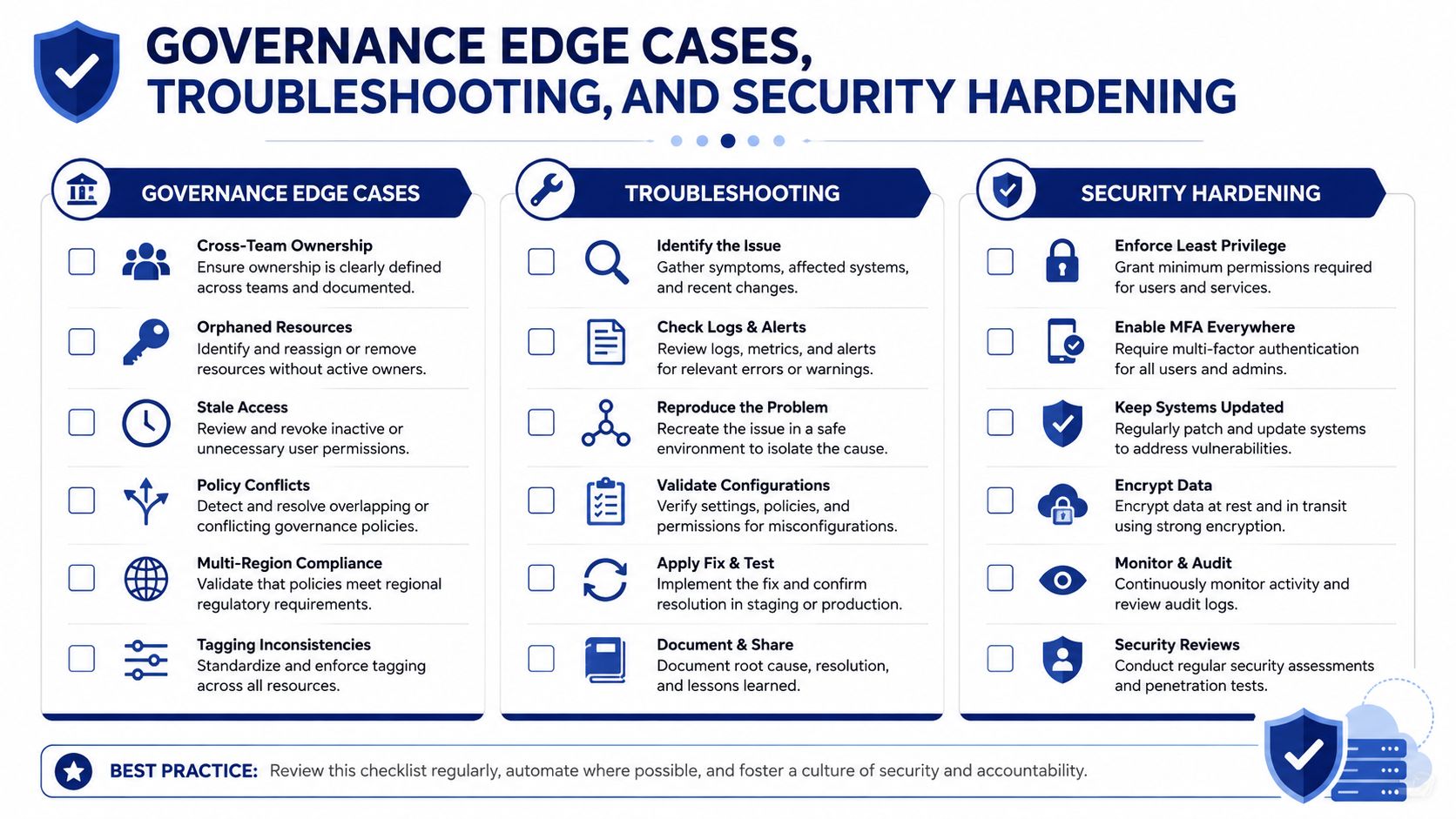
A green scan result can still leave gaps in the inventory. Lansweeper may exclude disabled Active Directory users unless the server option to include them is enabled. Decide whether inactive identities must remain visible for deprovisioning, access reviews, migration reconciliation, or audit evidence.
Disabled accounts may no longer affect current licensing, but they can retain group membership or explain a historical access decision. Filtering them reduces report noise while removing context reviewers may later need.
Diagnose absence before changing configuration
When expected objects are missing, check the directory path before changing scan settings:
DNS failure: Confirm that the scanning server resolves the domain and selected controllers.
Credential boundary: Verify that the account can read the affected OU. A valid password does not guarantee delegated access.
Replication timing: Compare the selected controller with another controller when recent changes are not visible.
Target mismatch: Use a User/Group Path target for users and groups, and an AD Domain target for computer discovery.
Disabled-user setting: Confirm whether inactive identities are excluded by design.
Protocol trust: Check the certificate chain, hostname coverage, and trust path when LDAPS connections fail.
Audit rule: Log the reason each object is absent so reviewers can distinguish between missed scans and intentional exclusions.
Security hardening must fit the operating model. Grant only the read permissions the scan requires, protect the Lansweeper service credential, and document its rotation process. Test LDAPS from the actual scan server, then confirm that certificate validation succeeds under the Lansweeper service context. A configuration that works in an administrator session may still fail for the service account.
Controlled reconciliation can use Lansweeper's database structure. Scanned AD data is stored in tblADComputers, tblADusers, and tblAdProperty, supporting reports and drift checks against inventory records. Treat direct database reporting as governed operational tooling, with access control and change management. It should supplement normal troubleshooting, not become an undocumented shortcut.
Turning AD Inventory Into License and Asset Decisions
AD inventory supports action when each result maps to a specific decision and a named owner. Lansweeper can show whether an object was found in AD, its status and type, IP address, user, model, operating system, and related details. It can also track Active Directory users and Azure Active Directory users, combine that information with existing directory data, and filter or export records to CSV and Excel through User Inventory. The Active Directory assets overview documents this inventory model.
Use reports as review queues. That approach gives licensing, identity, and asset teams a defined exception list instead of a static console view.
Operational Decision | Lansweeper Report | Key Filter | Resulting Action |
|---|---|---|---|
Reconcile computer-related licensing | Licensed Software vs. AD Computer | Software, AD presence, computer status | Investigate installations tied to missing or stale computer objects |
Review user access | Active Directory Users | Enabled or disabled state, OU, group membership | Route exceptions to identity and security owners |
Validate ownership | Computer by User | User, computer, OU, operating system | Confirm accountable users and investigate unassigned endpoints |
Prepare an audit export | Active Directory Users or asset list | Scope, status, object type | Export a dated evidence set for review |
Scope determines whether these decisions are reliable. A report cannot recover objects from an OU that the target never scanned. During the first sync, confirm that expected OUs return objects, enabled and disabled states match AD, user-to-computer relationships are plausible, and exports contain the fields reviewers require. Keep disabled users in scope when they support deprovisioning evidence or license reconciliation, and exclude them only when that choice is documented.
For a broader walkthrough, see the Lansweeper full setup guide. For multi-vendor license consolidation after technical reconciliation, Stackingo provides a marketplace-first RFQ process for comparing enterprise software and hardware licensing options across vendors. That commercial workflow depends on a validated inventory, clear quantities, and documented renewal requirements.