
Lansweeper RPC Unavailable Windows 10: How to Fix It
Your Lansweeper dashboard is full of red scan states, but the Windows 10 devices may still be working normally. RPC unavailable usually means the scanner can't complete the remote-management connection, not that Lansweeper is broken. Check endpoint availability, name resolution, transport, services, and credentials before changing security policy.
Meta Title: Fix Lansweeper RPC Unavailable Windows 10 Scan ErrorsMeta Description: Troubleshoot Lansweeper RPC Unavailable Windows 10 with practical firewall, WMI, service, and credential checks, then plan your endpoint migration or ESU coverage.Blog Title: How Do You Fix Lansweeper RPC Unavailable Windows 10 Errors?
Why Lansweeper Shows RPC Unavailable on Windows 10
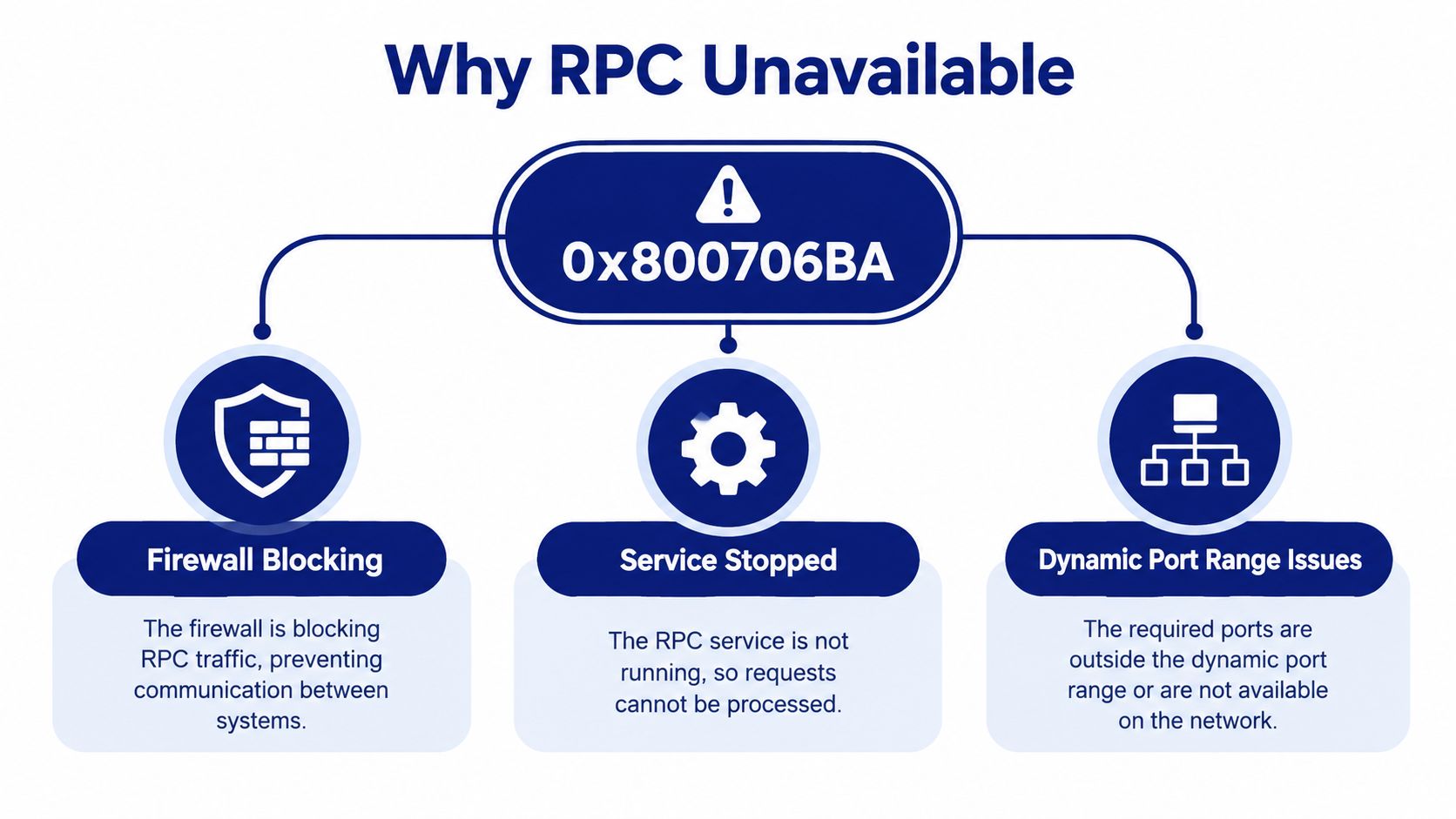
0x800706BA is primarily a Windows remote-management connectivity failure, not a Windows 10-specific software defect. Lansweeper documents incorrect firewall configuration, offline computers, DCOM problems, incorrect settings, and a stopped RPC service as possible causes in its scanning troubleshooting guide.
The dashboard gives you an error label, not a root-cause diagnosis. A disconnected laptop and a reachable workstation with blocked WMI traffic can appear under the same RPC failure category. Treating both as broken services sends you toward unnecessary endpoint changes.
Separate the investigation into distinct layers:
Endpoint state: Is the device powered on and available when the scan runs?
Name resolution: Does the identifier used for scanning point to the intended computer?
Transport: Can the scanning server establish the required remote-management connections?
DCOM and WMI: Are the endpoint's services and remote-management settings usable?
Authorization: Does the selected scanning account have the required administrative access?
What should you change first?
Change nothing until you can identify the failing layer. Record the last scan attempt, target identifier, scanning server, and credential selection. Those details make the next test reproducible instead of turning troubleshooting into a series of unrelated changes.
Opening the initial RPC connection alone isn't enough. Agentless scanning also needs the follow-on WMI communication path, which is why a seemingly successful network test can coexist with an unsuccessful inventory scan.
Practical rule: A red scan state tells you collection failed. It doesn't tell you which team owns the fix.
For deployment context, keep your Lansweeper inventory and scanning approach aligned with the troubleshooting process. Your network team needs transport evidence, your endpoint team needs service evidence, and your identity team needs an actual authorization failure.
Confirm Endpoint State and Name Resolution First
Confirm that the endpoint is available, then test its different identity forms from the Lansweeper scanning server. Don't begin by changing credentials on a machine that's offline. Don't investigate a historical dashboard error as though it represents the device's current state.
Check the last scan attempt and confirm that the computer is powered on, awake, and connected. Trigger a rescan after restoring availability. If the failure remains, stop repeating the same scan and collect connection evidence.
How should you run the connection test?
Lansweeper documents and recommends testing the target by IP address, NetBIOS name, and domain FQDN, as described in its RPC unavailable diagnostic procedure.
Open the executable on the server that performs the scan. Use the credential selected for the affected asset, and change only the target identity between tests. Testing from your own workstation can introduce a different firewall path and make the result irrelevant to the scanner.
Review the tool's Scanning TCP Ports and Scanning WMI results rather than stopping at name resolution.
Test pattern | Working interpretation | Next investigation |
|---|---|---|
Address succeeds, names fail | Naming or resolution requires investigation | Verify the returned identity with the network team |
Every identity fails at transport | The problem isn't isolated to a name | Check endpoint availability and network policy |
Transport succeeds, WMI fails | Basic connectivity isn't sufficient | Inspect WMI, DCOM, and authorization |
Tests succeed, dashboard remains red | Compare test conditions with actual scan conditions | Confirm scanner, credential mapping, and a fresh scan |
These are diagnostic interpretations, not guarantees. For example, identical failures don't prove a firewall is responsible; an unavailable endpoint can produce the same pattern.
Record the results against the asset rather than relying on memory. The distinction between discovery and successful management access also matters when evaluating your Lansweeper IP scanning workflow. Finding a device doesn't prove that you can inventory it.
Open the Firewall for WMI and TCP 135 Without Disabling It
Allow the complete scanning path, not just the first connection. Keep the endpoint firewall enabled, scope access to approved scanning infrastructure, and validate the result from the scanning host. Disabling protection globally is a poor permanent fix for an inventory problem.
The agentless path has separate transport requirements:
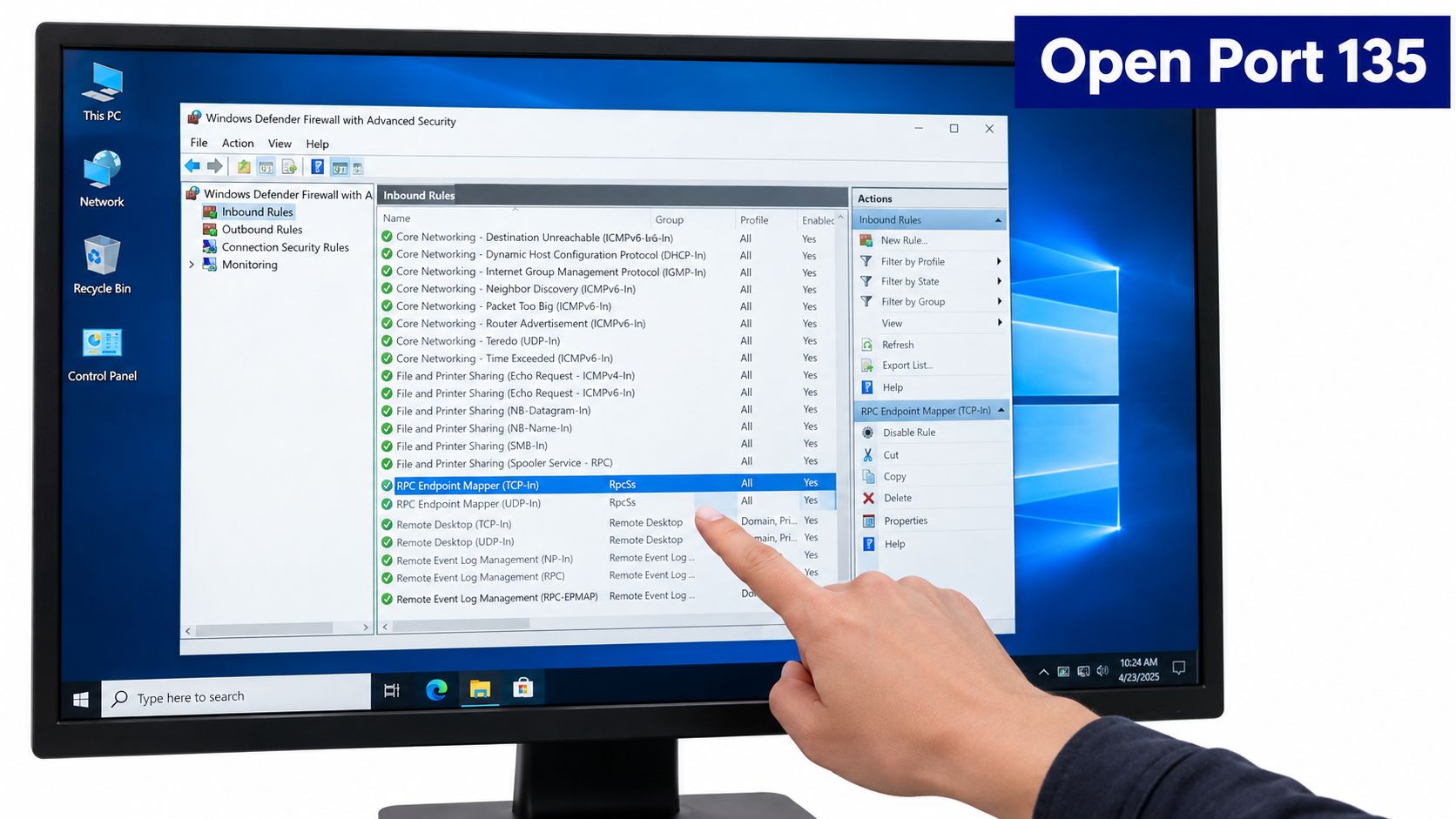
TCP 135: Lansweeper contacts the RPC Endpoint Mapper to establish the initial connection.
Dynamic TCP ports 49152–65535: Modern Windows uses this documented range for follow-on DCOM/WMI communication unless organizational policy restricts it.
TCP 445: SMB-based operations may also require this port.
These requirements are documented in Lansweeper's Windows scanning requirements. Opening only the endpoint-mapper port can leave the negotiated connection blocked.
Which firewall command should you use?
Microsoft documents the command and warns that DCOM can incorrectly evaluate firewall state even when a third-party firewall appears permissive in its remote WMI firewall guidance.
Run the command through an approved endpoint-management process. Then inspect the enabled rules, their applicable network profiles, and their permitted source scope. A successful command is not proof that an intervening network firewall permits the same traffic.
Validate the layers separately:
Endpoint policy: Confirm the WMI rule group applies to the device's active network profile.
Network path: Ask the network team to inspect the scanner-to-endpoint connection, including follow-on traffic.
Third-party controls: Review the vendor policy rather than assuming the Windows rule change supersedes it.
Collection result: Run the connection test again and confirm an actual WMI response.
A successful ping proves ICMP reachability. It doesn't prove RPC endpoint mapping, DCOM activation, WMI transport, or authorization.
If your security policy rejects dynamic inbound traffic, don't ask for a broad exception without considering alternatives. A fixed WMI-port design offers a more constrained approach, but it still needs documented endpoint configuration and matching firewall policy. Agent-based collection may be the cleaner architectural decision.
Verify RPC, DCOM, and WMI Services on the Windows 10 Endpoint
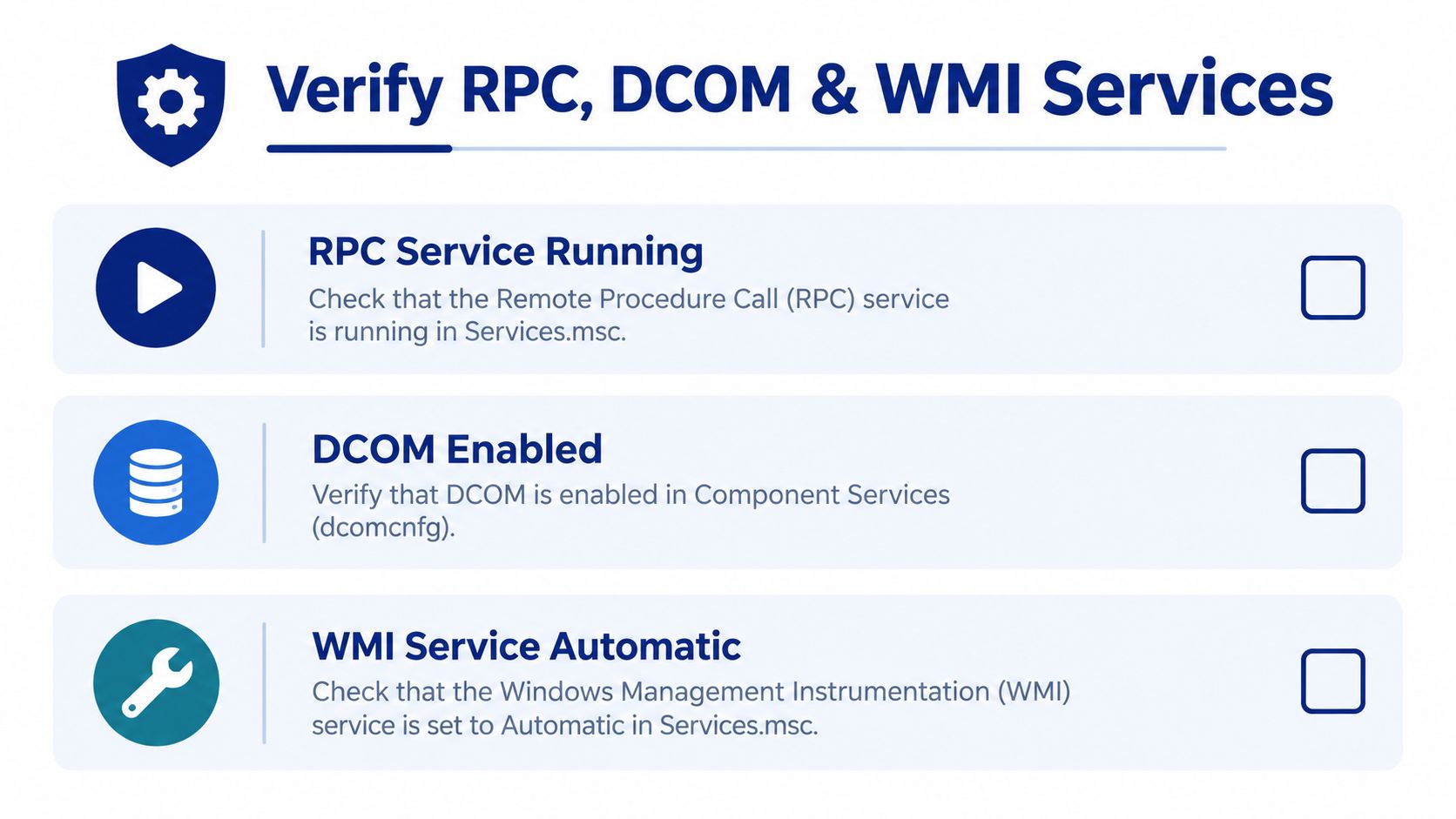
Check service state and remote-management configuration after you've investigated transport. Windows normally starts the RPC service automatically, but a manually stopped service can generate the same unavailable error identified in the earlier Lansweeper troubleshooting guidance.
Open Services on the affected endpoint and inspect Remote Procedure Call (RPC). Confirm that it's running and configured for automatic startup. If its configuration differs from your approved baseline, investigate who or what changed it before restoring the expected state.
Don't turn this into an indiscriminate service-reset exercise. Compare the affected machine with a successfully scanned endpoint under the same policy, especially when the failures cluster around an older Windows image.
Where should you inspect DCOM and WMI?
Inspect configuration and permissions without broadly granting remote access. Microsoft's remote WMI guidance identifies DCOM configuration and WMI namespace security as prerequisites. Use those checks to compare the device with your management baseline, not to weaken permissions until a scan happens to work.
DCOM configuration: Open , go through Component Services > Computers > My Computer > Properties, and review Default Properties, including Enable Distributed COM on this computer.
WMI configuration: Open , inspect WMI Control (Local) > Properties > Security, and review the namespace used for collection.
Account permissions: Check the intended account's remote access and execution permissions, including Remote Enable and Execute Methods, against your approved configuration.
Service comparison: Inspect the Windows Management Instrumentation service and compare its state and startup configuration with the organization's endpoint baseline.
When the connection still fails, review the System and WMI-related event logs around the scan attempt. Look for service failures, activation problems, and permission errors that correspond to the test timestamp.
A nearby warning isn't automatically the cause. Preserve the event details, correlate them with a fresh failed test, and avoid resetting the WMI repository or broadly changing DCOM permissions without evidence.
Validate Lansweeper Scanning Credentials and Permissions
A reachable endpoint isn't necessarily an authorized endpoint. Once transport works, verify the actual credential assigned to the asset rather than assuming Lansweeper used the account you intended. Credential selection and endpoint permissions need to agree.
Review the Windows scanning credential and its mapping to the target. Check whether a specific assignment overrides a default credential, whether the password is current, and whether the account has administrative rights on that computer.
Should you use a local or domain administrator?
Prefer a dedicated scanning identity with the required endpoint rights, not permanent domain-wide administrative privilege. A domain account granted administrative access on the intended targets is different from a Domain Administrator account. Don't treat those options as interchangeable.
Credential choice | Practical consideration |
|---|---|
Local administrator | Verify the account on each target and investigate applicable UAC remote restrictions |
Dedicated domain scanning account | Make target membership and administrative scope explicit |
Highly privileged diagnostic account | Use only under an approved, temporary process, then remove the exception |
Inherited default credential | Confirm that it's actually the credential intended for this asset |
For local accounts, include UAC remote restrictions in the investigation rather than assuming local administrator membership guarantees an equivalent remote session. Don't disable those restrictions across the estate just to avoid resolving the account design.
Test the intended identity with the same connection tool used earlier. Keep the endpoint and scanning host unchanged so that you're comparing authorization rather than different network conditions.
Access denied: Prioritize account rights, credential mapping, and DCOM/WMI permissions.
RPC unavailable: Revisit the recorded connection evidence before declaring the password responsible.
One approved account succeeds: Compare its endpoint rights and scope with the failing identity.
Security boundary: Use a privileged comparison to locate a permissions problem, not to justify keeping a privileged account in production.
For domain-managed estates, document the relationship between discovery, account scope, and target access in your Lansweeper Active Directory scanning design. The sustainable fix is a correctly scoped account with reproducible access, not a credential that happens to work everywhere.
Decide Whether Windows 10 Itself Is the Long-Term Problem
Fixing the scan and approving continued Windows 10 operation are separate decisions. A successful inventory collection restores visibility; it doesn't restore operating-system support. Your incident record should therefore include both a technical resolution and a lifecycle owner.
Microsoft states that Windows 10 support ended on October 14, 2025, covering Home, Pro, Enterprise, Education, IoT Enterprise, and Enterprise LTSB 2015 in its Windows 10 support notice. Devices continue operating after support ends, so the deadline doesn't make an RPC error disappear.
Microsoft identifies October 12, 2027 as the scheduled endpoint for the paid Extended Security Updates arrangement described in its Windows end-of-support guidance. Confirm eligibility and actual coverage for the affected device rather than treating ESU as automatic enrollment or a replacement for normal support.
How much remediation should a legacy endpoint receive?
Base the investment on business use, migration readiness, support coverage, and inventory value. Don't spend extensive effort creating new firewall exceptions for a device already approved for retirement. Equally, don't abandon visibility on a business-critical legacy asset merely because migration is difficult.
Windows 10 RPC remediation priority matrix
Lifecycle stage | Immediate fix investment | Recommended action |
|---|---|---|
ESU eligibility and coverage confirmed | Proportionate to operational importance | Restore collection and maintain a documented migration plan |
Ready for Windows 11 migration | Limited to transition requirements | Resolve essential visibility gaps and prioritize migration |
Business-critical legacy equipment | Carefully controlled | Review isolation, ownership, and an appropriate collection method |
Scheduled for decommission | Minimal | Verify identity, dependencies, and retirement evidence |
Support status unknown | Investigate before expanding access | Assign a lifecycle owner and confirm coverage |
This is a decision framework, not a measured scoring model. Use the latest trustworthy inventory alongside business-owner confirmation, because a failed scan may leave you with stale asset data.
Review your Lansweeper and Intune inventory planning when migration changes how devices are managed. Keep the migration decision separate from the narrow question of whether yesterday's agentless scan succeeded.
Prevent Recurrence and Scale Lansweeper the Right Way
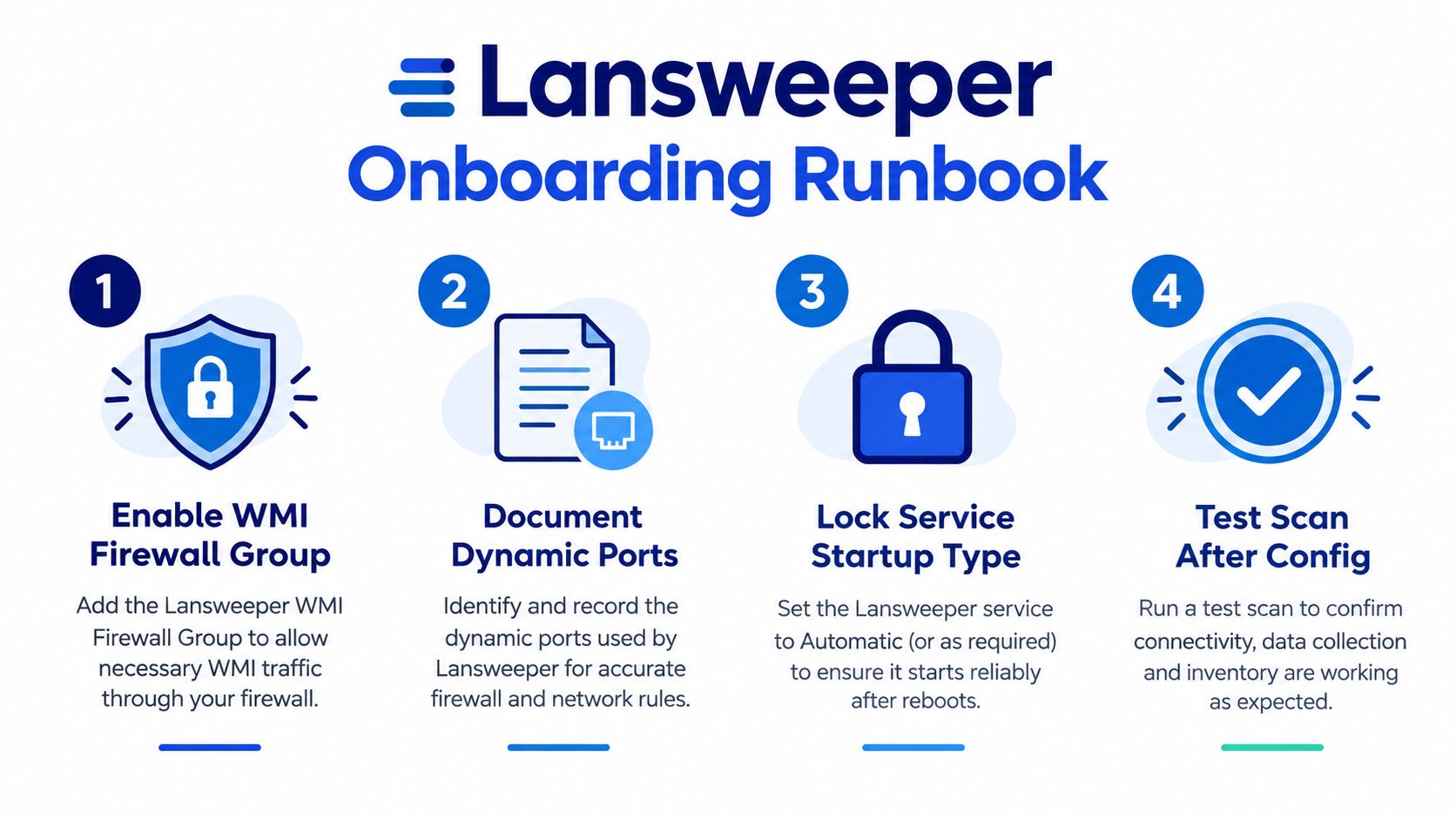
Prevent recurrence by standardizing the collection design, not by accumulating endpoint exceptions. Your onboarding record should connect firewall policy, service configuration, credential scope, and a verified scan. A device shouldn't be considered inventory-ready just because discovery created an asset record.
Build the operational handoff around evidence:
Approved firewall baseline: Record which policy provides remote-management access and who maintains it.
Documented transport design: Identify whether the endpoint uses the approved dynamic path, a fixed-port arrangement, or an agent.
Dedicated scanning identity: Grant the required target rights without unnecessary domain-wide privileges.
Validated service configuration: Compare RPC, DCOM, and WMI settings with the approved endpoint baseline.
Acceptance test: Preserve connection-test results and confirm fresh inventory collection.
When is an agent the better answer?
Choose agent-based collection when inbound WMI access conflicts with a legitimate security boundary. Lansweeper's documented alternatives include LsAgent and LsPush, which avoid requiring the same inbound firewall configuration. Evaluate deployment and collection requirements rather than describing an agent as operationally free.
A fixed-port design still requires endpoint configuration, policy ownership, and testing. An agent introduces software deployment and maintenance responsibilities. When the agentless design keeps generating exceptions, the right commercial conversation may be to procure the appropriate collection approach instead of funding more troubleshooting.
Use your Lansweeper PowerShell workflows to support repeatable checks and evidence capture, with changes controlled through your normal management process.
What does Lansweeper RPC Unavailable Windows 10 usually mean?
It usually means the scanner couldn't complete Windows remote-management communication. Identify the failing layer before assuming Lansweeper or the RPC service is defective.
Can I fix the error by disabling the firewall?
Don't use global firewall disablement as the permanent fix. Apply the approved WMI rules and validate the full collection path.
Does a successful scan make Windows 10 safe to keep?
No, scan success and lifecycle approval are different questions. Confirm support coverage, migration plans, or legacy isolation with the endpoint owner.
Stackingo offers an RFQ-led enterprise licensing marketplace where you can compare software options and capture purchasing requirements through one commercial front. If recurring RPC failures are prompting a change in collection architecture, visit Stackingo with your endpoint scope, agent requirements, and migration plans to request comparable licensing quotes.


