
Lansweeper Synology NAS Scan Setup Guide
Your Synology NAS responds by IP, DSM opens, and the network team says it's reachable, yet it's missing from Lansweeper. Lansweeper Synology discovery is agentless: configure a supported management protocol and matching credentials, then judge success by the asset details returned, not just a completed scan.
Meta Title: Lansweeper Synology NAS Scanning and Inventory GuideMeta Description: Configure Lansweeper Synology NAS discovery with read-only SNMP, validate firmware and volume details, and troubleshoot missing assets without installing agents.Blog Title: How Do You Configure Lansweeper Synology Scanning for a Useful NAS Inventory?
Why Your Synology NAS Is Missing from Inventory
A reachable NAS and an inventoried NAS are different outcomes. Your browser session proves you can reach DSM from your workstation. It doesn't establish that the Lansweeper scanning server can use the management path required to identify the appliance.
Consider a familiar troubleshooting situation: storage remains available after a firewall change, but the inventory record stops updating. Users can still access their data, so nobody treats it as a storage incident. The asset administrator discovers the gap later, when a firmware review turns up an empty or stale record.
The right starting point is network-device discovery, not an agent installation. Treat the Synology appliance as managed infrastructure beside switches and other network equipment. For the wider inventory context, use the Lansweeper asset discovery overview.
What Does a Missing NAS Record Prevent You from Checking?
Without a useful record, you can't confidently answer routine governance questions from the inventory alone. Which firmware is installed? Who owns the appliance? Which infrastructure records should reference it?
Those gaps need different fixes:
Firmware visibility: Collect the reported version instead of assuming the last maintenance record remains accurate.
Ownership: Assign a responsible team or person rather than expecting discovery to infer accountability.
Relationships: Connect the identified NAS to the infrastructure and services your team documents.
A successful discovery provides technical evidence. Administrators still need to turn that evidence into a maintained asset record.
Practical rule: A NAS that users can access may still be unreachable through the scanning server's management path.
What Should the First Useful Record Contain?
Expect more than an address and a generic device label. The initial record should establish the appliance's model, vendor, firmware version, IP address, and MAC address where the device exposes them through supported inventory collection.
Keep the distinction between discovery and completeness explicit. An identifiable appliance is a useful starting point, but it isn't proof that storage details, shared folders, or operational ownership have been captured.
The implementation decisions follow from that distinction: choose a protocol your security policy permits, make it reachable from the scanner, map the correct credentials, and inspect the returned data. Don't relax the acceptance criteria just because the device finally appears.
How Lansweeper Synology Scanning Chooses a Protocol
Prefer SNMPv3 when your environment supports authenticated and encrypted management traffic. Use legacy SNMP deliberately, keep SSH within an approved administrative access model, and treat SSDP as discovery rather than completed inventory.
Lansweeper's network-device protocol requirements identify SNMPv1, SNMPv2, SNMPv3, SSDP, and SSH as discovery paths. For Synology, this means exposing a supported protocol rather than installing a Windows-style scanning agent.
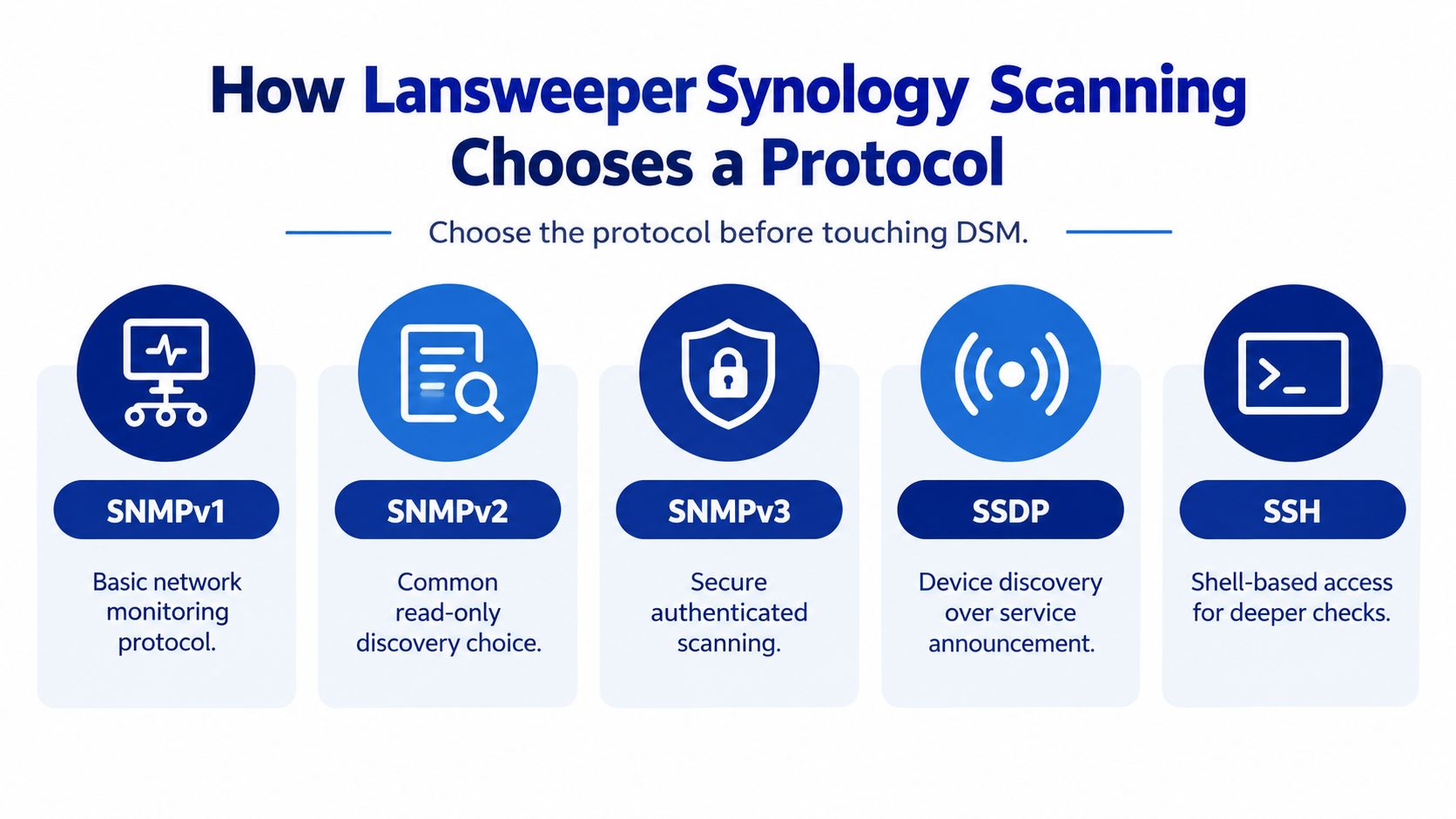
Which Protocol Fits Your Management Policy?
Protocol Choice for a Synology NAS
Protocol | Best use | Access needed | Limitation |
|---|---|---|---|
SNMPv1 | Legacy compatibility | Approved read-only community and reachable SNMP service | Not the choice when authenticated, encrypted management is required |
SNMPv2c | Existing community-based inventory and full Synology tree collection | Matching read-only community | Doesn't provide the authenticated, encrypted approach available with SNMPv3 |
SNMPv3 | Security-conscious routine inventory | Matching authentication and privacy settings | Configuration must agree on the scanner and appliance |
SSH | An approved alternate remote-access path | Enabled service and permitted device credentials | Availability doesn't guarantee every desired inventory field |
SSDP | Discovering device presence | Reachable discovery mechanism | Doesn't replace credentialed inventory |
The practical trade-off is compatibility versus management-plane protection. A familiar community-based configuration may fit an existing management design, but convenience alone isn't a reason to depart from your security requirements.
SSH should solve a defined access requirement. Don't enable it merely because an SNMP scan returned incomplete storage information, and don't assume a shell connection guarantees that Lansweeper will populate every NAS-specific field.
What Does Read-Only Access Establish?
For the SNMP workflow, read-only access is sufficient for scanning. It avoids granting write access to production storage merely to collect inventory information.
A successful read proves that the scanner could retrieve the objects returned at that moment. It doesn't prove that every share was enumerated, that backups are recoverable, or that the storage system passed a separate operational health assessment.
The same separation between management access and inventory evidence matters when scanning Cisco switches with Lansweeper. Keep a consistent site policy, but validate each device class against its own acceptance record.
Choose authenticated SNMPv3 where supported. If your Synology enrichment workflow requires another protocol, document that exception rather than broadening access across the whole management network.
Prepare DSM for SNMP and SSH Access
In DSM, open Control Panel > Terminal & SNMP, enable the selected service, and configure the discovery identity. The important boundary is the scanning server: its traffic must be permitted by both the appliance's management settings and the intervening access controls.
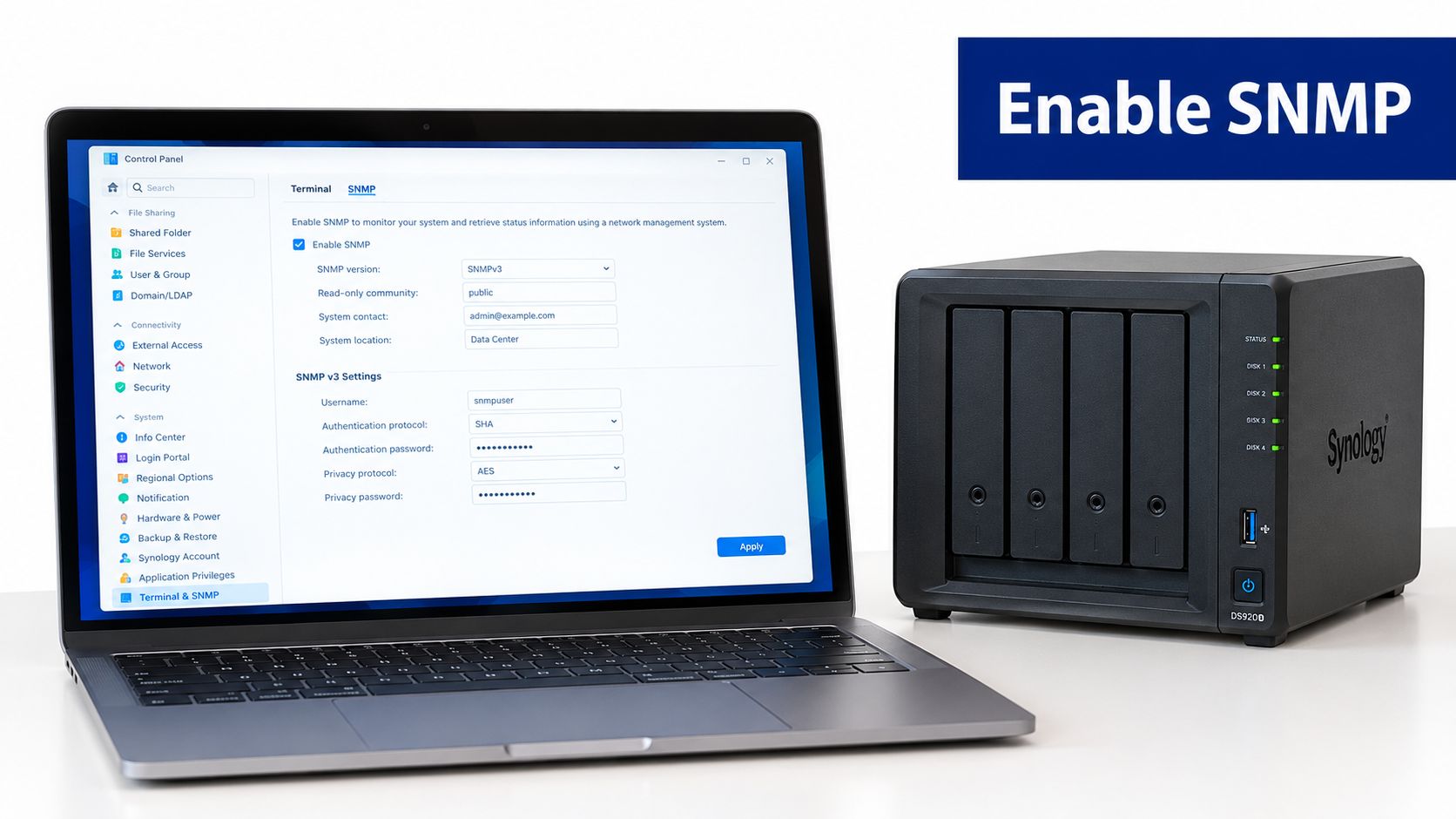
Which DSM Settings Need Attention?
Prepare the appliance in a controlled sequence:
Enable the intended service: Select SNMP in DSM rather than assuming that access to the web console enables inventory collection.
Configure the discovery identity: Use a read-only community for the community-based workflow, or matching authentication and privacy settings for the selected secure workflow.
Permit the scanner: Check that the Lansweeper scanning server is allowed by the NAS firewall and applicable network ACLs.
Record the configuration: Keep the chosen protocol and credential reference with your management documentation, without copying secrets into ordinary asset notes.
A service checkbox is only part of the configuration. If the NAS accepts management requests from an administrator's workstation but excludes the scanning server, testing from that workstation can give you false confidence.
For an SSH-based alternative, enable access only within the administrative path your security policy already permits. Keep the allowed source and credential scope deliberate. Don't create an unrestricted second route merely to troubleshoot the first.
Test from the system that will perform the scan, not just from the laptop where DSM happens to open.
Why Don't Windows Deployment Steps Apply to DSM?
Lansweeper's deployment mechanism has a separate operating-system boundary. Its documented deployment requirements specify a non-Home edition of Windows XP or newer, DNS resolution, an IPv4 address, Windows Task Scheduler, Remote Registry, firewall access, and administrative credentials.
Those credentials must reach the C$ administrative share, because that workflow writes an executable into , according to the same deployment documentation.
These are Windows-target prerequisites. They aren't instructions for preparing native DSM, and trying to reproduce them on a NAS sends troubleshooting in the wrong direction.
Don't look for a DSM equivalent of Remote Registry or attempt to solve discovery by pushing the Windows deployment executable onto storage. Configure the supported network-management path instead.
If your inventory also includes non-Windows hosts, the Lansweeper Linux scanning guide provides a related planning reference. Keep each asset type's access requirements distinct rather than reusing one deployment checklist everywhere.
Build Scanning Targets and Read-Only Credentials
Once DSM is ready, configure Lansweeper to query the correct target with the correct credential. A valid credential attached to the wrong range is still an unusable configuration for the NAS you're trying to inventory.
The Lansweeper network-device scanning workflow supports creating the discovery credential, assigning it to the NAS IP range, running an immediate scan, inspecting the scan queue, and using DeviceTester for failures. SNMP discovery requires UDP port 161, and a read-only community string is sufficient for the community-based scan.
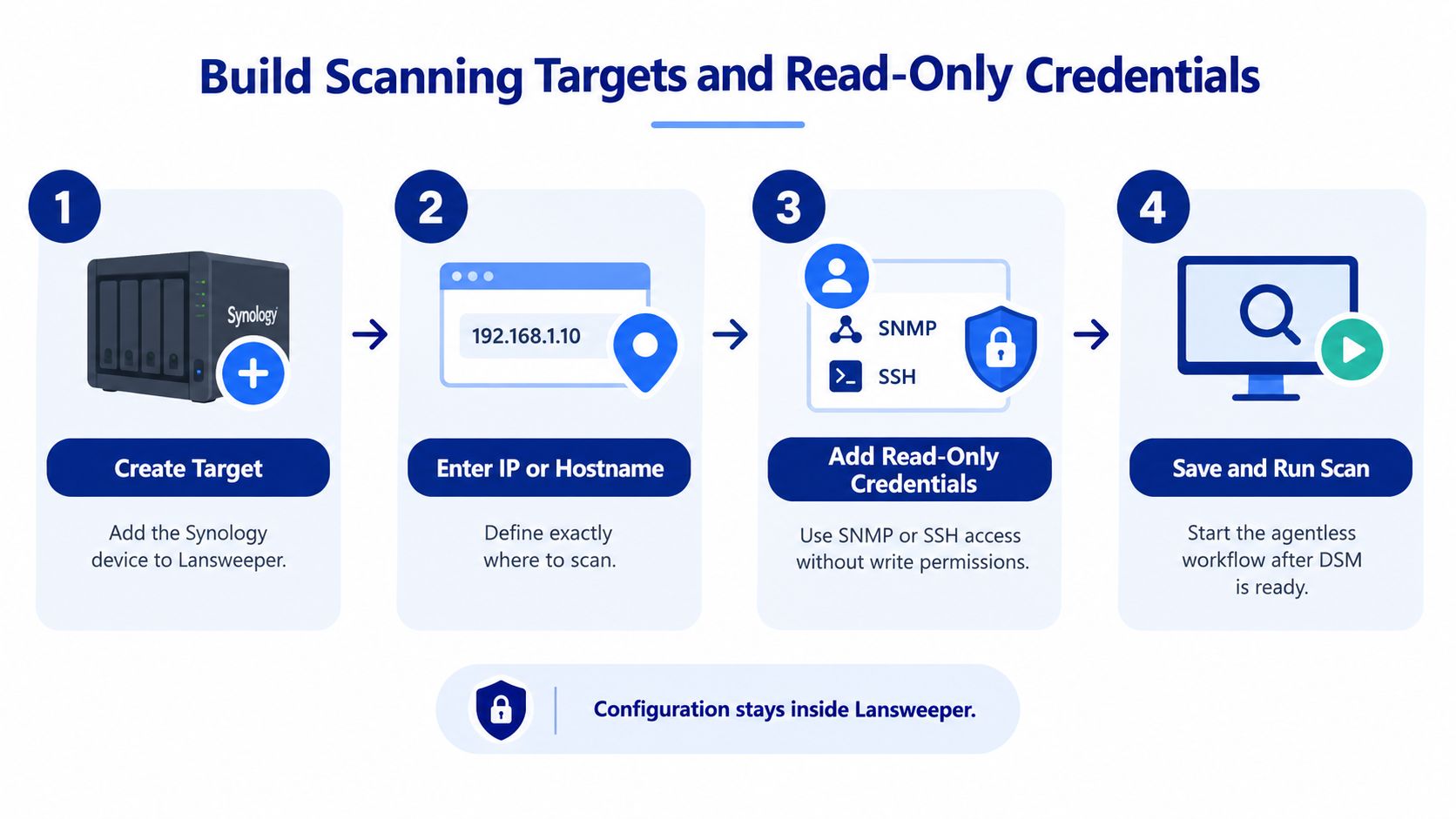
How Should You Configure the Target and Credential?
Start with a deliberately limited validation target. It's easier to inspect one intended appliance than to diagnose a broad scan containing unrelated failures.
Create the discovery credential: Match the SNMP configuration prepared in DSM. Don't substitute a storage administrator's credentials for a read-only discovery identity.
Assign the credential to the NAS range: Check the actual target coverage, not just the credential name.
Run an immediate scan: Use the scan queue to establish whether the intended target was processed and what result it returned.
Inspect the asset: Open the resulting record before expanding the configuration to other appliances.
Credential-to-range mapping deserves its own check. An administrator may correctly configure both sides independently while leaving Lansweeper set to use a different credential for the target's subnet.
The Lansweeper IP scanner planning guide is relevant when you're organizing discovery scope. Keep the validation target narrow until you can explain both the connection result and the returned identity.
What Should You Do When the Immediate Scan Fails?
Use DeviceTester instead of repeatedly submitting the same scan. Test from the scanning server with the intended protocol and credential, then compare that result with Lansweeper's configured target mapping.
If the direct test succeeds but the inventory scan doesn't, inspect what Lansweeper is applying to the target. If the direct test also fails, investigate the service, credential, and permitted network path before changing inventory settings.
Acceptance boundary: A completed queue entry shows that a scan was processed. Your asset record determines whether the scan was useful.
How Do You Measure First-Pass Coverage?
Calculate successfully inventoried NAS devices divided by reachable NAS devices for your own environment. The network-device scanning guidance cited above doesn't publish an independent scan-success benchmark, so don't substitute a claimed universal success rate for your rollout results.
Define “successfully inventoried” before you count. A generic device entry with no reliable identity shouldn't receive the same status as a record containing the fields your team needs.
Also record why unsuccessful targets failed. Separating connection failures from incomplete collection makes the result actionable instead of turning every exception into another rescan request.
Confirm Firmware Volumes and Share Details
Accept the record only after you can verify the NAS identity, firmware, interfaces, and required storage information, then reproduce the result. A model name alone isn't evidence of complete storage inventory.
Lansweeper's network-device inventory requirements support collection of fields such as model, vendor, firmware version, IP address, MAC address, and interface status. Synology-specific objects sit beneath the enterprise OID branch, with collection completeness dependent on device classification and custom OID processing.
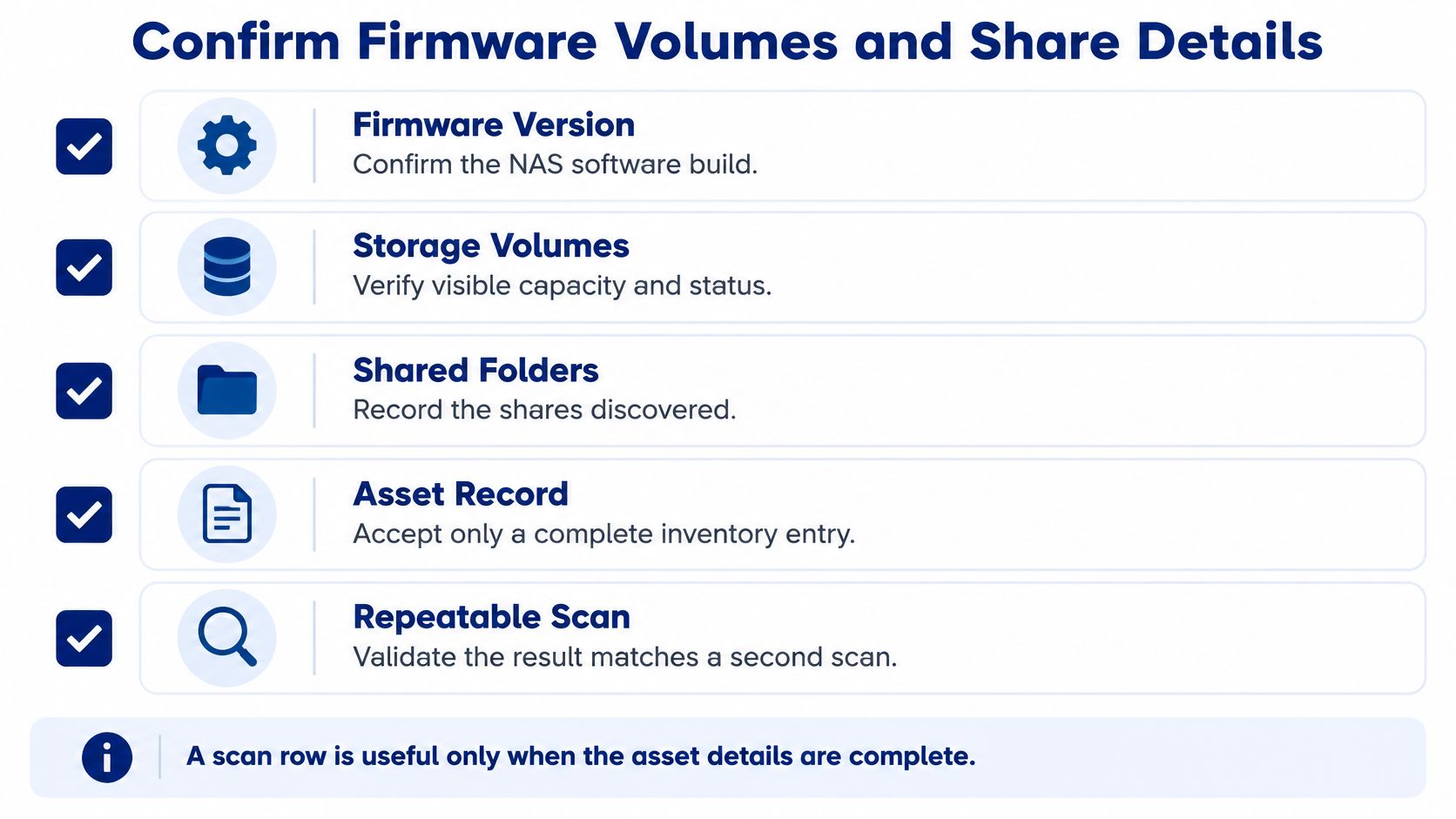
Why Can Identity Be Present While Volume Data Is Missing?
Generic network-device information and vendor-specific storage information aren't interchangeable. Lansweeper may identify the appliance while the collection path for Synology-specific system or disk objects remains incomplete.
Inspect device classification and whether the required custom objects are processed. Don't interpret an empty volume field as proof that the NAS has no volumes or that storage is healthy.
For full Synology OID resolution, import the mutually dependent Synology MIB files together rather than loading an isolated file. Use the SNMPv2c collection path when retrieving the full Synology OID tree, including the system, disk, and RAID-volume information described by those MIBs.
That is a targeted collection consideration, not a reason to abandon your secure routine-management policy. Keep any compatibility exception scoped and approved.
What Should You Accept After a Repeatable Rescan?
Use an evidence-based acceptance record:
Hostname and address: Confirm that the returned name and network identity belong to the intended NAS.
Model and device identity: Verify the model and serial number or another reliable identifier.
Firmware: Compare the reported version with the appliance's current state.
Interfaces: Inspect the returned interface details rather than accepting a generic reachable label.
Storage and volumes: Verify that required status fields are populated and understood.
Repeatability: Confirm that a subsequent scan returns a consistent record.
A missing field should remain a documented collection gap. Don't fill it with an assumption merely to make the asset appear complete.
Can You Assume Shared Folders Were Enumerated?
No. Record shares only when the scan or an approved follow-up returns them. Neither the presence of the Synology model nor a successful system-information query proves that every shared folder was collected.
The same caution applies to health claims. Returned disk or volume status is useful inventory evidence, but it doesn't establish backup recoverability, application consistency, or successful restore testing.
Keep this checklist available after DSM maintenance. Compare the updated record against the accepted baseline, especially when identity remains visible but storage-specific fields stop appearing.
Recover Failed Scans and Plan the Next Step
Recover failures by separating access problems from collection problems. A missing appliance, an authentication failure, and an identified NAS with empty storage fields require different checks.
Symptom | Possible cause | Distinguishing check |
|---|---|---|
DeviceTester works, inventory scan fails | Credential mapped to another range | Inspect the credential assigned to the actual target |
SNMP receives no response | Network path blocked | Check the scanner-to-NAS firewall policy for the required service |
Service enabled but scanner excluded | NAS firewall or ACL restriction | Verify the scanning server is an allowed source |
Identity present, vendor fields incomplete | Classification or partial MIB processing | Inspect classification and the dependent MIB set |
Don't change all these settings at once. Preserve a known test target, change the suspected cause, and compare the next result against the same acceptance record.
How Do You Keep the NAS Record Useful?
Rescan after firmware changes, retain read-only discovery access, and recheck the management path after firewall changes. A successful initial scan isn't a permanent guarantee of visibility.
For appliances outside directory-led discovery assumptions, the Lansweeper non-Active Directory discovery guide is a related reference. Keep the NAS identity stable enough to correlate it with ownership and procurement records.
When inventory must leave the console, respect the Lansweeper cloud API requirements. Access requires a Pro or Enterprise Platform site and either the API Client Admin role or View API clients permission.
Requests use an API client with a personal access token in an header, or OAuth with an header. Create the client through Developer tools > API clients > Create API client, select the permitted sites, and set an expiry date.
Does Lansweeper Synology Discovery Require an Agent?
No. Use the supported network-device discovery path rather than the Windows deployment workflow. The appliance needs reachable management access and matching credentials.
Why Does Lansweeper Synology Inventory Show No Volumes?
Check device classification and vendor-specific collection before assuming a storage problem. A generic identity record doesn't establish that the Synology storage objects were collected.
Can Lansweeper Synology Inventory Replace Storage Testing?
No. Inventory records what the permitted scan returns. Keep backup verification, recovery testing, and operational storage checks separate.
For a separate endpoint-focused requirement, Asset Management by SuperOps covers automated discovery, lifecycle tracking, and policy enforcement. Evaluate that scope independently from NAS-specific inventory acceptance.
Stackingo offers an RFQ-led purchasing route for enterprise software licenses, including Lansweeper, with structured quotes for your requirements. Before requesting pricing, document your asset scope, scanning approach, and NAS acceptance criteria, then visit Stackingo to discuss procurement against that defined scope.


