
Fix Lansweeper Non Active Assets Fast
A Lansweeper non-active asset is one that hasn't been successfully scanned within a configured cleanup threshold. That state doesn't remove the asset from your licensed total, only permanent deletion does.
The popular advice to “delete anything not seen recently” is risky. In a real enterprise inventory, an unreachable laptop, a disabled Active Directory object, a disaster-recovery server, and a decommissioned workstation can all look similar until you reconcile discovery data with business records. The right fix for Lansweeper non active assets is controlled quarantine, not indiscriminate deletion.
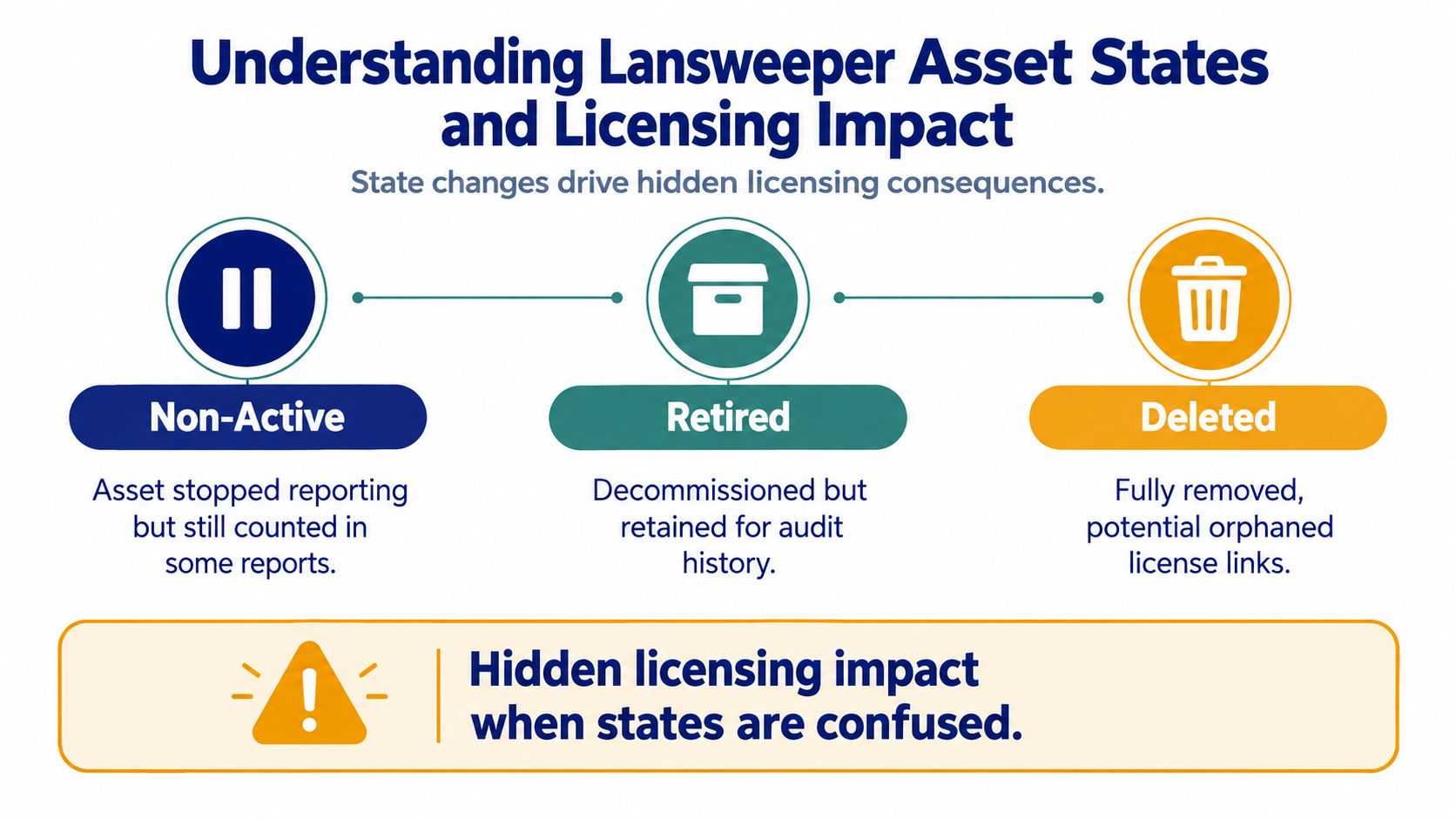
Understanding Lansweeper Asset States and Licensing Impact
Lansweeper uses asset states to describe inventory conditions, but those states don't have the same commercial or audit consequences.
Non-active means the asset hasn't been detected within the configured inactivity rule. Lansweeper excludes non-active assets from most reports, so an aggressive threshold can make operational reports cleaner while hiding devices from compliance or spend analysis.
Retired indicates a business decision that the asset is no longer in service, while preserving its record for reference and audit history.
Deleted removes the asset from inventory. Deletion is the state that removes it from the licensed asset total, and it can also remove context that downstream ITSM processes or auditors may need.
Lansweeper stores automatically discovered and manually created assets in the same inventory database. Non-active and retired assets still count toward the licensed total, while an asset is excluded only after deletion, as documented in Lansweeper's asset state guidance.
Why the licensing shortcut fails
Deleting stale records can reduce the licensed count, but that doesn't make deletion a safe cost-control method by itself. A deleted record may have represented leased hardware, an asset still listed in a financial register, or evidence needed to explain an earlier software allocation.
Retaining every record creates the opposite problem. Stale entries can inflate licensed inventory and make renewal quantities harder to defend. Directory discovery can add offline, disabled, stale, or physically removed computer objects, increasing exposure even when no physical device is operating.
Practical rule: Treat discovery status and business disposition as separate decisions.
Before deleting, compare the asset with ownership data, lease status, disposal records, and the relevant service history. A useful companion view of the broader inventory relationship is available in this Lansweeper and ITAM analysis.
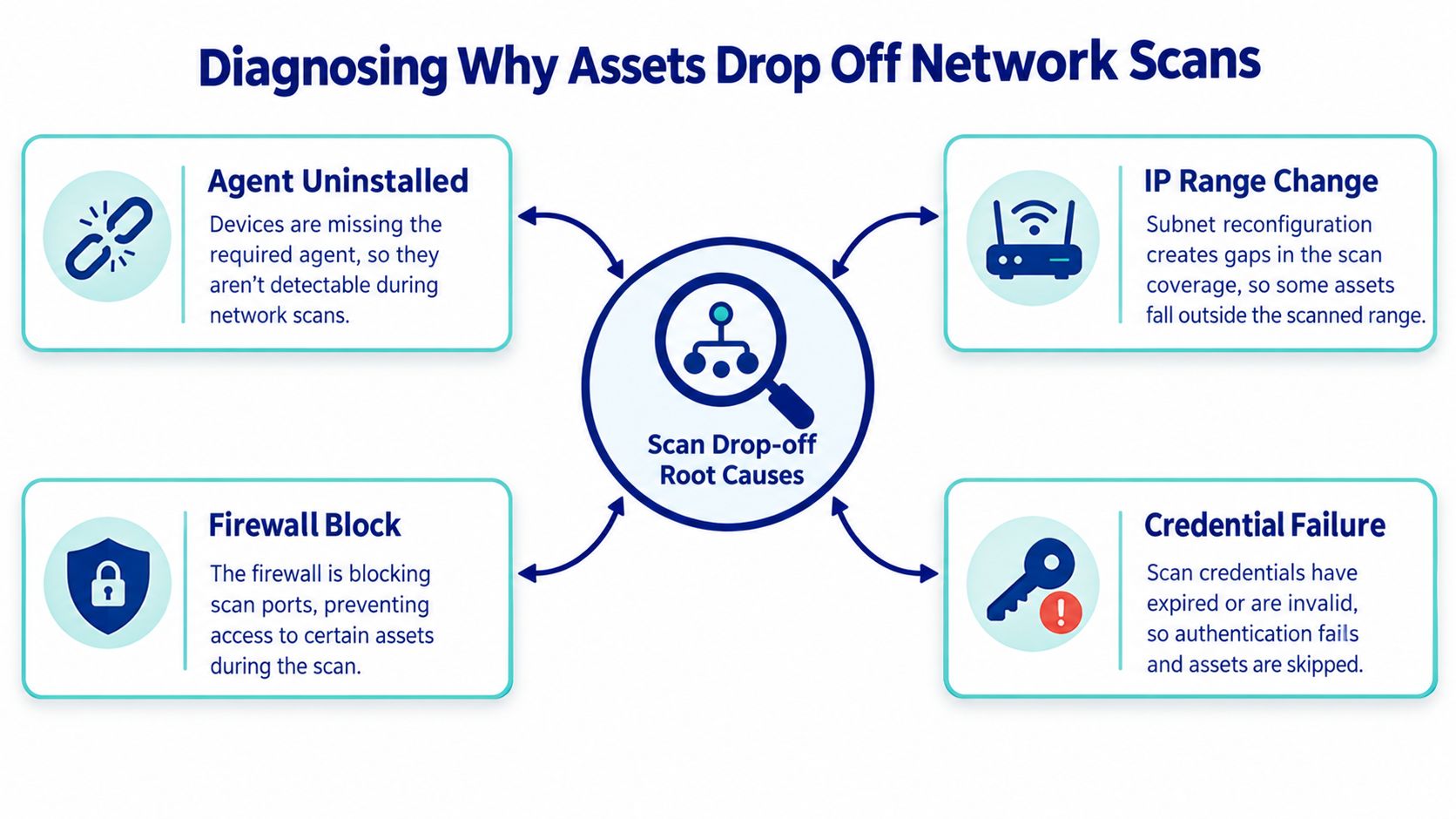
Diagnosing Why Assets Drop Off Network Scans
Start with the last discovery method that produced usable data. In practice, that single detail often explains why a record looks alive in one part of Lansweeper and absent in another. IP-range scans confirm network reachability. Active Directory computer-path scans can still import a directory object after the related device is offline, disabled, stale, or physically removed. Lansweeper makes that distinction clear in its guidance on discovery and cleanup configuration. If your environment also syncs cloud identity or directory sources, this adds another layer of interpretation, especially with Lansweeper Azure AD discovery.
Trace the last successful discovery
Review the asset record like an auditor, not like a scanner operator. The question is whether Lansweeper collected fresh inventory, and through which path.
Discovery source: Identify whether the record came from an IP range, Active Directory path, agent, or indirect scan.
Last successful scan: Check when Lansweeper last returned usable data, not just when a scheduled task ran.
Scan errors: Review authentication, reachability, DNS, firewall, and agent-related failures.
Target status: Confirm that the relevant IP range, AD path, agent configuration, or indirect scan is still enabled.
This matters beyond troubleshooting. If procurement is reconciling lease returns or software counts, a stale directory object can keep an asset visible long after the physical endpoint has disappeared. That is how teams confuse non-active with removed, then make bad cleanup decisions that affect licensing and audit trails.
Network segmentation is a routine cause of missing IP-range results. Laptops also disappear when they are offsite, powered down, or sitting on a network the scanning server cannot reach. The opposite case is just as common. An AD object can remain long after disposal, so directory presence does not prove an operating device.
Separate technical absence from business absence
Use DHCP or DNS history, endpoint-management data, and procurement records to test what really happened. A device with recent management activity but no Lansweeper network response usually points to coverage or access gaps. An AD object with no network, management, lease, or disposal evidence belongs in a cleanup review, not in an assumption that the asset is still in service.
Not seen isn't the same as decommissioned.
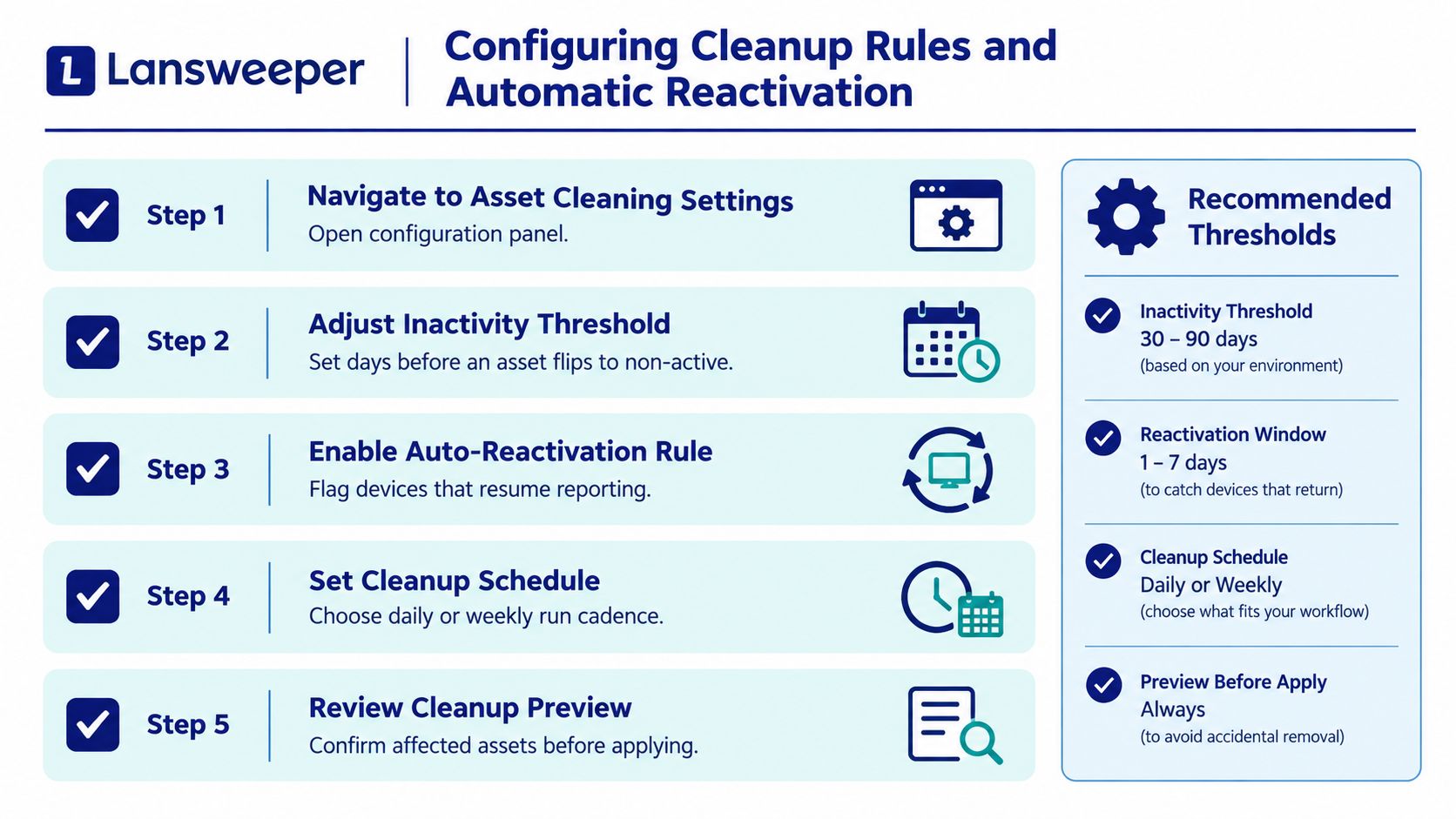
Configuring Cleanup Rules and Automatic Reactivation
A lot of teams get this wrong. Marking an asset non-active is not the same as deleting it, and if you blur those states in Lansweeper, the cleanup job stops being a hygiene tool and starts creating licensing and audit risk.
Start with automatic reactivation. In Lansweeper Classic, go to Configuration > Server Options > Asset Cleanup Options and enable the setting that returns non-active assets to Active after a successful rescan, as described in Lansweeper's reactivation guidance. Without that toggle, a device can come back online, get scanned successfully, and still sit in the wrong state. That is how inventory drift turns into procurement confusion.
Choose thresholds by operating model
Use different inactivity thresholds for different asset behaviors. Always-on desktops and fixed servers usually justify a shorter window. Laptops, seasonal devices, lab systems, and disaster-recovery assets often need more tolerance because absence from scans does not always mean business retirement.
Set non-active first, then handle deletion later as a separate retention decision. That sequencing matters. It preserves history for software reconciliation, lease reviews, and exception handling while still cleaning the active estate. Lansweeper documents this staged approach in Lansweeper's documentation on configuring asset cleanup rules and retention stages.
Cleanup timing also trips people up. State changes do not happen the moment an asset crosses the threshold. Lansweeper runs cleanup when the server service starts and then every 24 hours, so treat the threshold as part of a scheduled process, not a real-time trigger.
A practical sequence is:
Enable automatic reactivation for the relevant scan type.
Set a non-active threshold that matches the asset class.
Keep permanent deletion behind a separate retention decision.
Review the affected asset group after the cleanup cycle runs.
Rescan a known returning device and confirm both status and reporting behavior.
You can also reactivate an individual asset manually from its asset page. I use that for legitimate exceptions, especially when the business needs the record visible again before the next scheduled cleanup pass.
Reconciling IT Inventory with Procurement Records
Technical evidence should support the financial decision, not replace it. Procurement and IT finance need to know whether an asset is still leased, assigned to a cost centre, covered by a maintenance agreement, or included in a renewal quantity before anyone deletes its inventory record.
A practical disposition review uses four evidence groups:
Operational evidence: Last successful scan, scan source, scan errors, and recent endpoint-management activity.
Directory evidence: AD enabled or disabled status, organizational path, and whether the object appears stale.
Financial evidence: Lease, purchase, assignment, disposal, and asset-register records.
Control evidence: Compliance requirements, ITSM relationships, incident history, and software entitlement links.
The decision usually falls into one of three paths. Preserve a non-active record when the device may return or the evidence is incomplete. Retire it when the business has confirmed decommissioning but needs history. Delete it only when the organization can demonstrate that the record is no longer required and the retention window has passed.
This is the distinction often missed in basic cleanup advice. Lansweeper's automated database cleanup documentation highlights why non-active, retired, and deleted records need separate treatment for reporting, audit history, licensing, and integrations.
For procurement teams comparing renewal quantities across vendors, this Stackingo licensing perspective can help frame inventory cleanup as a commercial control rather than a purely technical task.
Verifying Scan Success and Asset Visibility
A completed scan job does not prove the asset is back in the right state. What matters is whether the record is visible to the teams that use Lansweeper for operations, audit, and renewal checks. If a device still sits in non-active after a rescan, procurement may treat it as gone while IT still expects it to return. That gap creates bad cleanup decisions.
Start with the asset record itself. Check the last successful scan time, the scan source, and the error history. Then confirm the discovery target is still enabled and that the asset had at least one successful scan in the past, because that history affects how inactivity and reactivation behave.
Use this verification sequence:
Confirm prior scan history. Non-active handling depends on the asset having been successfully scanned before.
Inspect the last successful scan. A scan attempt is not the same as refreshed inventory data.
Review errors by method. Separate IP-range, AD, agent, and indirect-scan failures so you fix the right control.
Validate access dependencies. Check credentials, firewall rules, DNS resolution, RPC reachability, and endpoint availability. If Windows scanning is failing, this guide to RPC unavailable errors in Lansweeper scanning is a useful diagnostic path.
Confirm reactivation. Automatic return to Active depends on the cleanup setting being enabled.
Rescan and verify reports. Check both the asset state and the reports used by service desk, security, and procurement.
One point trips up a lot of teams. A successful rescan can refresh data without changing the asset back to Active if automatic reactivation is not configured. In that case, the record may still be missing from day-to-day dashboards even though the device is reachable again.
Measure the cleanup signal
Track scan success and scan error trends by discovery method. A sudden rise in non-active assets usually points to a broken target, expired credentials, firewall changes, segmentation, or weak agent coverage. Changing cleanup thresholds before checking those signals only hides the operational failure.
After each cleanup cycle, review the reactivation rate and report active, non-active, and deleted populations separately. That separation preserves audit history and gives procurement a cleaner basis for license and renewal review.
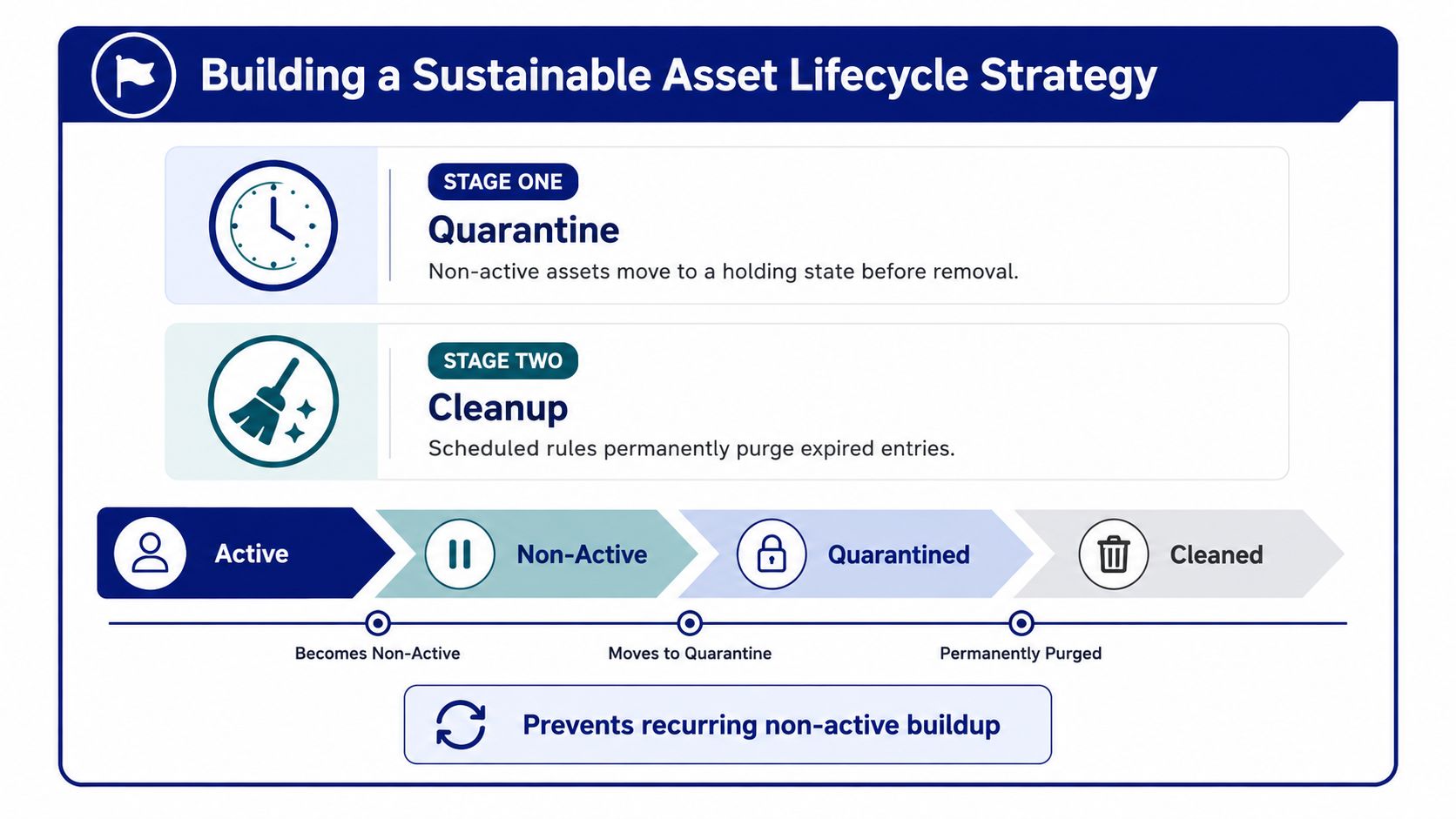
Building a Sustainable Asset Lifecycle Strategy
A sustainable Lansweeper lifecycle uses quarantine before deletion. Move an asset to non-active when discovery stops, investigate its business status, and reserve permanent deletion for records that have passed a separate retention decision. This protects seasonal and disaster-recovery infrastructure without allowing stale inventory to remain invisible indefinitely.
Make ownership explicit
Assign responsibility for each review stage:
IT operations validates scan coverage and technical reachability.
Security checks whether the record is relevant to exposure and control reporting.
Procurement and finance reconcile leases, asset registers, and renewal quantities.
Service management confirms whether deletion would orphan incidents, changes, or configuration relationships.
Keep separate reports for active, non-active, retired, and deleted populations. That separation gives directors a defensible infrastructure view while allowing procurement teams to identify records that may still affect licensing.
A CMDB process can support this control when it preserves state history and links business ownership to technical discovery. Teams evaluating that operating model can review this Lansweeper CMDB discussion.
The objective isn't the smallest inventory. It's an inventory whose state, cost, and history you can explain.
Stackingo provides a marketplace-first way to compare enterprise software licensing options and capture structured requirements for RFQ-led purchasing, which can help procurement teams connect cleansed inventory data with renewal planning.
If your Lansweeper inventory mixes unreachable devices, stale AD objects, and genuine decommissions, Stackingo can help you structure the licensing and procurement side of the decision. Visit Stackingo to compare multi-vendor enterprise software options and turn validated asset quantities into clearer, more defensible quotes.