
Lansweeper macOS Discovery and Management Guide
Updated: Oct 10
You inherit the same problem every time a Mac “shows up” in the inventory but the software list is thin or stale. The device is reachable, the dashboard looks healthy, and then procurement or compliance asks for the actual application baseline, and the record can't support the conversation. With Lansweeper macOS, the hard part isn't finding a Mac, it's proving that the scan produced complete, usable data.
Choosing Between Agentless SSH and Endpoint Agents
A Mac can be online and still be a bad inventory source. That is the operational gap that matters for procurement and software compliance, because basic reachability does not guarantee complete software data. For Lansweeper macOS, the right method depends on where the device lives, how often it leaves the network, and whether you need a defensible software count or just a reachable asset record. Compare deployment options and licensing for Lansweeper via Stackingo to match the method to your Mac fleet location.
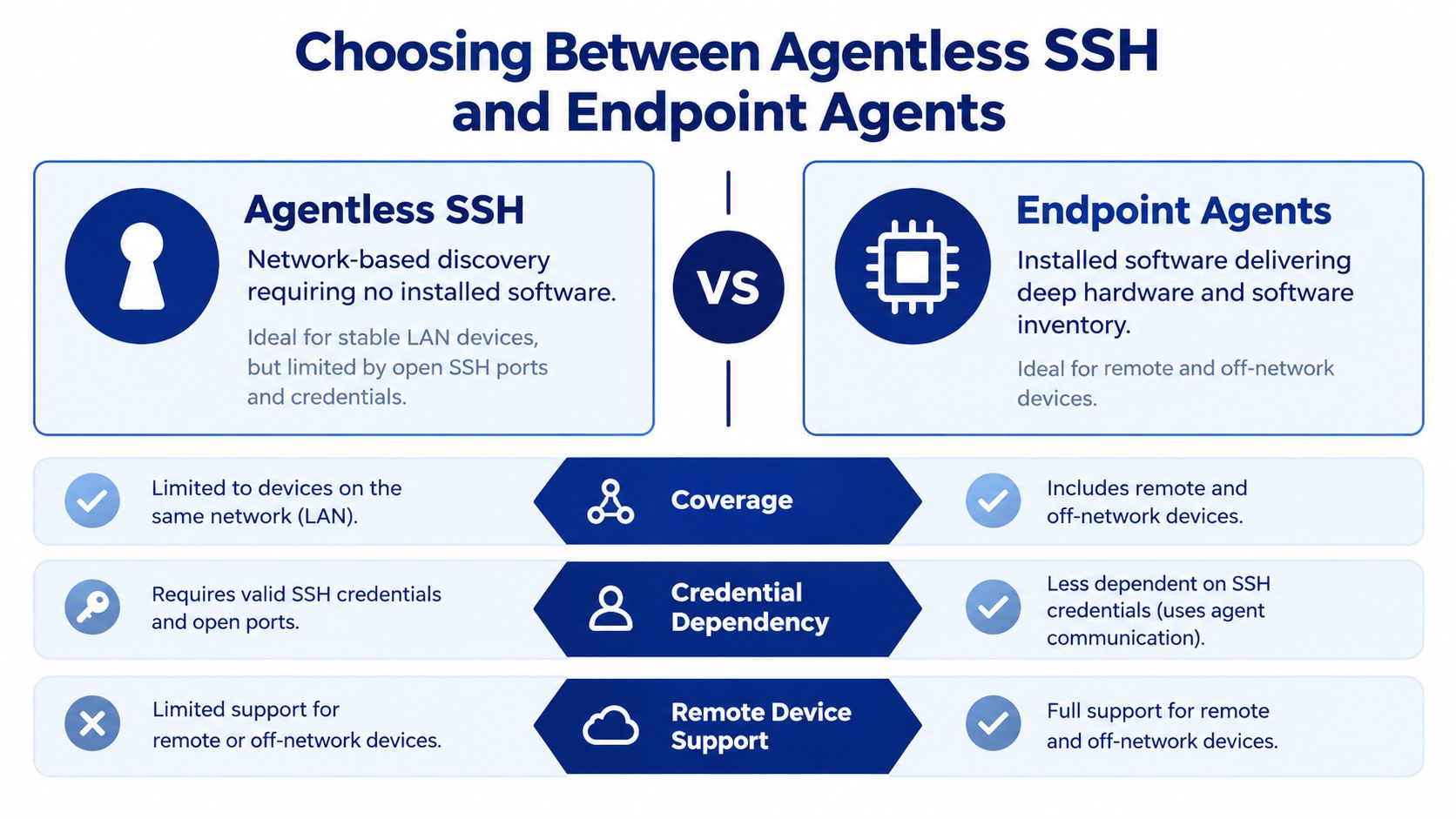
Why agentless still matters
Agentless scanning uses SSH to run Apple's on Macs you can reach. That gives structured hardware and system data, including disks, network interfaces, manufacturer, model, memory, operating system, processor, serial number, software, and uptime in the asset record, and it can also retrieve installed-software information when Spotlight is enabled Lansweeper macOS asset coverage.
For a Mac that stays on the corporate network, this is usually the cleanest route. You avoid installing software everywhere, but you still depend on SSH access, account rights, and macOS permissions. If any of those are weak, the record can look healthy while the software list is incomplete.
Why the agent changes the coverage model
The LsAgent path fits roaming laptops, remote staff, and Macs that do not reliably answer network scans. Lansweeper describes it as a lightweight cross-platform program for Windows, Linux, and Mac computers that collects inventory and sends it to the installation or through a cloud relay, which is the behavior you want when devices sit outside the perimeter LsAgent on Mac computers.
Practical rule: if the Mac can leave the network, assume SSH-only discovery will leave inventory gaps.
The trade-off is straightforward. SSH keeps control on the network side, which many security teams prefer for managed Macs. An installed agent reduces dependence on open access and keeps data flowing when the device is off-site. In mixed fleets, I treat them as different controls, not interchangeable deployment styles.
Configuring Agentless Network Scanning for Macs
Agentless scanning works only when the Mac is reachable and the macOS prerequisites are in place. On paper that sounds straightforward. In the field, I have seen devices answer SSH and still return thin or misleading inventory because the underlying permissions were not set correctly.
The configuration that works reliably
Start with Remote Login on the Mac, then verify the SSH account has the right access. Lansweeper's Apple Mac scanning requirements call out either a prior local login or sudo privileges, because SSH access alone does not guarantee full inventory collection.
Keep the “No SSH” option unchecked on the scan target. Lansweeper states that enabling it skips SSH scanning and leaves the Mac inventory limited How to scan an Apple Mac computer.
What to verify before trusting the record
A Mac that responds on the network can still give you a partial record. Software collection depends on Spotlight being enabled, because Lansweeper uses macOS for installed-software output per the same scanning requirements documentation.
Use a short verification checklist:
Remote Login: confirm the Mac accepts SSH for the scanning account.
Privilege level: confirm the account can read the inventory data you expect, not just authenticate.
Spotlight status: confirm indexing is enabled if software inventory matters.
Asset record shape: confirm the returned record includes hardware and software fields, not just a basic device shell.
If you need a complementary asset workflow for comparison, see ManageEngine AssetExplorer on Stackingo.
For mixed estates, scope the target to the actual Mac range and attach the SSH credential to that target. Do not assume one credential profile fits every Apple device. That discipline matters when procurement is using the inventory to count licenses, because a record that looks complete at the network layer can still miss the software data that drives the buying decision.
Deploying Agents for Remote and Apple Silicon Fleets
A Mac that lives outside the LAN needs a different rollout plan. If the device moves often, works from public internet access, or rarely sits on the office network, agentless discovery becomes hit-or-miss. An agent closes that gap by reporting inventory from wherever the endpoint happens to be.
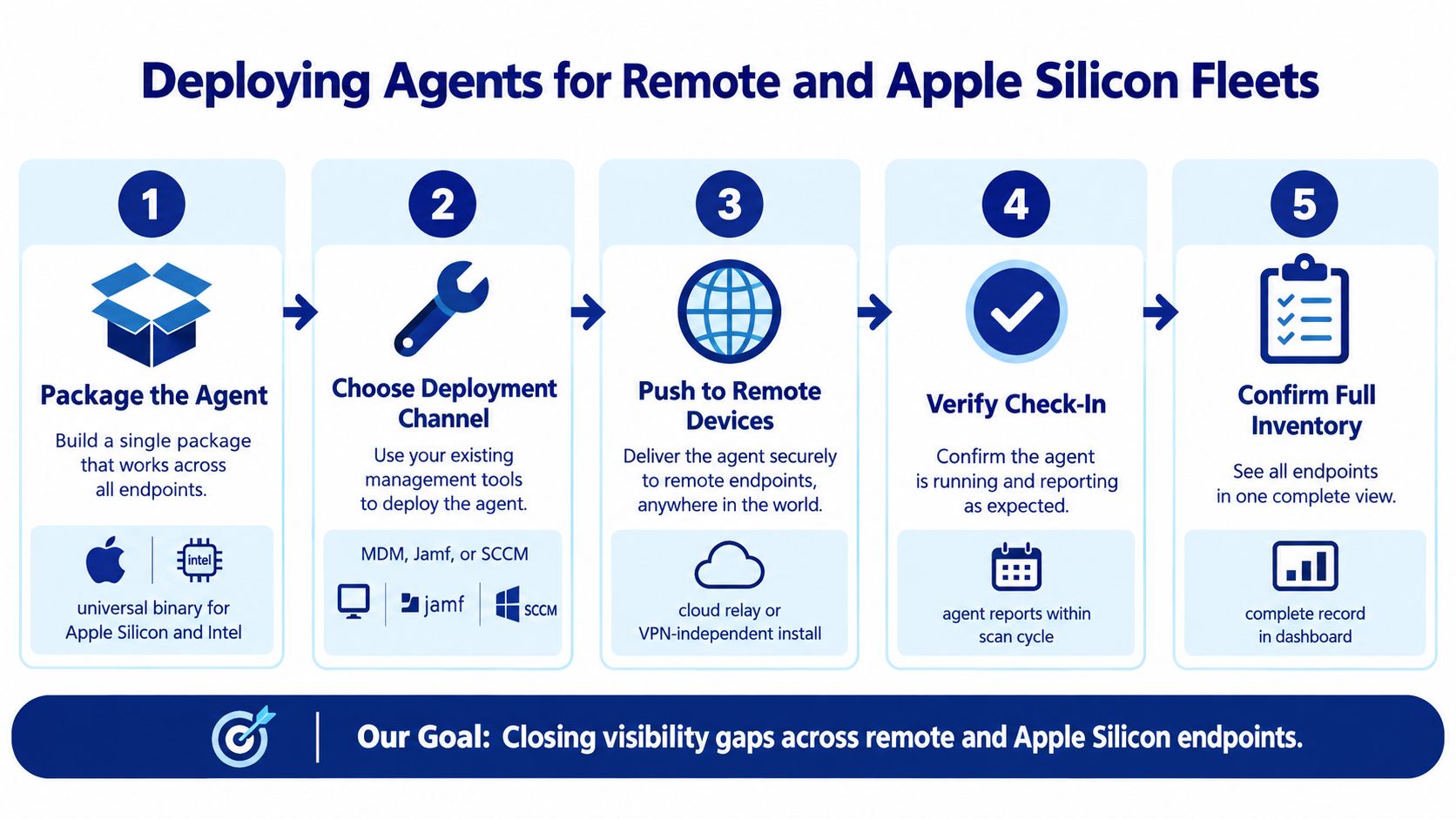
What the endpoint agent needs
Lansweeper's macOS agent documentation covers macOS 10.15 and says the agent runs natively on both Intel x64 and Apple Silicon arm64 Macs, so Rosetta is not part of the equation Install IT Agent for macOS. That reduces one compatibility variable in a mixed fleet. It does not remove the need to package and test the rollout carefully.
The installation path should stay predictable:
Package the agent for a supported macOS release.
Push it with your MDM tool. For MDM-driven agent rollout patterns, compare ManageEngine Endpoint Central on Stackingo alongside your Lansweeper agent packaging.
Send data directly to Lansweeper or use the relay model.
Allow outbound TCP 443 when relay delivery is required.
Wait for the first scan cycle, then confirm the endpoint appears.
How to handle roaming devices
Lansweeper says an agent-installed computer is scanned once per day by default, and the minimum configurable interval is one hour per Lansweeper LsAgent documentation. That affects how fast you can validate a deployment. A laptop that was enrolled an hour ago may still show incomplete data.
Remote endpoints that check in through relay infrastructure are easier to manage than laptops that have to be on-site at scan time.
For Apple Silicon fleets, the practical gain is consistency. A native agent gives you a path for devices outside the network and a better fit for executive laptops, field users, and developers who spend more time on Wi-Fi than on the office subnet.
Diagnosing and Fixing Partial Inventory Failures
A Mac can be online, reachable, and still produce a weak inventory record. That is the failure mode that skews license counts, because the console looks fine while the software evidence underneath it is incomplete.
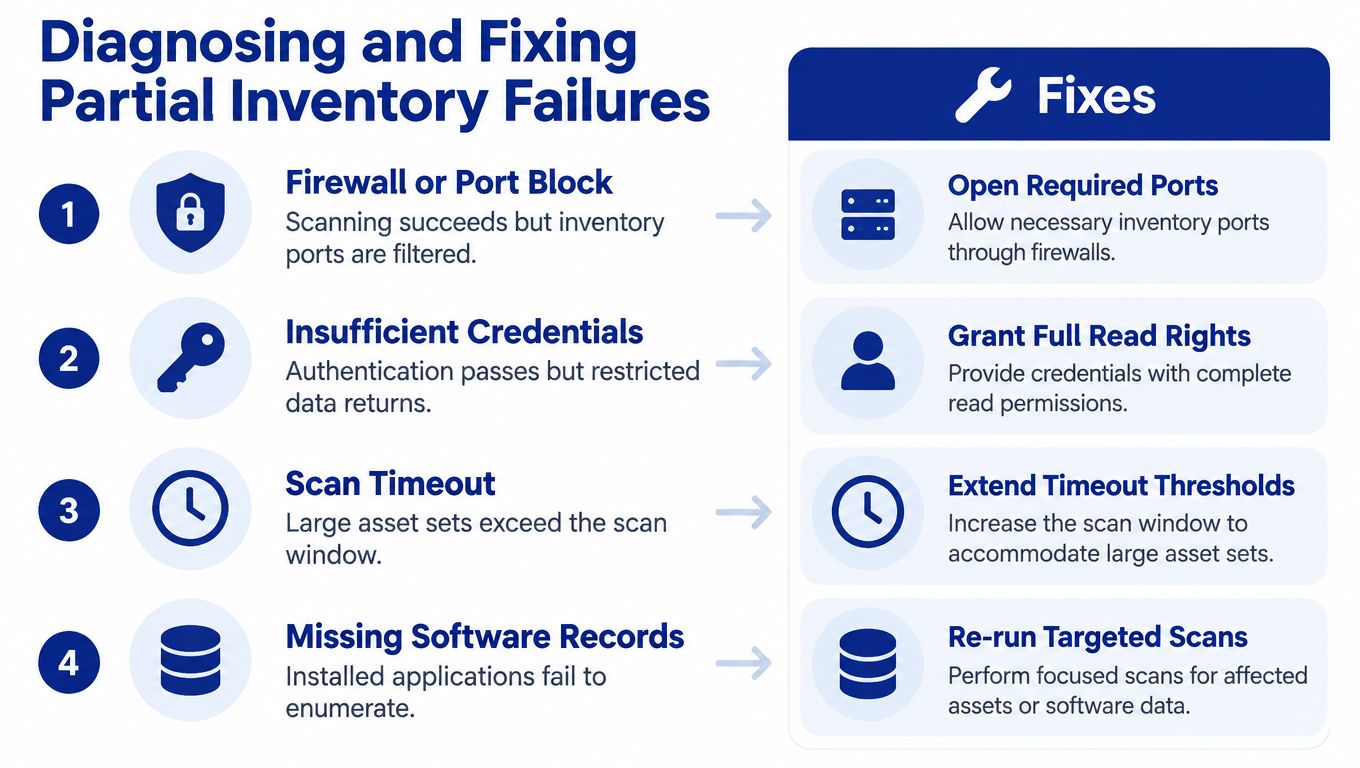
Separate connectivity from completeness
A successful scan does not guarantee complete inventory. As noted earlier, SSH access, account privileges, and Spotlight all affect whether macOS records return full software detail.
Use a simple triage split:
Connectivity failure: the Mac cannot be reached, or SSH is not available.
Privilege failure: the account connects, but cannot return full data.
Indexing failure: Spotlight is not enabled, so installed software does not enumerate.
Inventory freshness failure: the scan exists, but the record is too stale for operations.
Practical rule: if the endpoint appears but the software list looks thin, do not broaden the scan first. Check Spotlight and privilege assumptions first.
When remote validation is needed for unreachable Macs, use ConnectWise ScreenConnect remote access workflows on Stackingo to confirm whether the issue is transport, permissions, or endpoint state.
Build a runbook around known software
The cleanest test is a known application baseline. If a Mac should carry a specific browser, collaboration tool, or security agent, verify that it shows up in the Lansweeper record after the scan finishes. If it does not, the problem is completeness, not just discovery.
MDM policy helps here. Use it to require Remote Login where appropriate, standardize endpoint permissions, and keep Spotlight healthy on devices that need software inventory. A Mac that looks inventoried but omits installed applications can distort compliance reporting and make remediation look unnecessary.
Using Accurate Data for Enterprise Procurement
Once the inventory is trustworthy, procurement gets easier fast. The debate shifts away from whether a Mac exists and toward whether the software on it is owned, assigned, or sitting idle.
Why incomplete records skew license decisions
Partial discovery makes a license estate look smaller than it really is. That raises audit risk and can also push teams into unnecessary true-ups, especially when finance is trying to match renewals to actual usage instead of estimates.
Mac records are only useful when the collection path returns software, user, and hardware detail consistently, as noted earlier in the Mac asset coverage documentation. If that detail is missing, the record still has value for reachability, but it is not reliable enough for procurement decisions.
Turning inventory into buying power
A practical procurement workflow asks three questions:
Ownership clarity: which user or team uses the endpoint.
Application reconciliation: which titles are installed versus expected.
Replacement timing: which Macs should be refreshed before software decisions are made.
To compare ITAM data models for procurement, review Device42 options on Stackingo alongside your Lansweeper inventory. The point is not to replace endpoint facts with another tool, it is to line up purchasing records with what is deployed so bad counts do not turn into bad spend.
That matters in renewals, true-ups, and hardware refreshes. It gives procurement and operations a record that reflects real macOS deployment, including roaming devices that are easy to miss if you depend on network scans alone.