
How to Set Up Lansweeper VMware Discovery for vCenter
Most estates that look supported on a host count aren't supported once you check the version on each host. That's the gap a good Lansweeper VMware setup closes. Point discovery at vCenter, capture version, cluster, cores and power state for every host and guest, and you've got evidence you can reconcile against a contract instead of a raw device list you can't defend.
Don't treat discovery as compliance. Lansweeper tells you where VMware runs, which guests sit on which hosts, and what's stale. Your contract, core count, bundle mapping and disaster recovery placement decide what you're entitled to run. Build the scan first, then turn the output into a renewal worksheet you can price.
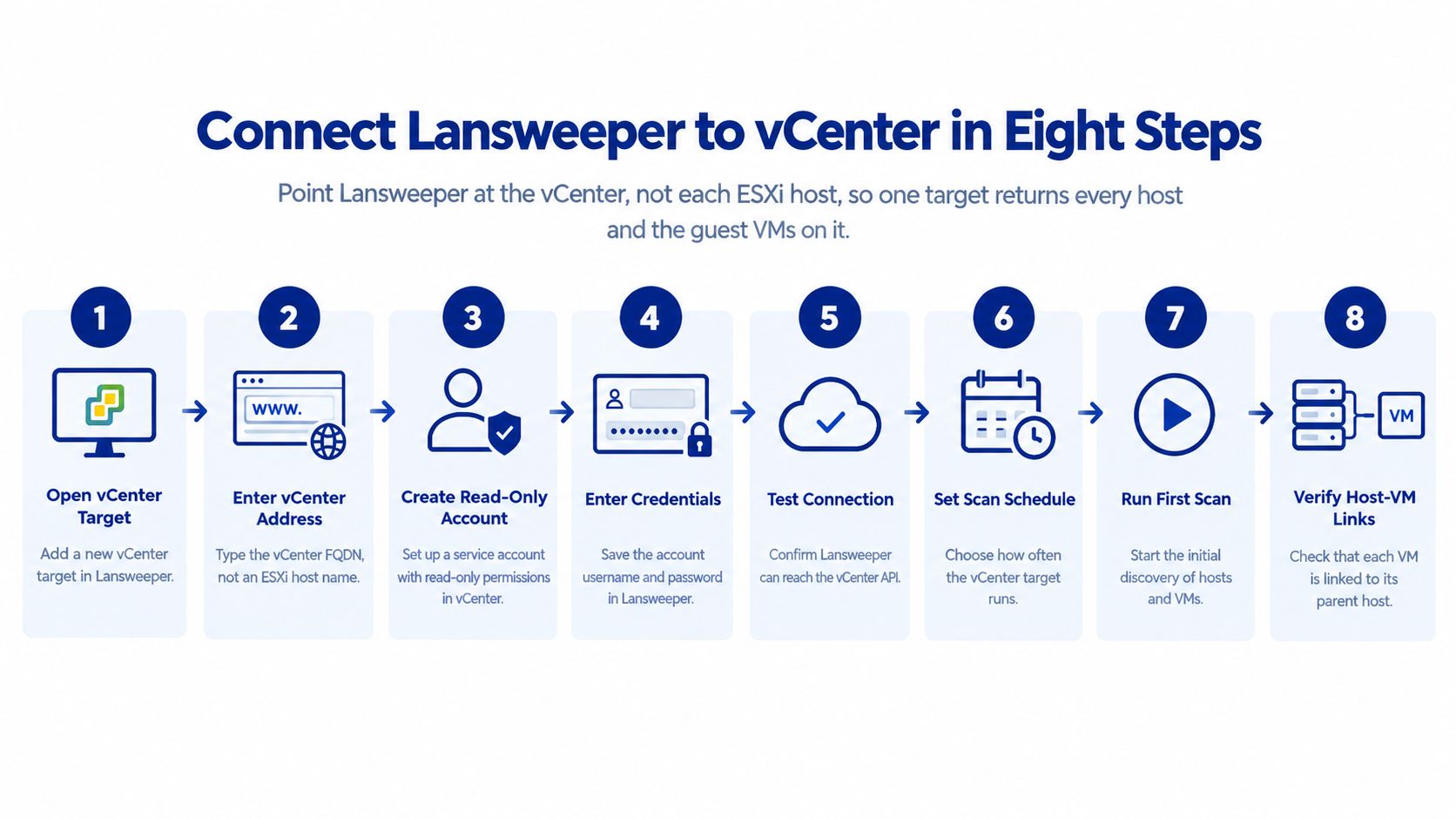
Connect Lansweeper to vCenter in Eight Steps
Point Lansweeper at the vCenter, not at each ESXi host. One vCenter target returns every host it manages and the guest VMs on those hosts, with each VM linked to its parent host. Direct host scanning creates credential sprawl, duplicate records, and blind spots when a host is added to a cluster and nobody updates the scan target.
Prerequisites for vCenter Scanning
Get these conditions in place before you start. Skipping them is why most first scans return hosts with no guests, or nothing at all.
Requirement | Required value |
|---|---|
vCenter account role | Dedicated, read-only, least privilege |
Account scope | One account per vCenter, no administrator role, no shared login |
Target type | vCenter Server Appliance (Windows-based vCenter unsupported) |
Network path | TCP 443 open from scanning server |
HTTPS response | Page title contains ID_VC_Welcome |
Appliance ports | 135, 139 and 445 closed |
Name resolution | vCenter hostname resolves from scanner |
Access monitoring | Alerts on permission or login changes |
The Lansweeper VMware scanning requirements set vCenter as the primary collection path, require TCP 443, expect the HTTPS response title to contain ID_VC_Welcome, and state that Windows-based vCenter installations are unsupported. Follow that order and your first controlled scan usually works. Deviate from it and you'll spend longer troubleshooting than configuring.
The Eight Steps
Create a dedicated read-only vCenter account. Use one account per vCenter, separate from administrator accounts, with no shared login. Scan activity stays traceable to a single identity, and you can rotate the password without breaking an admin's access.
Confirm the target is a vCenter Server Appliance. Windows-based vCenter isn't supported, so don't spend time tuning a scan against a target type Lansweeper will reject.
Confirm DNS resolves the vCenter hostname from the scanning server. A scan that connects by IP can look healthy while hiding a DNS fault that breaks later when the address changes.
Test TCP 443 from the scanner. If the port is blocked, every credential you try will fail for the wrong reason. Prove the network path before you touch permissions.
Add the account as a VMware or vCenter scanning credential. Keep it as its own credential type rather than mixing it with Windows or ESXi credentials, so you can tell at a glance which identity authenticated.
Map that credential to the vCenter target. Mapping is what ties the identity to the target. A valid credential left unmapped scans nothing.
Confirm the HTTPS response title contains ID_VC_Welcome, then run DeviceTester. DeviceTester shows you which check failed, in plain output, before you run a full scan.
Run a controlled scan against one vCenter, then expand to production scope. Confirm hosts and VMs appear for that one target first. Scaling a working configuration beats debugging ten targets at once.
What Success Looks Like
Each ESXi host appears with its VMs nested beneath it, and installed software is recorded per VM. That parent link is the whole point. Without it you can't tell where a workload runs, how portable it is, or which host's cores it consumes.
Operational discipline: Record the account name, purpose and owner in your CMDB so a renewal, restructure or staff change doesn't orphan the credential.
Monitor the account after go-live. Alert on permission changes and unexpected logins, because a read-only account that gains write rights without notice is both a security problem and an audit finding. Keep the scan separate from broader network discovery work too. If you're also mapping cloud accounts, the Lansweeper AWS discovery approach follows the same principle of one dedicated, least-privilege credential per target.
I would not expand scope until one vCenter returns clean host and VM data on two consecutive scans. One good scan can be luck. Two means your credential, port and DNS setup is stable enough to build renewal numbers on.
Fix the Scan Failures That Block VMware Data
Start with DeviceTester output. It names the failed check before you change anything, so you fix a known cause rather than rotating passwords on suspicion. Work the common symptoms first: credential scope and connectivity, then object visibility and stale records.
Symptom | Likely cause | Fix |
|---|---|---|
Credential test fails | Account scope too narrow or wrong username format | Re-check the read-only role on the vCenter and retry |
vCenter never connects | TCP 443 blocked or TLS handshake fails | Test 443 from the scanner and open it if blocked |
vCenter appears as Windows host | Windows discovery is answering for the appliance | Confirm the object is the vCenter appliance, remove it from Windows discovery, then reclassify and rescan |
Hosts found, no VMs listed | Account cannot view VM folders | Grant read-only rights on VM folders and rescan |
Duplicate host entries | Host scanned directly and through vCenter | Keep the vCenter target and remove direct host targets |
VM software missing | Guest OS credentials not set | Add guest credentials and rescan the affected VMs |
Decommissioned host still listed | Stale record from an earlier scan | Check the last-seen date and remove or rescan the record |
A credential test that fails usually means the account lacks scope on the vCenter, or the username format is wrong. Re-check the role assignment before you reset the password. A vCenter that never connects is usually a blocked 443 or a TLS handshake problem, so test the port from the scanner itself and use the path Lansweeper takes.
The Windows misclassification has a specific tell: the target produces an operating-system record but no host, cluster or VM tree. Treat that as a discovery-path problem. Keep the appliance on the vCenter target type, take it out of Windows credential scanning, and rescan until the inventory tree replaces the standalone OS record.
Duplicates come from a direct ESXi host target left in place after the same estate was added through vCenter. Scan through vCenter only, remove the direct host targets, then clear stale records with the approach for handling non-active assets in Lansweeper so old entries do not inflate core or VM counts.
If an asset's last-seen date is older than your scan cycle, rescan before you use its data in a renewal count.
Data Fields to Capture for Procurement
A vCenter scan proves where VMware runs. Turning that into something procurement can price takes eight fields: ESXi version, cluster, core count, VM power state, template status, guest software, last-seen date and the VM-to-host link. The rest of the inventory is operational detail.
Version is a procurement field, not a patching nicety. The BleepingComputer report on Lansweeper's October 15, 2022 inventory analysis covered 79,000 installed VMware ESXi servers from approximately 6,000 customers and found 45,665 servers, about 57.8%, running ESXi 6.7.0 or 6.5.0, two versions that reached end of life on the same date. The same analysis put only 26.4% of those servers on supported versions eligible for regular security updates. A raw host count hides that exposure, along with the upgrade and extended-support cost attached to it.
Field | Source | Procurement question it answers |
|---|---|---|
ESXi version | Host details | Which hosts are past end of life or need upgrade |
Cluster and data center | vCenter inventory | Which clusters map to which bundle |
Physical cores per host | Host hardware data | What the core-based licence base is |
VM power state | VM status | Which workloads are powered off or dormant |
Template flag | VM properties | Which objects should be excluded from counts |
Guest OS and software | VM software scan | Which bundled components are installed |
Last seen date | Scan history | Which records are stale and need a rescan |
Parent host of each VM | VM-to-host link | Where each workload runs and how portable it is |
Datastore and folder | vSphere inventory | Which workloads sit in DR or shared storage |
The vSphere structure underneath carries as much weight as the host data. Data centers, clusters, folders and datastores are the groupings that map hosts to subscription bundles and show disaster recovery placement. Feed those groupings into your Lansweeper CMDB integration so the relationships survive outside the scanning console, where the renewal worksheet will need them.
Say an estate has 24 hosts across three production clusters, one DR cluster and 40 templates. Drop the template and cluster flags and the count overstates production cores. You end up pricing a bundle against capacity you don't run.
If core counts are missing from the host data, close that gap before anything gets calculated. Pull them from hardware records or the vCenter host view and confirm them per host, because an assumed core count is the single most expensive error a renewal worksheet can carry.
Turn Discovery Data Into a Renewal Worksheet
Export the inventory, then reconcile it against contract data before you count anything. Reconcile first, count second. Counting first and reconciling later anchors your negotiation on a number nobody can defend.
The Reconciliation Steps
Export the host and VM list to CSV. Filter to the vCenter target so one file holds the full estate, with no direct-scan duplicates mixed in.
Export your contract data. Pull bundle, term, expiry date and support status from your VMware or reseller records.
Map each cluster to its subscription bundle. This lines host-level technical data up with the commercial units you are buying.
Classify every VM. Mark each one production, DR, dormant, powered-off or template, and write down the rule you applied so two analysts reach the same answer.
Calculate core exposure per host. Use confirmed core counts only. If a count is unconfirmed, flag it rather than estimating.
Log every exception. Give each one an owner, a reason and a review date. Orphaned exceptions become permanent cost.
Model three scenarios. Renew as-is, rightsize by removing dormant capacity, and migrate or change platform. Price all three before you talk to a reseller.
Build the worksheet on the exported columns, then add the two fields Lansweeper cannot supply: the entitlement line from the contract and the renewal decision for each cluster. Once the worksheet is stable, the Lansweeper Power BI reporting route gives finance and leadership a readable view of the same reconciled numbers.

Why a Count Alone Won't Carry a Renewal
VMware licensing has moved from perpetual products toward subscription bundles, and the Register analysis of data resilience and portability reports Broadcom-related changes associated with average cost increases of 200 to 500%. At that scale of change, a raw device count gives a reseller nothing to price against.
Lansweeper shows presence; the contract defines entitlement.
A complete VM list still lacks contract terms, processor-core exposure, cluster context, portability rules and DR treatment. Keep the discovery columns and the entitlement columns separate in the worksheet and you end up in an auditable position. Merge them and you either overbuy or walk into a renewal unprepared.
Decide Renewal Scope Before You Request a Quote
A quote you can't defend line by line is just a number on a page. Confirm the contract facts first, then size the purchase, then size Lansweeper with headroom. A smaller verified scope beats a larger unverified one.
Verify minimums and bundles in your own contract. The Intelisys summary of Broadcom VMware licensing changes reports that in 2025 VMware product purchases moved to a 72-core minimum, up from 16 cores, the portfolio was reduced to four principal bundles, purchasing became subscription-only, and a possible 20% first-year penalty applied after a missed renewal. Check each of those against your partner terms before you build the renewal around them.
Check support status on every perpetual entitlement. Many can no longer be renewed for support, which changes whether keeping them is viable at all.
Check whether any cluster falls below the minimum commitment. A small environment can be commercially stranded even when it's technically tidy.
Size the Lansweeper tier to the full estate. The published Lansweeper pricing states the Pro plan starts with 2,000 assets and can expand to 9,000 assets, and that asset licenses are not stackable. Buy one tier that covers you with headroom rather than planning to bolt on a second licence.
Request quotes that itemise each line. Ask for bundle, term, expiry and support status per line so you can compare options without guessing.
If your team also tracks contracts and purchase orders alongside discovery, AssetExplorer by ManageEngine is a node-licensed ITAM tool with agent and agentless discovery, software license compliance, a built-in CMDB with dependency maps, and purchase order and contract tracking. It's listed at $67.65.
Send your field list, asset count and three scenarios to Stackingo.com and use the reply to test each worksheet scenario against a real quote. That comparison is how you find the lowest-cost compliant entitlement rather than accepting the first number a reseller offers.
Bring your reconciled Lansweeper VMware worksheet, your core counts and your contract expiry dates, and get comparable quotes across renewal, rightsizing and migration options instead of a single take-it-or-leave-it figure. Visit Stackingo to submit your asset count and scenario list, and you'll get a structured quote you can test line by line before you commit to a bundle or term.


