
How Do You Set Up Lansweeper Windows 11 Discovery?
Does a clean inventory confirm Windows 11 readiness? Lansweeper Windows 11 discovery can surface endpoint details, but readiness still depends on verifying what each scan actually collects. Use agentless scanning for reachable LAN devices and LsAgent for roaming endpoints. Treat every missing hardware or firmware value as an unverified exception and sort each device into enable, upgrade, replace, or retire only after its status is clear. A clean scan report alone does not establish readiness.
Choosing Between Agentless Scanning and LsAgent
Use both methods in a mixed estate. Agentless discovery suits stable, domain-joined desktops and servers; LsAgent closes gaps for remote laptops and segments where WMI/DCOM traffic is blocked. Lansweeper's hybrid agentless approach avoids installing software everywhere, but reachability still determines what you can collect.
Agentless scanning compared with LsAgent
Criterion | Agentless (WMI/DCOM) | LsAgent |
|---|---|---|
Software on endpoint | None | Installed on each device |
Windows 11 support | Via WMI and registry queries | Windows 11 64-bit supported |
Prerequisites | Network paths and WMI/DCOM rights | .NET Framework 4.8 or higher |
Roaming or offline laptops | Gaps when unreachable | Reports when it can connect |
Credential management | Scan account on each domain | Local collection, no remote WMI scan account |
Best fit | Stable LAN, domain-joined desktops and servers | Remote laptops, segments with blocked WMI traffic |
A laptop connected only during the day can remain missing if agentless scans run overnight. LsAgent can collect locally and report when connectivity returns; it doesn't report while disconnected.
For your pilot, choose a domain-joined site and a remote group. Compare attribute completeness, not just discovered-device counts, using the Lansweeper deployment overview to frame your coverage requirements.
Ports and Permissions to Check Before the First Scan
Agentless discovery needs reachable RPC, SMB, and dynamic DCOM paths, plus a running WMI service. Local administrator privileges aren't required by default when you configure the least-privilege rights correctly.
Ports and permissions required for agentless Windows scanning
Requirement | Value | Why Lansweeper needs it |
|---|---|---|
TCP 135 | Open from scanner to endpoint | RPC endpoint mapper for WMI/DCOM |
TCP 445 | Open from scanner to endpoint | SMB inventory access |
TCP 49152-65535 | Open from scanner to endpoint | Usually required dynamic DCOM ports |
WMI service | Running on endpoint | Hardware and OS data |
Distributed COM Users | Scan account membership | Remote DCOM access |
Performance Monitor Users | Scan account membership | Performance counter reads |
WMI | Read permission | Hardware and OS inventory |
Registry | Read permission | Firmware and Secure Boot values |
Also grant DCOM launch and activation rights. For domain scoping and account planning, use the Lansweeper Active Directory guidance.
Before expanding discovery:
Test connectivity: Run from the scanner against the required ports, including the endpoint's assigned dynamic RPC port.
Check the service: Confirm WMI is running on a pilot endpoint.
Verify credentials: Query that endpoint manually using the scan account.
Passing the endpoint-mapper and SMB checks doesn't prove dynamic DCOM traffic can cross your firewall.
How Do You Roll Out LsAgent Through GPO, Intune or SCCM?
Match deployment to the management plane you already operate. Use Group Policy for domain-connected fleets, Intune for cloud-managed devices, and Microsoft Configuration Manager for estates already managed through ConfigMgr.
LsAgent deployment methods by estate type
Method | Best for | Watch for |
|---|---|---|
Group Policy software deployment | Domain-joined on-premises fleets | Startup timing, reboots, OU scoping |
Microsoft Intune | Cloud-managed or hybrid-joined Windows 11 devices | Detection rules, install context, check-in delays |
Microsoft Configuration Manager | Large on-premises estates already using ConfigMgr | Collection scoping, maintenance windows |
Script or manual install | Pilots, labs, isolated segments | Version drift, hard-to-audit installs |
Package the supported installer, define detection rules, and log installation results. The Lansweeper and Intune guidance helps connect deployment assignments with inventory coverage.
Use staged deployment rather than treating package delivery as completion:
Pilot: For example, choose twenty endpoints across office and remote groups.
Expand: Move to a quarter of the estate only after prerequisites and successful agent check-ins are confirmed.
Complete: Deploy the remainder and reconcile missing devices individually.
In a 2025 migration project covering more than 2,000 devices, nearly half still ran Windows 10, according to Lansweeper's Qarmet case study. Record agent versions and last successful inventory timestamps so deployment progress doesn't conceal collection failures.
How Do You Run a Lansweeper Windows 11 Readiness Scan Step by Step?
Establish coverage, validate access, collect compatibility attributes, and classify the results. The Windows scanning requirements document the WMI/DCOM prerequisites and least-privilege access model needed for dependable collection.
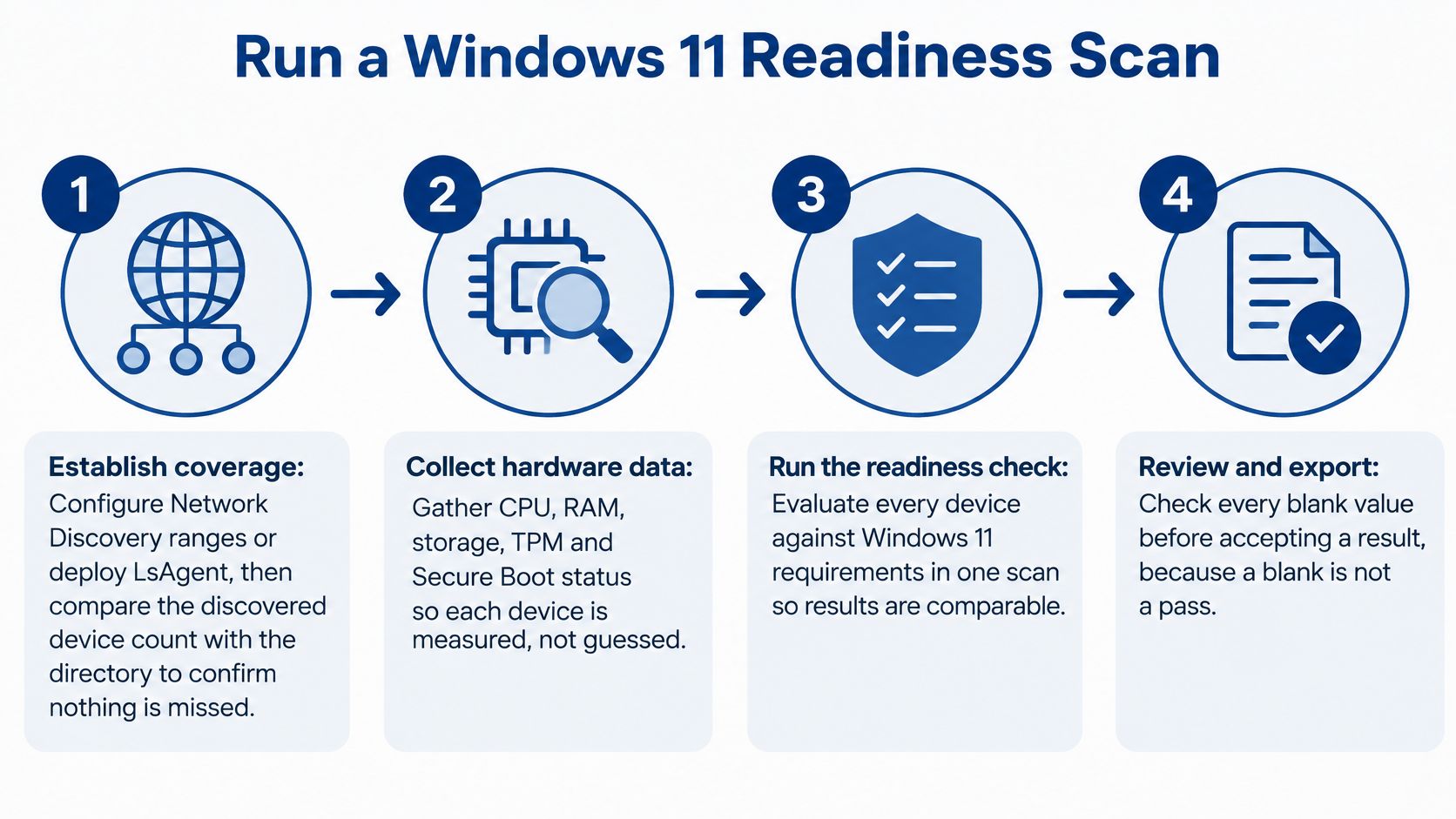
Establish coverage. Configure Network Discovery ranges or deploy LsAgent. Reconcile discovered endpoints against your directory or CMDB, removing stale records from the denominator deliberately rather than without notice.
Validate access. Apply the scan-account permissions and run a representative pilot. Clear credential and connectivity errors before increasing scope.
Collect gating attributes. Capture processor model, architecture, memory, storage, firmware, TPM, graphics, and display information. Use Classic audit capabilities or manual verification where Cloud results don't evaluate a requirement.
Classify assets. Separate ready, remediable, and replacement candidates. Keep incomplete records in an exception queue until you obtain evidence.
Calculate coverage as successfully scanned in-scope endpoints divided by the authoritative in-scope population. Rerun after access changes and confirm that exceptions close because values were collected, not because devices disappeared from the report.
For broader lifecycle tracking, Asset Management by SuperOps is a separate ITAM option with automated discovery and lifecycle monitoring.
Reading Windows 11 Audit Results Without False Passes
A blank value is not a pass. Hardware compliance also isn't deployment approval: application compatibility, recovery procedures, and business ownership still need validation.
The minimums below follow Lansweeper's Windows 11 requirements audit, including a compatible 64-bit processor at 1 GHz with at least two cores, 4 GB RAM, 64 GB storage, and TPM 2.0.
Windows 11 requirements, typical blockers and remediation
Requirement | Minimum | Typical blocker | Remediation path |
|---|---|---|---|
Processor | Compatible 64-bit, 1 GHz or faster, 2+ cores | Older CPU model | Replace after manual compatibility check |
Memory | 4 GB RAM | Insufficient installed memory | Add memory |
Storage | 64 GB | Small system drive | Expand or reimage onto sufficient storage |
Firmware | UEFI, Secure Boot capable | Legacy BIOS mode | Validate conversion, enable Secure Boot |
TPM | TPM 2.0 | Disabled or absent | Enable supported firmware TPM or replace |
Graphics | DirectX 12, WDDM 2.0 driver | Outdated driver | Update, then verify hardware support |
Display | Larger than 9 inches, 720p or higher | Unsuitable panel | Verify manually |
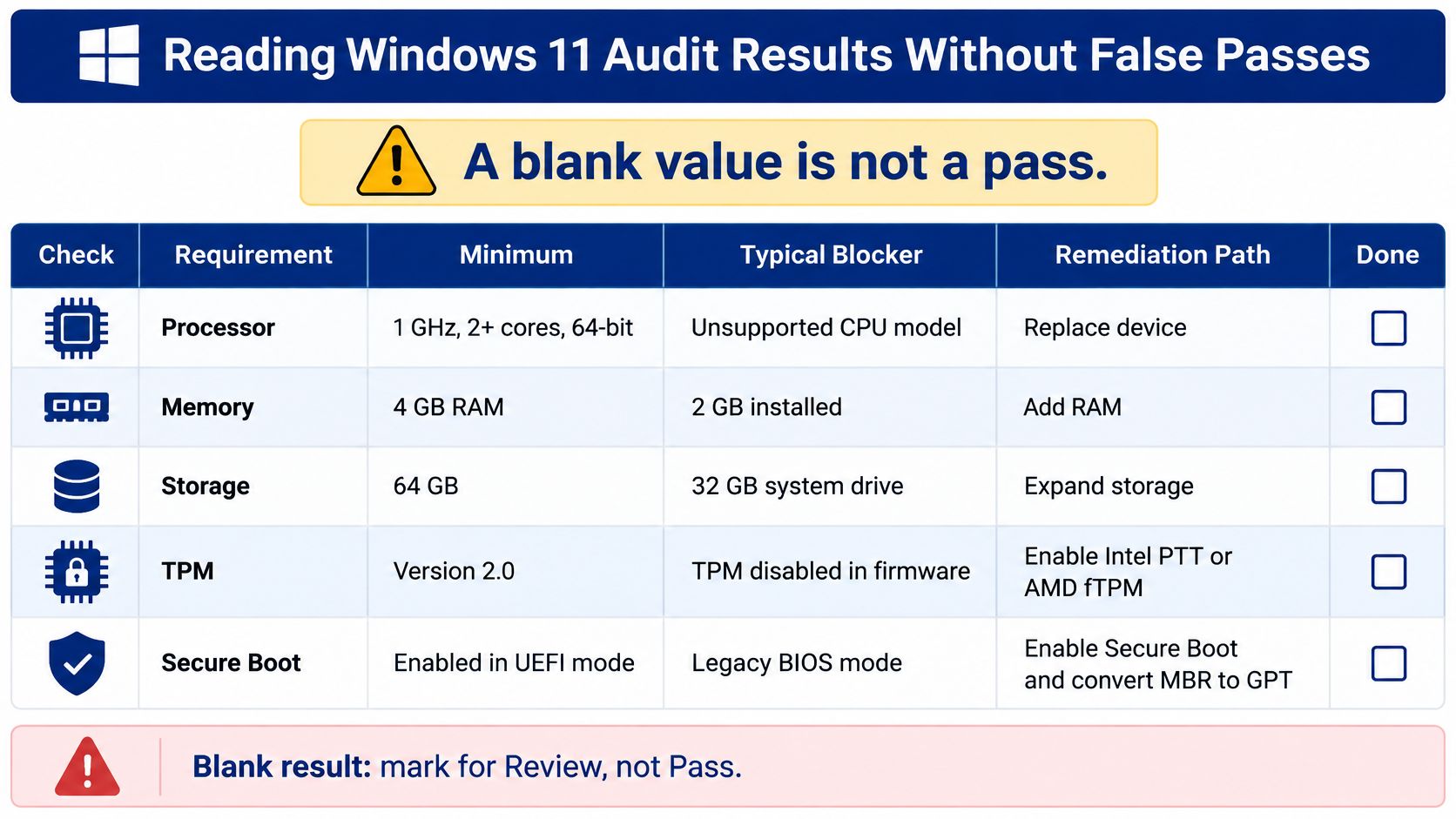
Triage memory-only and storage-only failures first, then investigate firmware configuration, validate CPU models, and rescan after changes. Don't convert boot mode without a tested recovery path.
Publish scan coverage, technical readiness among successfully scanned assets, and remediation closure separately. A Lansweeper Power BI reporting workflow can help keep those denominators visible.
Do Virtual Machines Need Different Windows 11 Readiness Checks?
Yes. Score virtual machines separately because guest configuration and hypervisor capabilities create distinct remediation paths. Lansweeper's historical assessment found that just 0.23% of virtual workstations had TPM 2.0 enabled, according to Computer Weekly. Treat each blank or failed check as an unverified exception until you confirm its cause.
For example, a Hyper-V Generation 2 VM may lack a vTPM. Check the VM's Security settings, enable the virtual TPM, then confirm Windows detects it in the guest. A clean scan report still does not prove every readiness requirement is met.
Inspect the hypervisor: Verify UEFI firmware, Secure Boot settings, virtual TPM availability, and platform prerequisites.
Inspect Windows: Confirm the guest reports the security features after configuration changes.
Reclassify: Sort each VM into enable, upgrade, replace, or retire. Schedule a rebuild if its current configuration cannot support required features.
A virtual CPU compatibility issue may need host, compatibility-mode, or template changes. Check the processor exposed to the guest after changing a template.
Keep VM results separate from physical endpoints, so a virtual configuration backlog does not drive unnecessary hardware purchases.
Common Scan Errors and How to Fix Them
Access denied usually points toward authorization; timeouts point toward reachability. Confirm both before changing credentials repeatedly.
Scan symptoms, likely causes and fixes
Symptom | Likely cause | Fix |
|---|---|---|
Access denied on WMI query | Missing DCOM or WMI rights | Check group membership and read access |
Device skipped with no response | RPC/SMB blocked or endpoint offline | Test connectivity and endpoint availability |
Scan hangs or times out | Dynamic DCOM blocked | Allow the configured dynamic range between subnets |
Secure Boot field blank | Older discovery configuration lacks registry collection | Upgrade or add registry collection |
TPM reported missing | Disabled firmware TPM or absent hardware | Check firmware capabilities, then rescan |
The Cloud audit documentation specifies collecting under . An empty result therefore requires investigation, not automatic rejection.
Use the RPC unavailable troubleshooting guidance for transport failures. Permission changes may be quick; firmware updates and boot-mode changes need a maintenance window.
Which Action Should You Take for Each Device?
Assign an action only after resolving missing evidence:
Enable: Activate supported Intel PTT, AMD fTPM, or Secure Boot settings.
Upgrade: Add memory or storage when that's sufficient.
Replace: Refresh unsupported hardware after checking remediation options.
Retire: Decommission unnecessary devices or systems whose required workload has been replaced.
TechTarget's Windows 11 migration analysis highlights the distinction between configuration remediation and genuine replacement needs. Don't let an incompatibility label become an automatic purchase order.
Export the classified inventory with asset counts, owners, blockers, and target actions. Keep already-ready devices in the deployment queue and unresolved business-critical systems in an exception register with an accountable owner.
Stackingo offers an RFQ-led purchasing process for enterprise software licensing, helping you compare options against your actual requirements. Visit Stackingo with your scanned asset count and deployment scope to request a Lansweeper quote before budget approval.


