
Lansweeper Intune Integration Guide for Enterprise IT Teams
Updated: Oct 10
You can connect Lansweeper and Microsoft Intune and still end up with an incomplete or unreliable inventory. The connection itself is rarely the hardest part. The work starts afterward, when duplicate devices appear, identity fields don't align, scan results fail to save, or an Intune Win32 package reports installation failures even though the agent is present.
A dependable Lansweeper Intune design separates two jobs. Intune provides cloud-managed device records through Microsoft Graph, while the Lansweeper agent can collect deeper endpoint information. Treat the integration as an inventory and reconciliation system, not as a simple plug-in.
Understanding the Lansweeper Intune Integration Architecture
A large Intune estate can look healthy while its Lansweeper inventory is already drifting. The common causes are repeated device records, inconsistent user and device names, stale enrollment objects, and agents that installed but cannot reach the Lansweeper server. The connector is not just a plug-in. It is an inventory and reconciliation process that needs ownership rules.
The integration has two distinct collection paths. Intune supplies cloud-managed device records through Microsoft Graph. The Lansweeper agent collects deeper endpoint information locally after deployment through Intune. The Discover All Intune Assets report can expose fields including device type, model, operating system, operating system version, carrier, and serial number for supported enrolled devices.
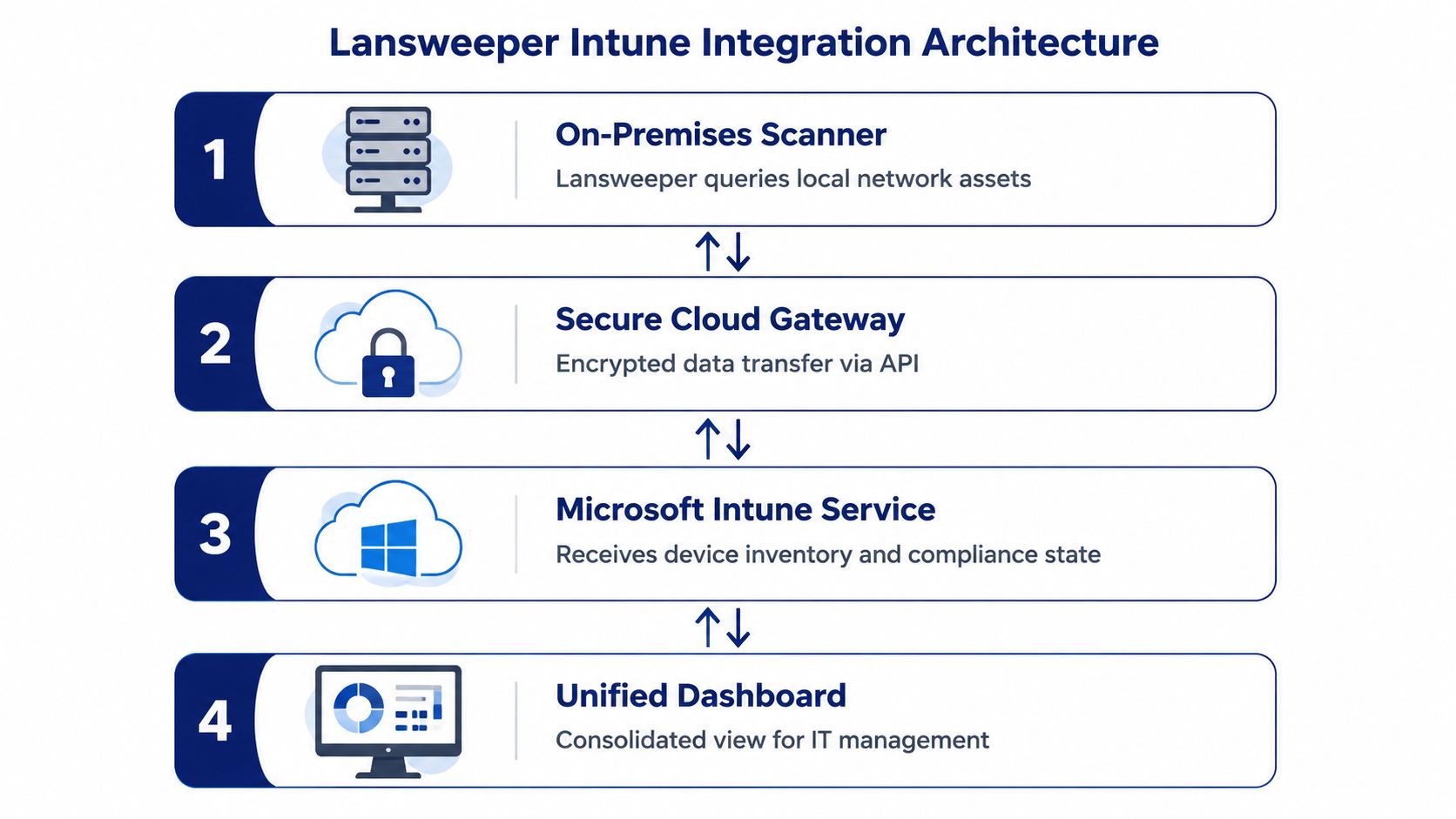
Decide which source owns each attribute before enabling both paths. The Intune V2 scanning target is agentless and reads enrollment data from the cloud, making it useful for mobile inventory and basic endpoint attributes. The agent requires Win32 packaging, detection logic, network access to a Lansweeper server or relay, and ongoing maintenance.
Which integration path fits your environment?
Use V2 scanning for cloud enrollment visibility and managed-device records. Use the agent when you need local details that Graph does not provide in the same way, such as installed software and other endpoint-level data.
Approach | What it does well | Main trade-off |
|---|---|---|
Intune V2 scanning | Retrieves managed-device data through Microsoft Graph | Depends on permissions, credentials, and reliable asset matching |
Lansweeper agent through Intune | Adds local endpoint information | Requires Win32 packaging, detection rules, reachability, and maintenance |
Hybrid deployment | Combines enrollment records with local scanning | Needs explicit ownership and reconciliation rules |
At scale, matching deserves as much attention as collection. Serial numbers may be the strongest anchor, while names and user fields can change during re-enrollment. Establish a duplicate-handling rule before importing records, or one physical endpoint can appear as several assets.
The documented Intune V2 target workflow uses a Microsoft Entra app registration, Graph permissions including , the Lansweeper credential vault, and a dedicated target under Scanning and Targets (Lansweeper's Intune scanning documentation, the Intune V2 target setup guide). Packaging choices and broader integration considerations are also covered in Lansweeper integration considerations.
Configuring Microsoft Entra and Graph API Permissions
The Entra registration determines whether Lansweeper can retrieve Intune-managed devices. Create an application registration in Microsoft Entra, record the application and tenant identifiers, then grant only the Graph permissions required by your Lansweeper workflow. Lansweeper's documented Intune V2 process specifically references Microsoft Graph access and application registration requirements (official Intune scanning guidance).
The permission model must match the authentication flow you configure. Lansweeper's current documentation references permissions such as , and its connector documentation states that the component was built with the Microsoft Graph REST API v1.0 (Microsoft Intune connector documentation).
What should you configure in Entra?
Permission Name | Type | Purpose | Admin Consent Required |
|---|---|---|---|
Microsoft Graph permission | Reads Intune-managed device records | Yes | |
Additional Graph permissions required by the selected Lansweeper workflow | Microsoft Graph permission | Supports the device and directory data requested by that workflow | Confirm in the current Lansweeper documentation |
Don't copy a permission list from an older walkthrough without checking the current target type. Historical Lansweeper guidance from September 2019 described Azure AD app registration, the Intune Administrator role, and Microsoft Graph permissions for scanning Intune-managed devices (historical integration walkthrough). Current documentation identifies the Intune V2 target, so older “Intune” instructions may not map directly to the present interface.
Where do authentication failures usually occur?
Three failure points recur in enterprise deployments:
Application registration mismatch: The tenant ID, client ID, or callback configuration doesn't correspond to the Lansweeper environment.
Consent or scope problems: The app lacks administrator consent, or the granted permissions don't cover the API operation being requested.
Credential lifecycle gaps: A client secret has expired, been replaced, or wasn't updated in the Lansweeper credential vault.
Lansweeper's documentation also references EU and US callback URLs and delegated Graph permissions, so regional callback configuration deserves the same review as the permission assignment. Keep an internal record of the registration owner, consent status, credential location, and renewal procedure. That record matters because an integration can stop collecting data without any change to the endpoint fleet.
Practical rule: Test token acquisition and a read-only managed-device request before tuning scan schedules or custom fields. Otherwise, you'll troubleshoot several layers at once.
Use least privilege, but don't assume that a successful sign-in proves the integration is healthy. A token can be issued while the subsequent Graph request is rejected because consent, scope, or tenant configuration is incomplete.
Setting Up Intune V2 Scanning Targets and Data Mapping
A first scan can look successful while creating duplicate assets or incomplete records. Set up the Intune V2 scanning target only after the Entra credential has been tested. In Lansweeper, add the Microsoft Cloud Service credential through the credential vault, then define the target's scan server, name, description, schedule, and assigned credential. Follow the documented Intune V2 setup path for the current interface.
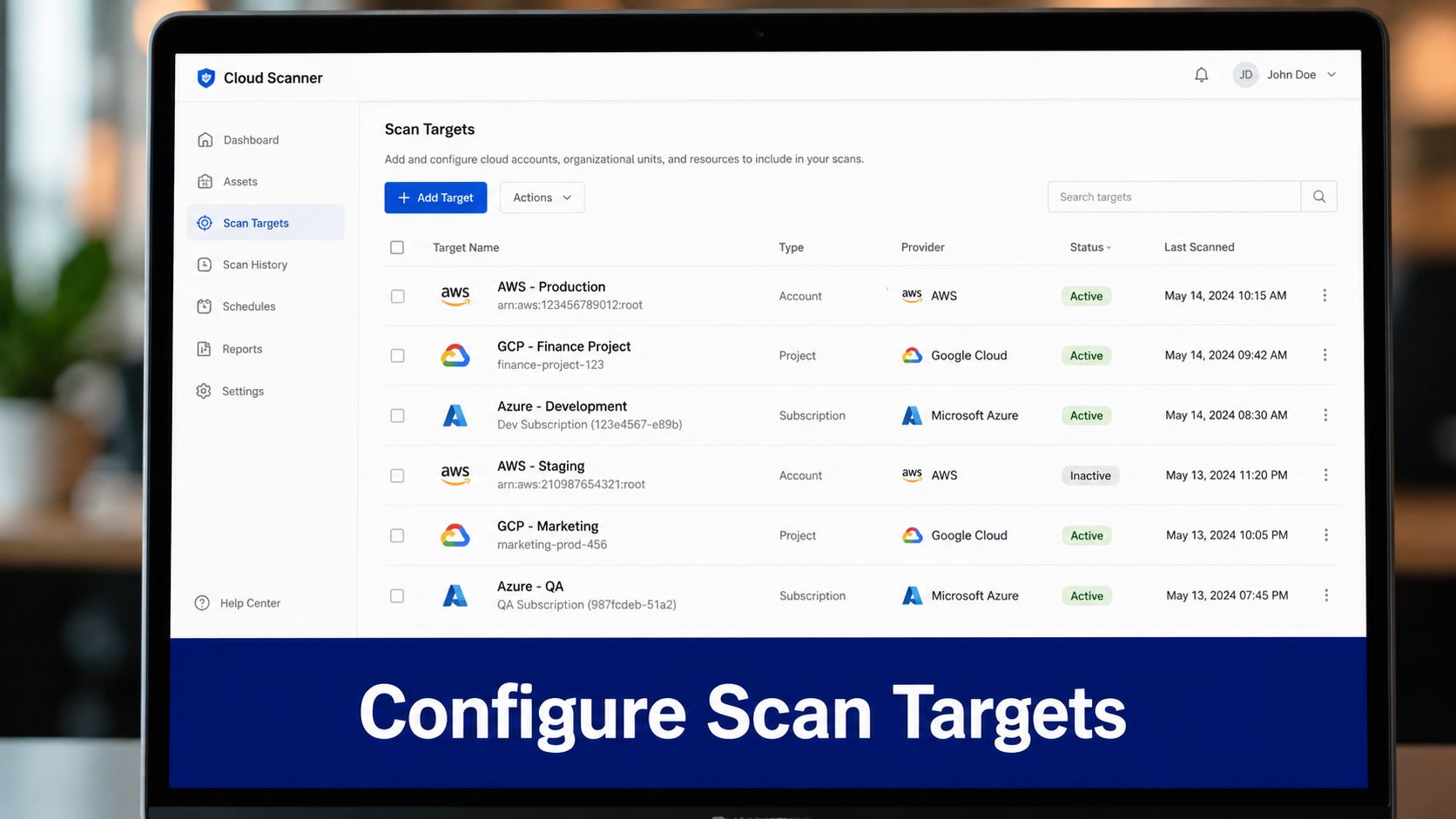
Treat the first successful scan as a data-quality test. Confirm that Lansweeper creates the expected assets, serial numbers populate where available, and endpoints collected through another method match existing records rather than generating new ones.
How should you map Intune attributes?
Begin with stable identifiers, then add fields that support daily operations. The Intune asset report covers device attributes such as mobile device type, model, operating system, operating system version, carrier, and serial number (Lansweeper's Intune asset report).
Useful custom fields include:
Enrollment context: Corporate or personal ownership where available.
Management state: Whether Intune still actively manages the device.
Last check-in information: A practical signal for separating current inventory from stale records.
Assigned user principal name: Useful for service desk routing and ownership checks.
Source indicator: Shows whether the value came from Intune, the Lansweeper agent, or another scan method.
Define the reporting question before adding a field. Intune exposes more attributes than every service desk or audit process needs. A growing schema without clear ownership produces inconsistent names and makes downstream reports harder to maintain.
How do you avoid duplicate assets?
Asset matching determines whether the connector improves inventory or creates cleanup work. Lansweeper's Flow Builder pattern uses the Microsoft Intune connector and the List Managed Devices step to retrieve records, then writes the returned values into Lansweeper custom fields through a webhook or schedule. The workflow requires a successful asset match before Intune attributes are saved (Lansweeper's Intune automation guidance).
Normalize device names, serial numbers, and directory identifiers before writing values. Name-only matching breaks when users rename devices. Serial numbers may be absent or formatted differently between systems. Use a defined fallback order, and send unmatched records to review instead of creating assets automatically.
For CMDB ownership, field design, and publishing practices, consult CMDB and Lansweeper data practices. The connector remains easier to operate when identity rules and field ownership are documented before the scan schedule increases.
Deploying the Lansweeper Agent via Intune Win32 Packaging
The agent deployment path uses Microsoft's Win32 application flow. Prepare the installer source, run , upload the resulting file to Intune, and configure the Lansweeper connection parameters in the installation command. Lansweeper's published example uses port 9524, along with the server, agent key, and unattended mode parameters (official agent deployment guidance).
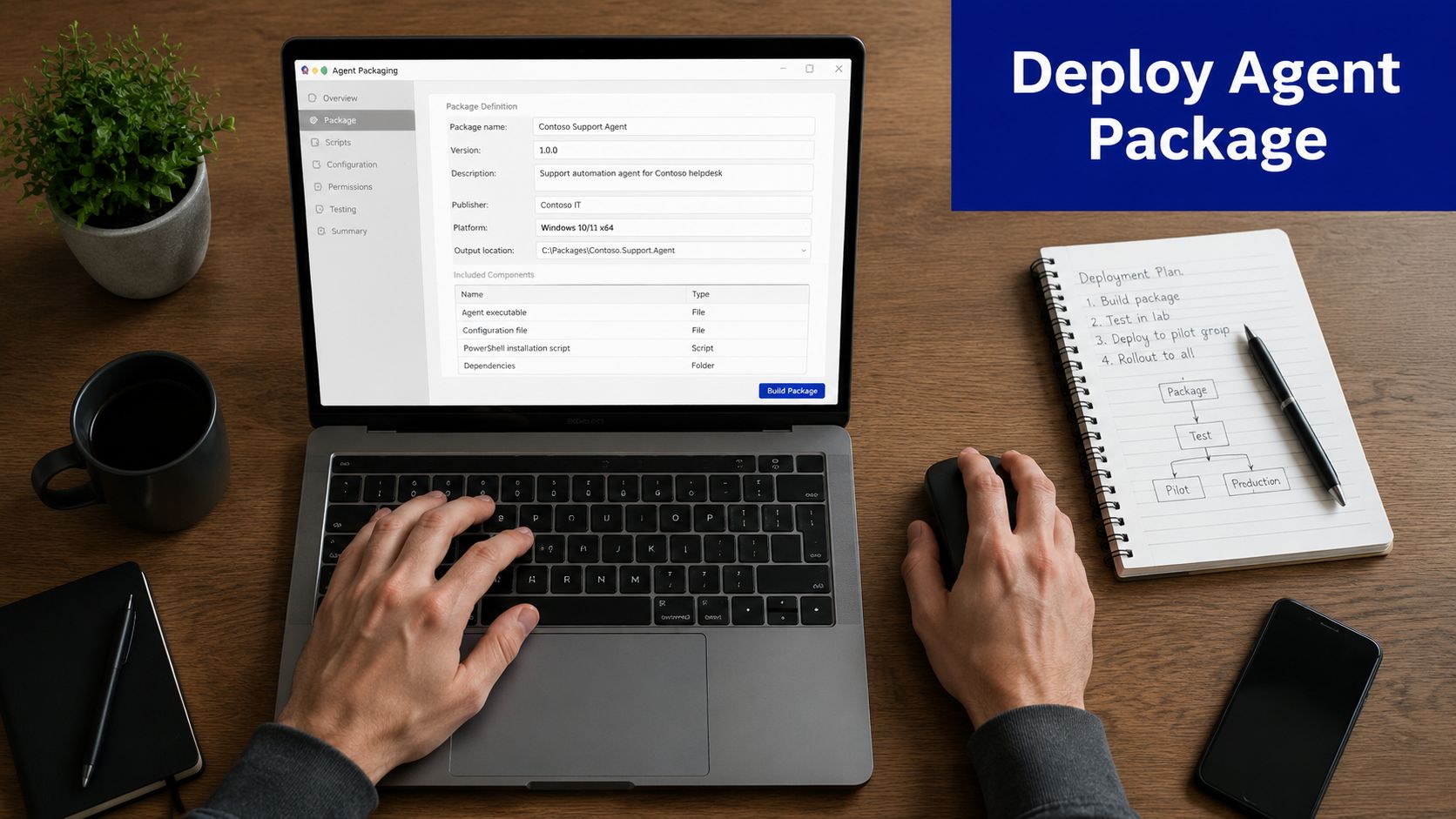
The packaging directory should contain only what the installer needs. Keep the setup file path predictable, generate the package from that source directory, and verify the output before uploading it. A package that works interactively can still fail under the Intune system context because paths, permissions, environment variables, and return codes differ.
What should the Intune app configuration contain?
Configure the Win32 application around four controls:
Install command: Include the Lansweeper server, port, agent key, and unattended option required by your environment. The published Lansweeper example demonstrates these connection settings and uses port 9524.
Uninstall command: Use the supported agent removal command and test it under the same execution context as installation.
Detection rule: Use the documented file-existence path for the agent executable or wrapper. The detection path must match the installed location exactly.
Assignment scope: Start with a controlled device group, then expand after confirming installation status, registration, and reporting.
File detection can be practical, but it only proves that a file exists. It doesn't necessarily prove that the agent registered successfully with the correct server. Pair detection results with Lansweeper-side reporting so a false positive doesn't hide a connectivity or key configuration problem.
Why do packages report false failures?
Packaging and detection mismatches are common. A wrong source path, an incorrect architecture binary, an omitted connection key, or a detection rule that evaluates before registration can produce repeated installs or apparent failures. Lansweeper's guidance specifically calls out the Win32 wrapper, file path, and file-existence detection relationship, so keep those three values aligned.
Also check relay reachability and outbound network policy. If the endpoint can install the package but can't reach the Lansweeper scanning endpoint, Intune may show a successful deployment while Lansweeper receives no useful inventory.
For a wider view of agent-based discovery, see Lansweeper full asset coverage.
Troubleshooting Common Sync and Deployment Failures
At scale, sync failures usually come from three places: the target is unavailable, cloud records do not match existing assets, or the agent installs without reporting. Re-running scans without checking logs, identifiers, and persistence errors often creates duplicate records instead of fixing the fault.
Symptom | Root Cause | Resolution |
|---|---|---|
Intune V2 option is missing | The Lansweeper environment or interface does not expose the current workflow | Check the current product documentation and use the supported Lansweeper upgrade path |
Scan returns no useful assets | Credential, Graph permission, consent, or matching problem | Validate the Entra registration, Graph access, and matching identifiers |
Duplicate devices appear | Intune and network or agent scans identify the same endpoint differently | Normalize serial numbers, device names, and directory identifiers, then reconcile records |
Scan results fail to save | Duplicate records or persistence conflict | Review duplicate assets and Lansweeper release notes before repeating the scan |
Intune reports agent failure | Packaging, detection, command, key, or connectivity issue | Inspect deployment details, package contents, detection logic, and server reachability |
Agent appears installed but does not report | Network egress restriction or incorrect Lansweeper endpoint settings | Test the endpoint path, port, server value, and agent key |
What should you check first?
Start with Lansweeper scan logs. Identify whether the failure occurs during authentication, Graph retrieval, identity matching, or persistence. Test the Intune connector separately from Lansweeper's asset-writing process. The connector uses the Microsoft Graph REST API v1.0, so the cloud request provides a clear boundary for troubleshooting (connector documentation).
Identity normalization deserves particular attention. Intune may identify a device by directory identifier, while another Lansweeper scan uses a hostname, serial number, or agent record. Check those values side by side before merging or deleting assets. A successful Graph response does not guarantee that Lansweeper will attach the data to the intended record.
Deployment discussions and current product guidance describe recurring friction around missing V2 options, empty scans, and agent command failures (community troubleshooting discussion). IntuneWinAppUtil packaging can also introduce a misleading result. A wrapper may install successfully while using the wrong working directory, connection key, architecture binary, or detection path, leaving the agent unable to report.
Use this diagnostic sequence:
Validate the target: Confirm that the V2 target exists and has the expected credential assigned.
Validate access: Check admin consent, permission scope, tenant identifiers, and credential validity.
Validate identity: Compare serial number, device name, and directory identifiers between Intune and Lansweeper.
Validate persistence: Review duplicate assets and determine whether the result was rejected or attached to another record.
Validate deployment: Inspect the Intune app status, command, package contents, detection rule, and system-context logs.
Validate transport: Confirm that the installed agent can reach the configured Lansweeper scanning endpoint.
Retrieved data becomes useful inventory only when identity matching and persistence succeed.
For adjacent Windows connectivity faults, RPC troubleshooting guidance helps separate RPC scanning problems from Intune-specific failures.
Enterprise Best Practices for Long-Term Reliability
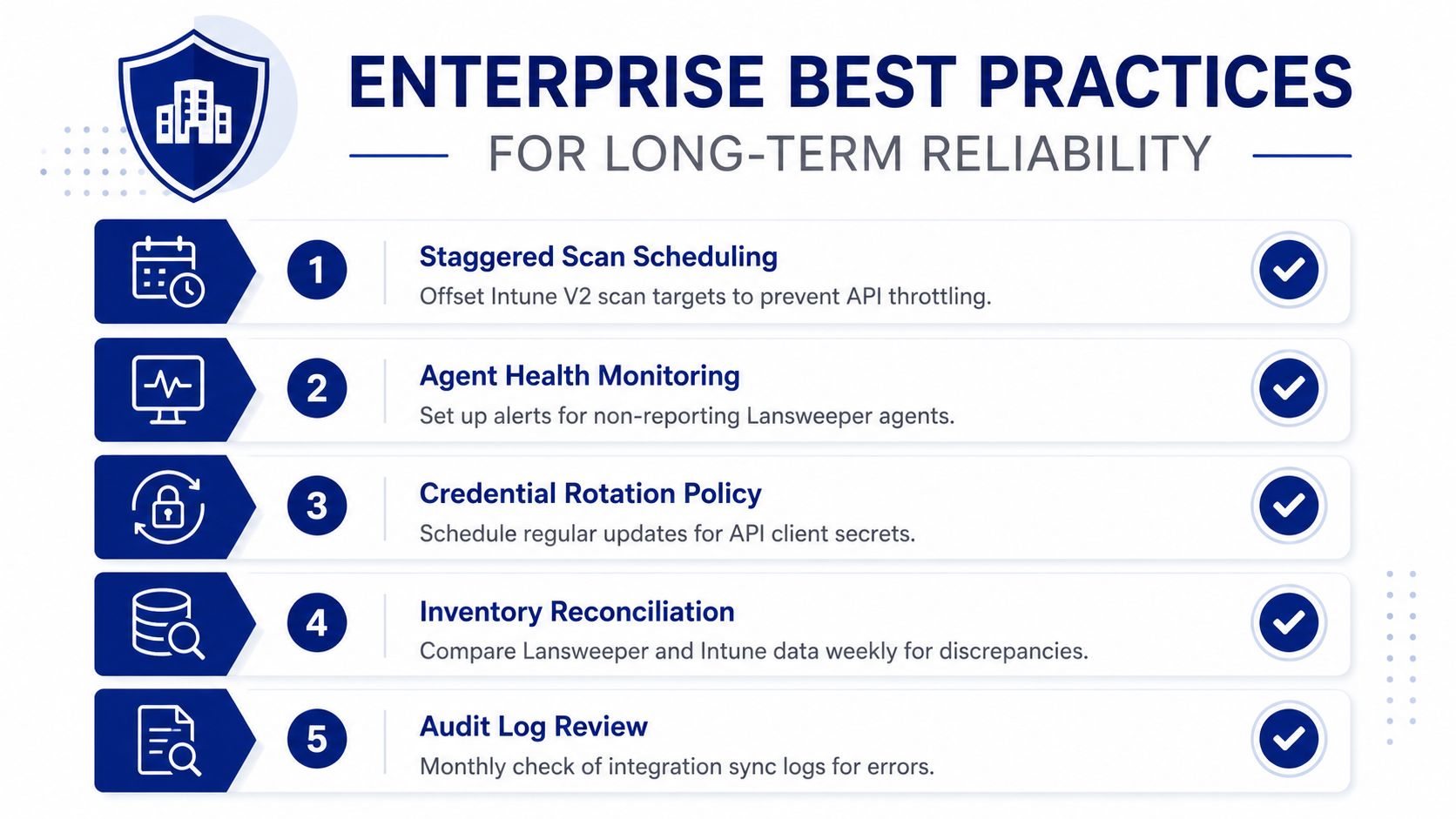
A stable Lansweeper Intune connector needs ownership, monitoring, and controlled change. Don't let endpoint administrators own the Entra registration while asset management owns the Lansweeper database without a shared runbook. Each team controls part of the data path, and failures often occur at the boundary.
What keeps the integration dependable?
Stagger scan schedules: Offset cloud scans so they don't all compete for Graph access at the same time.
Monitor both sides: Alert on failed targets, empty results, missing agents, and records that stop updating.
Rotate credentials deliberately: Record secret ownership, renewal steps, consent dependencies, and the Lansweeper vault update procedure.
Govern custom fields: Assign an owner for field names, allowed values, and changes to Intune mappings.
Reconcile inventory routinely: Compare Intune records with Lansweeper assets and investigate unmatched or duplicated endpoints.
The operational target isn't maximum collection. It's trustworthy collection. A smaller inventory with clear source ownership and reliable freshness is more useful than a large database containing duplicates and stale records.
Document the architecture, callback configuration, permission decisions, matching rules, scan schedules, and escalation contacts. The Lansweeper enterprise guidance can sit alongside that runbook when you're aligning asset intelligence with wider IT management and procurement decisions.
Stackingo offers a dedicated Lansweeper offering and can support enterprise teams evaluating implementation, CMDB and ITSM data publishing, asset relationships, and licensing requirements around this integration. Visit Stackingo to structure your Lansweeper and Intune procurement conversation and connect the technical design with a clearer software purchasing process.
Frequently Asked Questions About Lansweeper Intune
What does Lansweeper Intune integration provide?
It gives Lansweeper access to Intune-managed device information through Microsoft Graph and can enrich asset records with fields such as operating system, model, device type, carrier, and serial number. The Lansweeper agent can add deeper endpoint data when cloud inventory alone isn't enough.
What is the Lansweeper Intune V2 target?
The Intune V2 target is Lansweeper's documented cloud scanning workflow for Intune-enrolled Android, iOS, and Windows Phone devices. It requires a Microsoft Cloud Service credential, an Entra app registration, Graph permissions, and a configured Lansweeper scanning target.
Why do duplicate devices appear in Lansweeper?
Duplicates usually appear when Intune, network scanning, and the Lansweeper agent identify the same endpoint with inconsistent names or identifiers. Normalize serial numbers and directory identifiers, then apply matching logic before saving Intune attributes to an existing Lansweeper asset.
Can Intune deploy the Lansweeper agent?
Yes. The deployment uses Microsoft's Win32 app packaging flow, including , an package, an installation command, and a detection rule. The package must include the correct server, port, agent key, unattended mode, and matching file path.
What should you monitor after deployment?
Monitor Lansweeper scan logs, Intune application status, agent reporting, credential validity, and duplicate or unmatched assets. A successful Intune installation doesn't automatically mean that Lansweeper is receiving current inventory.