
Lansweeper IIS Setup for Enterprise Teams
Updated: Oct 10
You've installed Lansweeper Classic, opened the web console, and the first scan looks fine. Then production hardening begins. A custom application pool loses folder access, uploads fail, dashboards slow down, or assets appear to be missing because a firewall blocks WMI or SNMP. Lansweeper IIS works reliably, but only when you treat IIS as one layer in a wider database and scanning architecture.
Choosing Between IIS Express and Full IIS
Teams don't need full Microsoft IIS to make the Lansweeper Classic web console available. Lansweeper supports both IIS Express and full IIS. In the default Easy Install, the database, web console, and one or more scanning services run on the same machine. An Advanced install lets you distribute those components across servers, which changes the operational decision considerably. Lansweeper's setup guidance describes both hosting options and the conditions under which full IIS is appropriate.
What does Lansweeper IIS Express actually provide?
IIS Express is the lightweight default when full IIS isn't already enabled. It lets a team deploy the console without first designing a dedicated IIS site, application pool, certificate binding, and Windows authentication policy. That simplicity is useful for a pilot, a contained administration server, or an environment where the web console doesn't need to conform to central IIS standards.
Full IIS becomes more compelling when your organization already manages websites, certificates, authentication, and application pools centrally. It gives infrastructure teams a familiar control plane for bindings, HTTPS, Windows Authentication, logging, hardening, and lifecycle ownership. It also introduces more places for permissions and configuration to drift.
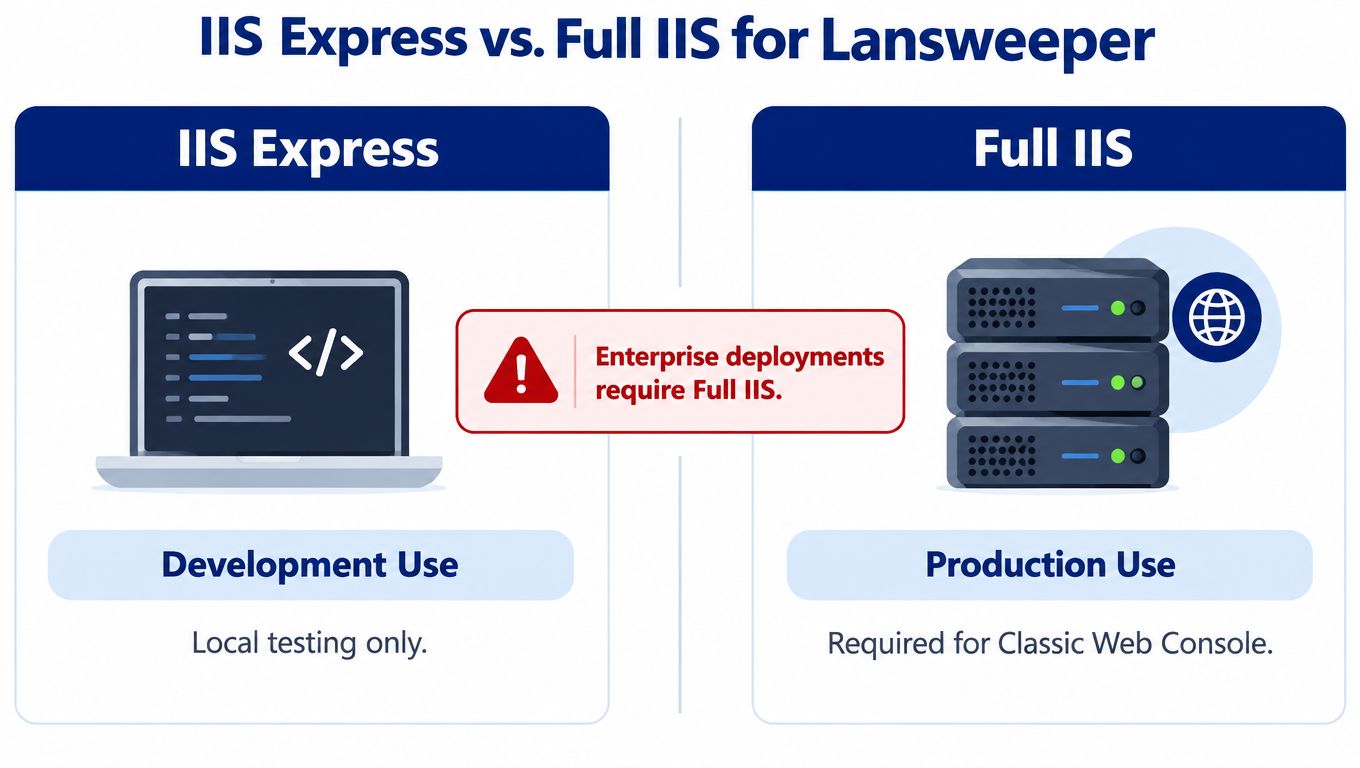
The practical choice usually follows governance rather than raw web performance:
Choose IIS Express: You need a straightforward installation and can accept Lansweeper managing the lightweight web service.
Choose full IIS: You need centralized site administration, trusted certificate management, Windows Authentication integration, or a distributed web tier.
Choose Advanced Install: You need to separate the database, web console, and scanning services across servers.
Practical rule: Full IIS doesn't repair scan failures caused by credentials, closed ports, or unreachable targets. It governs the web layer, not the discovery path.
Lansweeper's installer checks whether IIS is available. If it isn't, the product can use its built-in IIS Express web server. If full IIS is enabled, the installer can suggest or configure IIS instead. You can also migrate an existing console from IIS Express to IIS Server without discarding the historical asset database, provided you preserve the database and follow the migration procedure in Lansweeper's on-premises installation documentation.
That migration path is valuable for enterprises that start small and standardize later. Don't migrate because “enterprise” automatically means full IIS. Migrate when authentication, certificate governance, hosting standards, or separation of duties justify the added administration. For related deployment patterns, compare this approach with running Lansweeper in Docker.
Preparing Windows Server Roles and Features
A clean IIS site won't compensate for an incomplete Windows Server foundation. Before launching the Lansweeper installer, confirm that the selected server can host the web console, reach the database, and communicate with scan servers and targets. Lansweeper recommends a Windows Server operating system for networks with more than 1,000 assets, although it isn't strictly mandatory, as documented in its installation requirements.
Which Windows features should you validate first?
Use Server Manager or PowerShell-based configuration management to validate the required IIS and .NET components before installation. The exact menu names can vary by Windows Server release, so validate the resulting role services rather than relying on a copied screenshot.
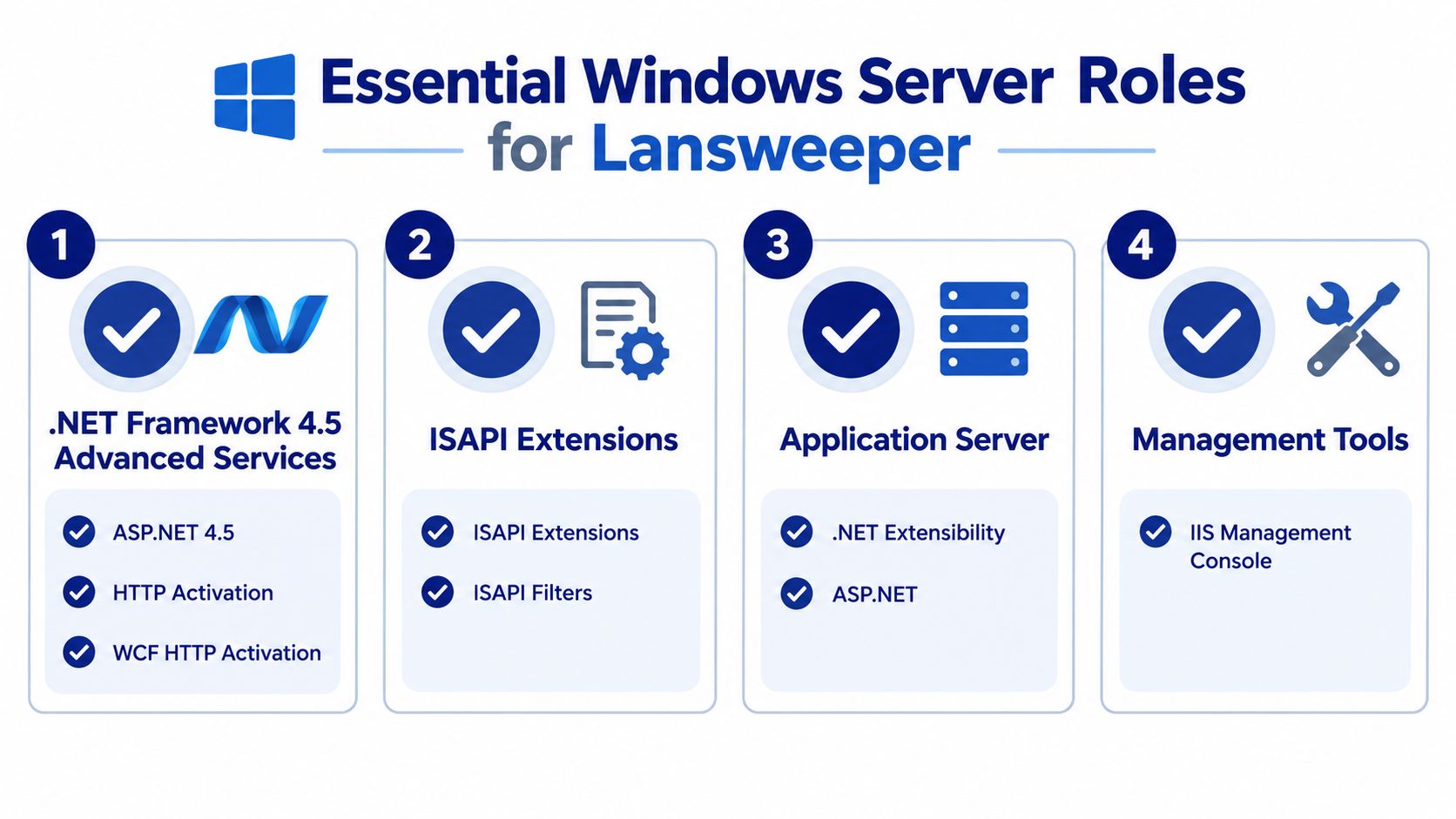
At minimum, review:
ASP.NET and .NET extensibility: Confirm that the required .NET Framework components are installed and registered with IIS.
ISAPI support: Validate ISAPI Extensions and ISAPI Filters if the selected Lansweeper version requires them.
IIS Management Console: Install the management tools so another administrator can inspect sites, bindings, certificates, and application pools.
Windows Authentication: Enable and test the provider your access model requires before switching the console to integrated authentication.
HTTP activation components: Include the relevant WCF and HTTP activation features where the Lansweeper requirements for your release call for them.
Don't install features speculatively on every server. Build a repeatable prerequisite check, apply it to the intended web host, and record the installed roles. That gives you an auditable baseline when a later hardening policy removes a feature or changes an identity permission.
How should a distributed installation be checked?
The web console, database, and scanning services need reliable communication. A distributed Lansweeper installation requires firewall ports to be open between scan servers, the web console, and the database. The same principle applies when administrators access the console from other machines. Lansweeper's installation checklist is useful for turning those dependencies into a pre-install review.
Test in this order:
Database reachability: Confirm the chosen SQL instance is reachable from the intended Lansweeper components.
Web access: Open the console from an administration workstation, not only from the server itself.
Credentialed scanning: Validate credentials against a small pilot subnet.
Protocol access: Confirm the firewalls allow the scanning methods you use, including WMI or SNMP where applicable.
Name resolution: Verify that scan servers resolve target names consistently.
For environments that depend on directory services, document which account owns scanning, which identity runs the application pool, and which administrators can change IIS configuration. Keep directory design separate from web-server troubleshooting, but use a clear Lansweeper and Active Directory checklist when assigning those responsibilities.
Configuring Site Bindings and SSL Certificates
The Lansweeper web console is installed over HTTP by default under full IIS. That default is a starting point, not an acceptable final state for a console that exposes inventory, user, and infrastructure information. Lansweeper recommends adding an HTTPS binding and a trusted SSL certificate in IIS Manager. The official SSL procedure provides the supported click path.
How do you add HTTPS in IIS Manager?
After installation, open IIS Manager and identify the Lansweeper site. Select Bindings, choose Add, set the binding type to https, select the intended port, and choose the trusted certificate from the certificate store. Save the binding, then test the console using the hostname administrators will use.
The important operational detail is certificate ownership. Import the certificate through your organization's approved process, confirm that the subject name matches the administration URL, and make sure the IIS server can access the certificate's private key. A certificate can appear in the store and still fail at runtime if the worker process cannot use it.
What should you check in the application pool?
Leave the application pool identity aligned with Lansweeper's supported deployment model unless you have a specific reason to change it. A custom identity can support enterprise delegation or hardening, but it also becomes responsible for reading and writing the folders Lansweeper uses for console operations. That dependency is easy to miss because the site may load normally while uploads or SLA calculations fail later.
Use a controlled change sequence:
Add the HTTPS binding and test it before changing identity settings.
Confirm Windows Authentication behavior with a test administrator account.
Record the application pool name and identity.
Review folder permissions before applying restrictive server baselines.
Test login, asset views, file uploads, and SLA-related functions after every identity change.
Don't assume a successful browser login proves the configuration is complete. Authentication, certificate access, application pool execution, and Lansweeper folder permissions are separate controls.
Managing Database Connectivity and Scan Performance
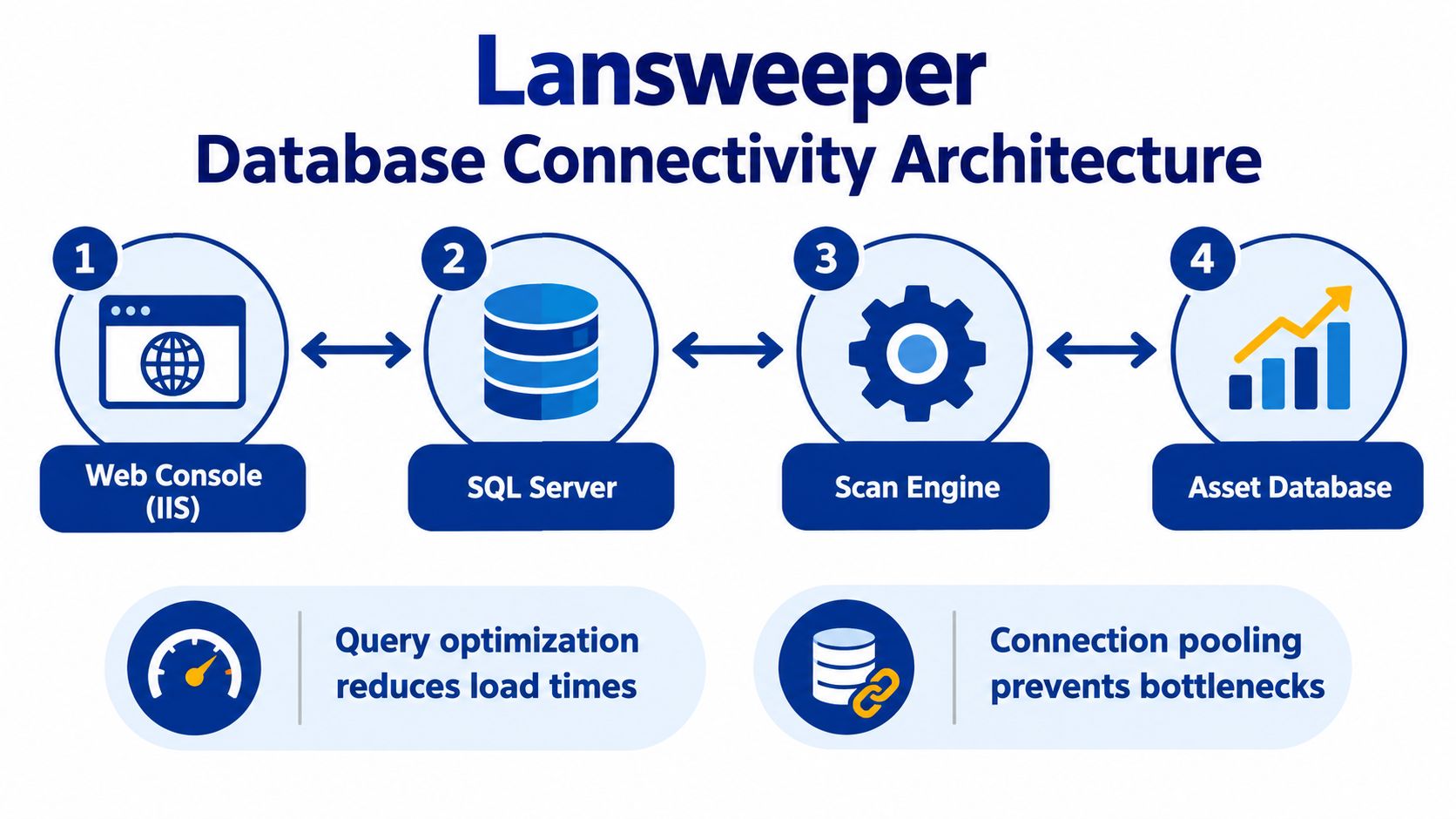
When the console slows down, administrators often restart IIS first. That can hide symptoms without addressing the cause. Lansweeper Classic uses IIS Express or full IIS for presentation, while discovered asset data is written to Microsoft SQL Server inside the customer environment. Web performance therefore depends heavily on database sizing, scan-server placement, query behavior, and network reachability.
Is IIS really the bottleneck?
Often, it isn't. A dashboard with inefficient asset-location queries can place pressure on the web console, but scan gaps usually originate upstream. Closed ports, invalid credentials, and firewall rules that prevent WMI or SNMP responses can produce incomplete inventory while IIS remains healthy.
The default architecture can also create database pressure as the environment grows. Lansweeper deployments commonly begin with SQL LocalDB, and independent review coverage cites a 10 GB LocalDB ceiling that can require a move to a fuller SQL Server configuration once the installation grows beyond a few hundred assets. See the independent Lansweeper deployment review for that capacity context.
What rollout sequence works in production?
Start with the database, then validate scanning, and only afterward tune the web tier. This sequence prevents a slow report from being blamed for a missing asset.
Check the database edition and size. Confirm whether LocalDB remains appropriate for the current inventory and reporting workload. Plan a supported SQL Server migration before capacity becomes an outage.
Review query-heavy usage. Identify dashboards, reports, and asset-location queries that create avoidable load during business hours.
Validate a pilot subnet. Use known credentials and a small target set to separate discovery configuration from web-console behavior.
Place scan servers deliberately. Put scanning services where they can reach the networks they must inventory without forcing every request through the web host.
Expand gradually. Increase scope only after the pilot produces consistent results across the chosen agentless and agent-based methods.
Right-size IIS last. If the database and network path are sound, then review worker-process memory, CPU, recycling behavior, and host capacity.
Community reports have described IIS Worker Process memory climbing to around 13 GB on a 16 GB virtual machine during heavy use. That isn't a universal benchmark, but it is a useful warning against treating the web host as an afterthought. Capacity planning should reflect real reports and administrator behavior, not just the number of scan servers.
For teams designing a broader asset data model, connect the inventory to a Lansweeper CMDB workflow only after the underlying scan quality is trustworthy. A CMDB fed by incomplete discovery makes incorrect data easier to distribute.
Troubleshooting App Pool Permissions and Upload Errors
The most frustrating IIS failures often appear after installation. The console opens, authentication works, and routine asset browsing looks normal. Weeks later, a hardened baseline changes folder ACLs, an administrator replaces the default pool, or a service identity is rotated. File uploads, image attachments, and SLA calculations then fail because the worker process can no longer access Lansweeper's required directories.
Why do custom application pools cause hidden failures?
A custom pool identity changes the Windows security principal that accesses application folders. IIS may still serve static pages and process ordinary requests, while a feature requiring write access fails. That difference makes the issue look like a Lansweeper defect or a database problem.
The Lansweeper community troubleshooting guidance specifically connects upload and SLA issues with missing access for a custom application pool. The lesson is broader than one error message. Enterprise hardening must account for the application's file operations, not only the site's listening port and authentication mode.
How should you fix the permission drift?
First, identify the exact application pool identity and the Lansweeper installation and data folders used by the affected features. Don't grant broad access to the entire server. Apply the smallest read, write, or modify permission required by the documented function, then test the operation under the same pool identity.
Use this diagnostic order:
Confirm the failure scope: Test a file upload, image attachment, and SLA calculation separately.
Check the active pool: Verify the site points to the pool you inspected, especially after a migration.
Review ACL inheritance: Look for a denied permission or a hardening rule that overrides the expected access.
Grant targeted access: Give the custom pool identity the required folder permissions, not local administrator rights.
Recycle and retest: Recycle the pool, reproduce the operation, and inspect IIS and Lansweeper logs.
Document the exception: Record the folders, identity, and reason so the next security baseline doesn't remove the fix.
Don't reinstall Lansweeper before checking ACLs. Reinstallation can leave the underlying identity mismatch untouched and may complicate the evidence needed for a clean diagnosis. If scan errors involve remote Windows access rather than local web operations, separate those symptoms and use a focused Lansweeper RPC troubleshooting workflow.
Streamlining Enterprise ITAM Procurement
Procurement can stall an otherwise workable Lansweeper deployment when IIS, SQL, certificates, scan capacity, and licensing are sourced as unrelated items. Treat the technical design and commercial plan as one operating decision. A distributed environment may require the platform license, Windows and SQL infrastructure, certificates, virtual machines, scan servers, and clear support ownership.
Why consolidate the purchasing workflow?
A marketplace-first licensing platform can collect requirements by product, quantity, deployment scenario, and renewal timing, then return comparable quotes through participating OEM and partner channels. This helps an IT director separate a pilot from a distributed production rollout and match entitlements to an expanding asset estate.
Stackingo provides an RFQ-led purchasing process for enterprise software and related technology licensing, with multi-vendor sourcing and structured quote comparison. Its Lansweeper 360 procurement perspective can support a commercial review alongside the technical architecture assessment.
The purchasing checklist should capture:
Deployment model: IIS Express or full IIS, single host or distributed components, and any custom application pool ownership.
Database plan: LocalDB for an initial deployment or SQL Server for a larger operating model, including expected scan growth.
Asset scope: Current inventory, expected expansion, and separate environments.
Permissions and ownership: Infrastructure, security, procurement, and service-management responsibilities, including folder access for custom pools.
Renewal controls: License dates, support terms, and the person accountable for each entitlement.
This gives procurement a clear scenario to price and exposes operational work that quotes often omit, such as SQL capacity planning and IIS permission maintenance. It also reduces the risk that a sound deployment design is delayed by incomplete licensing decisions.
Choose Lansweeper IIS according to governance, scale, and operating requirements rather than habit. For software licensing and infrastructure entitlements aligned with the deployment model, submit a structured RFQ to Stackingo.